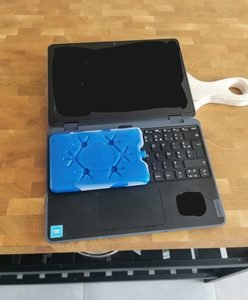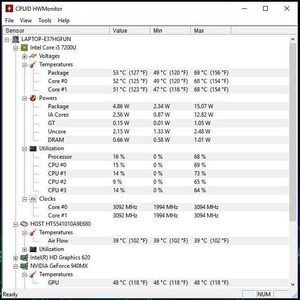
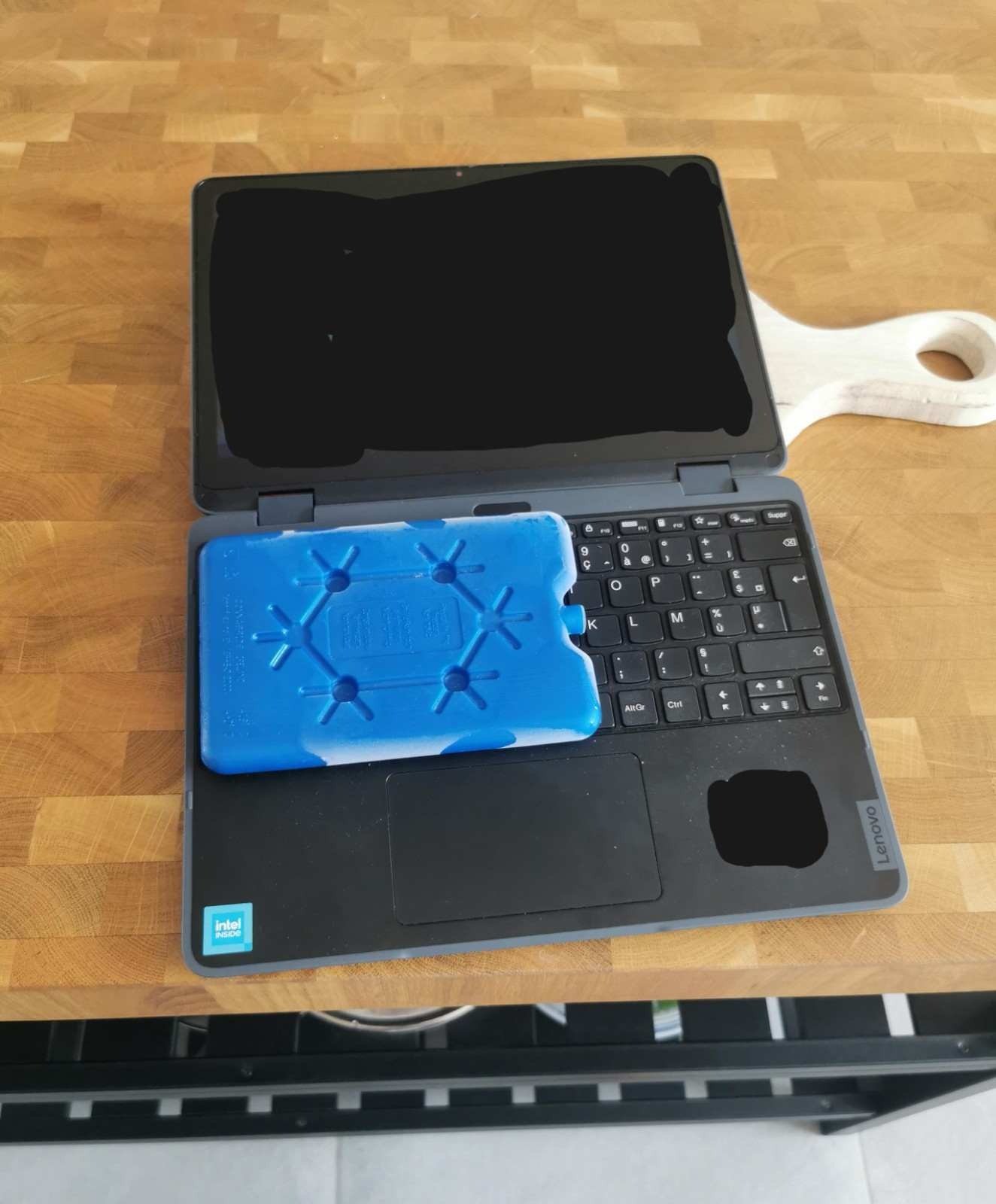
When your laptop gets unusually hot, finding a quick way to cool it down can be tempting. You might notice the keyboard becoming warm, the fans running loudly, or performance dropping during gaming. One unusual suggestion you may come across is putting an ice pack on laptop surfaces to bring the temperature down.
But is this actually safe?
No, placing an ice pack directly on a laptop is not recommended. Although it may temporarily cool the external surface, the sudden temperature difference can cause moisture to form through condensation. If that moisture reaches internal electronics, it may cause corrosion, electrical shorts, or permanent hardware damage.
An ice pack can also create uneven cooling, while placing it over ventilation openings may restrict airflow. Neither problem addresses the actual reason your laptop is overheating.
Fortunately, there are safer ways to manage laptop temperatures without exposing expensive components to unnecessary risks. This guide explains why ice packs are dangerous, what happens when a laptop gets too cold, and which cooling methods are worth trying instead.
Is It Safe to Put an Ice Pack on a Laptop?
Putting an ice pack directly on a laptop is generally unsafe, even if the pack is wrapped in a towel.
The main concern is condensation. When cold surfaces come into contact with warmer, humid air, water droplets can form. This is the same process that makes a cold drink glass become wet on a warm day.
A laptop contains sensitive electronic components, including the motherboard, processor, memory, storage, and battery. These components are designed to operate within specific environmental conditions, not to handle sudden temperature changes or moisture exposure.
There are three main reasons to avoid using an ice pack.
1. Condensation Can Damage Internal Components
Condensation is the biggest concern when using an ice pack on laptop surfaces.
Imagine placing a frozen gel pack underneath your laptop while it is running. The laptop’s surface becomes colder, but the surrounding air remains warm. Depending on the temperature and humidity, moisture may form around the cold surface.
This moisture can potentially enter ventilation openings and reach internal components.
Water and electronics are a dangerous combination, particularly when electricity is flowing through the device. Even a small amount of moisture can create problems if it reaches sensitive circuits.
The risk does not disappear simply because you wrap the ice pack in a cloth. A towel may reduce direct contact, but it cannot guarantee protection against condensation.
2. Sudden Temperature Changes Can Create Additional Risks
Laptop manufacturers specify recommended operating temperatures because internal components need suitable environmental conditions.
For example, Lenovo recommends an operating environment of 10°C to 35°C (50°F to 95°F) for certain computer models. It also advises allowing a computer transported in colder conditions to warm gradually before use.
This matters because cooling a laptop aggressively is not the same as maintaining a suitable operating temperature.
A sudden temperature change can create uneven conditions across the laptop’s chassis and internal components. It may also increase the possibility of condensation when the device encounters warmer, humid air.
3. An Ice Pack Can Block Ventilation
Many laptops draw cool air through openings underneath the chassis and release hot air through side or rear exhaust vents.
Placing an ice pack underneath the laptop can cover some of these openings, depending on the device’s design.
That creates another problem: the laptop may struggle to move hot air out of its cooling system.
Even if the external surface feels cooler, the processor and graphics processor may continue operating at high temperatures.
For proper cooling, ventilation matters much more than making the laptop’s outer casing feel cold.
What Happens If You Put an Ice Pack on an Overheating Laptop?
The outcome depends on the ice pack’s temperature, surrounding humidity, laptop design, and how long the device remains in contact with it.
However, several problems are possible.
| Potential problem | What it means for your laptop |
| Condensation | Moisture may form on cold surfaces and potentially reach electronics. |
| Electrical short circuit | Moisture contacting powered circuits can cause electrical problems. |
| Corrosion | Repeated or prolonged moisture exposure can damage metal connections. |
| Restricted airflow | A pack covering ventilation openings can interfere with cooling. |
| Uneven cooling | Different parts of the laptop may experience different temperatures. |
It is important to understand that these outcomes are risks, not guaranteed consequences. A brief encounter with a cold pack does not automatically mean your laptop is damaged.
However, there is little reason to take that risk when safer cooling options are available.
Can You Put an Ice Pack Under a Laptop?
No. Placing an ice pack underneath a laptop is not a recommended cooling method.
Some people assume the underside is the best location because that is where laptops often feel hottest. However, this area may also contain important air intake openings.
An ice pack can interfere with ventilation while creating a cold surface that encourages condensation.
There is another issue worth considering: not every laptop has the same cooling design.
Some models draw air through the bottom, while others use side openings or a combination of different ventilation locations. You should never assume that placing something underneath the chassis is harmless.
If your laptop becomes hot during everyday use, place it on a hard, flat desk instead. This gives the cooling system room to circulate air without introducing moisture.
Can You Put an Ice Pack on Top of a Laptop?
You should avoid placing an ice pack on top of your laptop as well.
The keyboard deck and upper chassis may become warm during demanding activities, but that does not mean they should be cooled with frozen objects.
There are several reasons this approach is unsuitable:
- Moisture exposure: Condensation may develop on or around the cold pack.
- Keyboard damage: Moisture can potentially enter the keyboard through small openings.
- Display pressure: A heavy ice pack may put unnecessary pressure on the screen if placed on a closed laptop.
- Uneven cooling: Cooling one external area does not necessarily reduce processor or graphics temperatures.
The laptop’s internal cooling system is designed to manage heat through fans, heatsinks, and heat pipes. External freezing is not a substitute for that system. Apple’s laptop operating-temperature guidance recommends using Mac laptops within an appropriate temperature range and on stable surfaces that allow proper ventilation. Read Apple’s official laptop temperature and ventilation guidance for additional precautions.
What Should You Do If You Have Already Put an Ice Pack on Your Laptop?
If you have already used an ice pack on your laptop, do not panic. A single incident does not necessarily mean permanent damage has occurred.
However, you should take precautions, especially if you notice moisture.
Follow these steps:
Step 1: Remove the Ice Pack
Carefully remove the ice pack without shaking or moving the laptop unnecessarily.
Check whether the pack has leaked or whether moisture is visible on the laptop’s surface.
Step 2: Turn Off the Laptop if Moisture Is Present
If you notice water droplets, dampness around the keyboard, or moisture near ventilation openings, shut down the laptop immediately if it is safe to do so.
Disconnect the charger and other connected accessories.
Do not continue using the laptop simply because it still appears to work.
Step 3: Dry the External Surface
Use a clean, dry, lint-free microfiber cloth to remove visible moisture from the outside.
Do not use a hair dryer, heater, or other direct heat source to accelerate drying. Excessive heat can introduce another problem.
Step 4: Allow the Laptop to Reach Room Temperature
Leave the laptop powered off in a dry, well-ventilated room.
Allow sufficient time for the device to return to normal room temperature and for any moisture to evaporate.
There is no universal waiting period because humidity, temperature differences, and the amount of moisture involved can vary.
If moisture may have entered the laptop, external drying is not enough to confirm that the internal components are safe.
Step 5: Contact a Repair Professional if Necessary
If you suspect liquid has entered the laptop, arrange a professional inspection before turning it back on.
Look out for:
- Unexpected shutdowns.
- Keyboard keys behaving unusually.
- Charging problems.
- Display flickering.
- Unusual electrical smells.
- Failure to start.
Do not repeatedly press the power button to test a potentially wet laptop.
7 Safer Ways to Cool an Overheating Laptop
Instead of using an ice pack on laptop surfaces, focus on improving ventilation and reducing the amount of heat generated by internal components.
The following methods are considerably safer.
1. Use a Laptop Cooling Pad
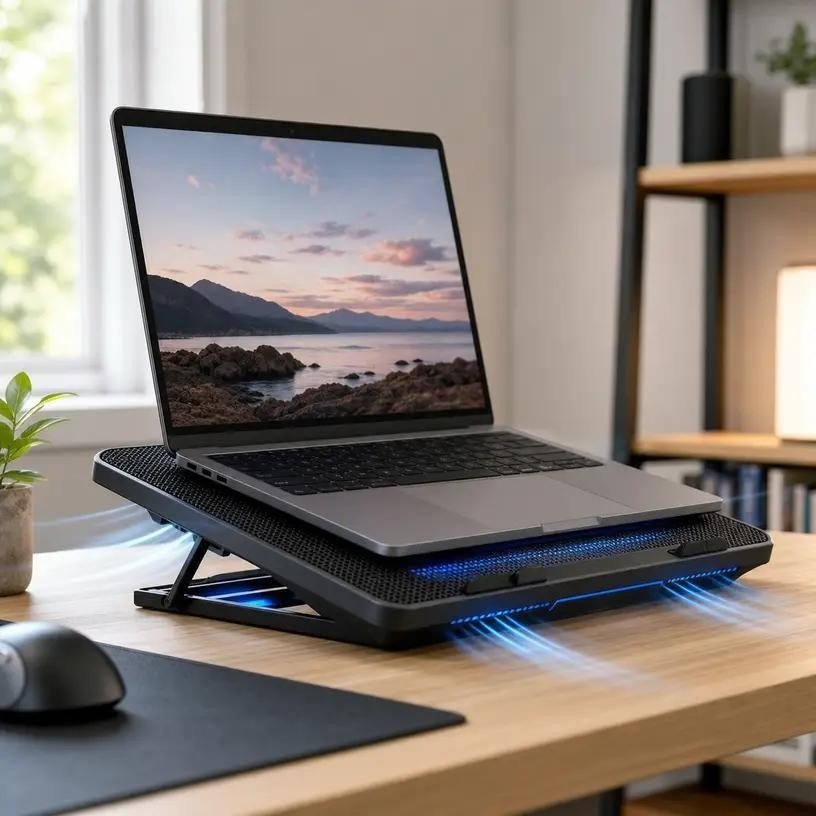
A laptop cooling pad is one of the more practical accessories for managing heat.
It sits underneath the laptop and uses built-in fans to move additional air around the chassis.
Cooling pads can be particularly helpful for gaming laptops with bottom-mounted intake vents.
Before purchasing one, check:
- Whether its dimensions match your laptop.
- Whether the fan positions align with your ventilation openings.
- Whether its airflow direction suits your laptop.
- Whether it provides a stable surface.
- Whether its noise level is acceptable.
A cooling pad does not guarantee lower temperatures on every laptop. Its effectiveness depends on the device’s ventilation design. Lenovo also recommends keeping ventilation openings clear and using a compatible cooling pad when additional airflow is needed. Its guide explains how to cool down a laptop safely.
2. Place Your Laptop on a Hard, Flat Surface
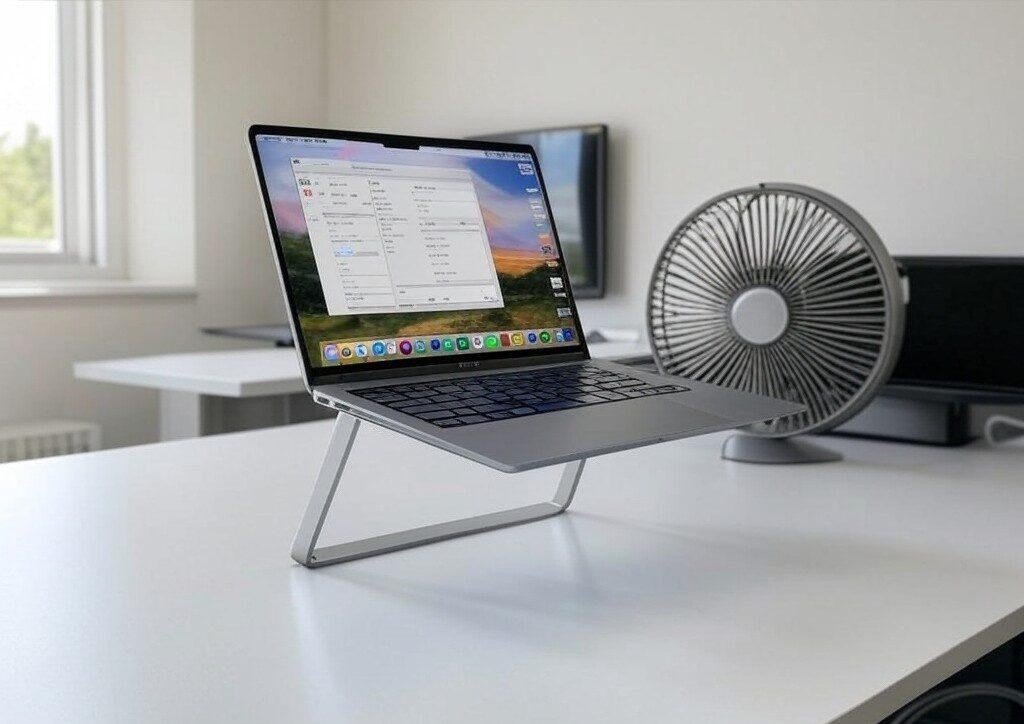
This is one of the easiest ways to improve cooling without spending money.
Soft surfaces such as beds, blankets, pillows, and sofas can cover the laptop’s intake openings.
Instead, use a desk or another stable, hard surface.
Make sure there is enough space around the device for hot air to escape. Avoid placing the laptop directly against walls or other objects that obstruct exhaust vents.
3. Clean Dust From the Ventilation Openings
Dust buildup can gradually reduce cooling efficiency.
When dust accumulates around fans and heatsinks, airflow becomes restricted. The cooling system may then struggle to remove heat effectively.
To address the problem:
- Shut down your laptop.
- Disconnect the charger.
- Inspect the external ventilation openings.
- Remove loose dust using an appropriate electronics-safe cleaning method.
- Follow your manufacturer’s instructions for internal cleaning.
Avoid inserting sharp objects into ventilation openings or forcing internal fans to spin during cleaning.
If dust has accumulated deep inside the cooling assembly, professional cleaning may be necessary.
4. Close Unnecessary Background Applications
Your processor generates heat when it performs demanding tasks.
Running unnecessary applications alongside games, video editors, or other resource-intensive programs can increase system workload.
On Windows:
- Press Ctrl + Shift + Esc.
- Open Task Manager.
- Select the Processes tab.
- Review CPU and GPU usage.
- Close applications you recognize and do not need.
Do not terminate unfamiliar Windows system processes.
Reducing unnecessary workload can help your laptop operate more efficiently.
5. Reduce Gaming Graphics Settings
If your laptop becomes hot while gaming, try lowering a few demanding graphics settings.
Consider adjusting:
- Shadow quality.
- Ray tracing.
- Anti-aliasing.
- Resolution scaling.
- Frame rate limits.
For example, limiting a game to 60 or 120 FPS instead of allowing unlimited frames can reduce unnecessary GPU workload.
The ideal settings depend on your graphics hardware, display, and the game you are playing.
6. Elevate Your Laptop With a Stand
A laptop stand can raise the chassis slightly, creating more space underneath the device.
This can improve airflow, particularly when the laptop has bottom-mounted intake vents.
Choose a stable stand that supports the laptop properly without covering its ventilation openings.
A stand is also useful for improving screen positioning and typing comfort.
7. Monitor Internal Temperatures
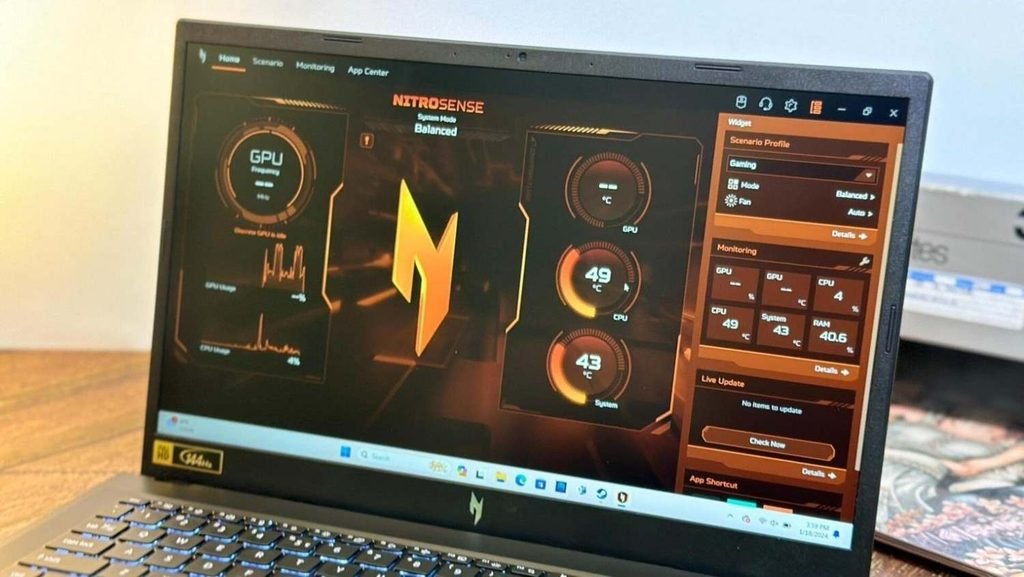
You cannot properly diagnose overheating by touching the laptop’s exterior.
The keyboard or bottom panel may feel warm even when internal temperatures are within normal operating limits.
Use a hardware monitoring application to check CPU and GPU temperatures.
Common options include:
- HWiNFO.
- HWMonitor.
- Core Temp.
Compare the readings with the specifications for your particular processor and graphics hardware.
If temperatures remain unusually high during light workloads, the laptop may need further inspection.
For a detailed explanation, see our guide on how to monitor temperature on a laptop.
When Should You Be Concerned About Laptop Overheating?
A warm laptop does not automatically indicate a hardware problem.
Modern processors and graphics chips generate heat when handling demanding workloads. Their built-in thermal management systems adjust performance to keep temperatures within operating limits.
However, certain symptoms deserve attention.
| Warning sign | Possible explanation |
| Fans constantly running loudly | High workload, dust, or cooling problems |
| Sudden performance drops | Possible thermal throttling |
| Unexpected shutdowns | Excessive temperatures or hardware faults |
| Laptop unusually hot during idle use | Background activity or cooling problems |
| Repeated overheating during light tasks | Possible cooling-system fault |
If these symptoms continue, investigate the underlying cause rather than trying to cool the laptop with ice.
For more troubleshooting advice, read our guide on fixing laptop overheating while gaming.
FAQs
Can an ice pack permanently damage a laptop?
Yes, it can potentially cause permanent damage if condensation reaches internal electronics. However, damage is not guaranteed every time an ice pack touches a laptop. The risk depends on moisture exposure and other environmental conditions.
Is it safe to put a frozen towel under a laptop?
No. A frozen towel can introduce moisture and may also obstruct ventilation openings. Use a hard, flat surface or a compatible laptop cooling pad instead.
Can I use an ice pack near my laptop without touching it?
Keeping an ice pack away from the laptop is safer than placing it directly against the device. However, using frozen objects as a cooling method is unnecessary. A room fan or properly positioned external fan is a better option.
How can I cool down my laptop quickly without an ice pack?
Save your work, close demanding applications, move the laptop to a hard surface, and ensure its ventilation openings are clear. If temperatures remain unusually high, shut it down and investigate the cooling problem.
Does a laptop cooling pad work better than an ice pack?
A compatible cooling pad is a much safer choice because it improves airflow without introducing frozen surfaces or condensation risks. Its effectiveness depends on the laptop’s ventilation design and the pad’s fan placement.
Should I turn on my laptop immediately after removing an ice pack?
Not if you suspect condensation or moisture exposure. Keep the laptop powered off, allow it to return to room temperature, and seek professional inspection if moisture may have entered the device.
Conclusion
Using an ice pack on laptop surfaces might seem like a quick solution when your device becomes unusually hot, but it is not a safe cooling technique. Condensation, moisture exposure, and restricted ventilation can create problems that are potentially more expensive than the original overheating issue.
Instead, focus on improving airflow, cleaning ventilation openings, reducing unnecessary processor workload, and using a compatible laptop cooling pad when needed. If your laptop continues overheating despite these adjustments, check its internal temperature readings and consider professional servicing. The safest approach is simple: improve airflow rather than forcing your laptop to become extremely cold. Your device’s built-in cooling system is designed to manage heat, and supporting that system is much better than introducing ice or moisture.