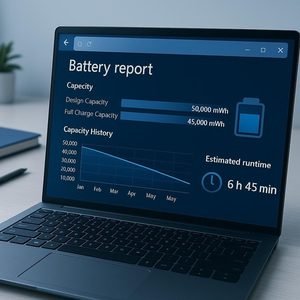
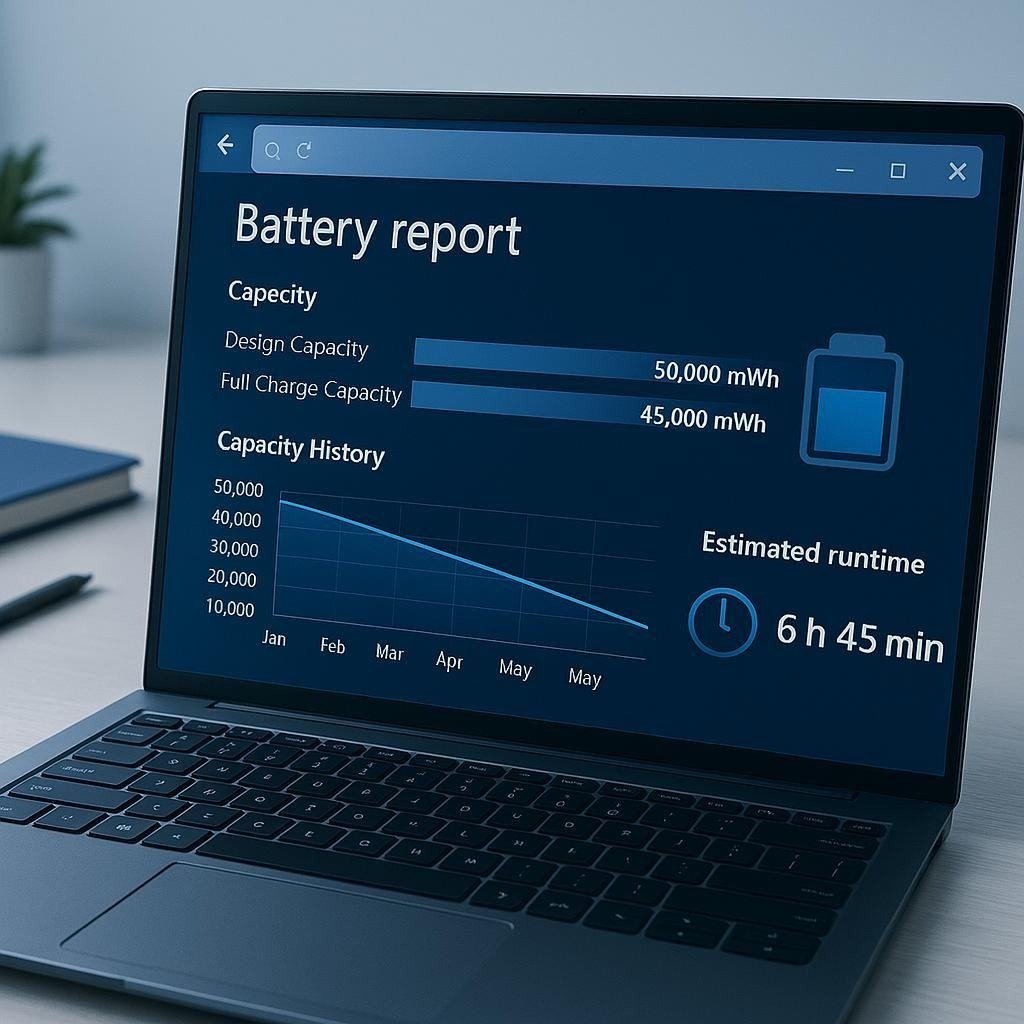
A laptop that once lasted an entire workday may now need charging after just a few hours. You might notice the battery percentage dropping quickly, the laptop shutting down unexpectedly, or the device taking longer to charge than it used to.
These problems do not always mean you need a new battery. Background applications, high screen brightness, and demanding software can also reduce battery life. However, if the battery has lost a significant amount of its original capacity, changing power settings will not restore it.
The easiest way to check laptop battery health in Windows is to generate a battery report using the built-in powercfg /batteryreport command. The report compares the battery’s original design capacity with its current full-charge capacity, helping you estimate how much capacity it has lost.
This guide explains how to check laptop battery health in Windows 10 and Windows 11, understand the results, and decide whether your battery needs attention.
How to Check Laptop Battery Health in Windows Using a Battery Report
Windows includes a built-in diagnostic tool that creates a detailed HTML battery report. You do not need to install third-party software or pay for a battery-testing application.
The process takes only a few minutes.
Step 1: Open Command Prompt
- Click the Start button or press the Windows key.
- Type ‘cmd’ in the search box.
- Select Command Prompt from the results.
You can also use Windows Terminal or PowerShell. The command works in these applications as well.
Step 2: Generate the battery report
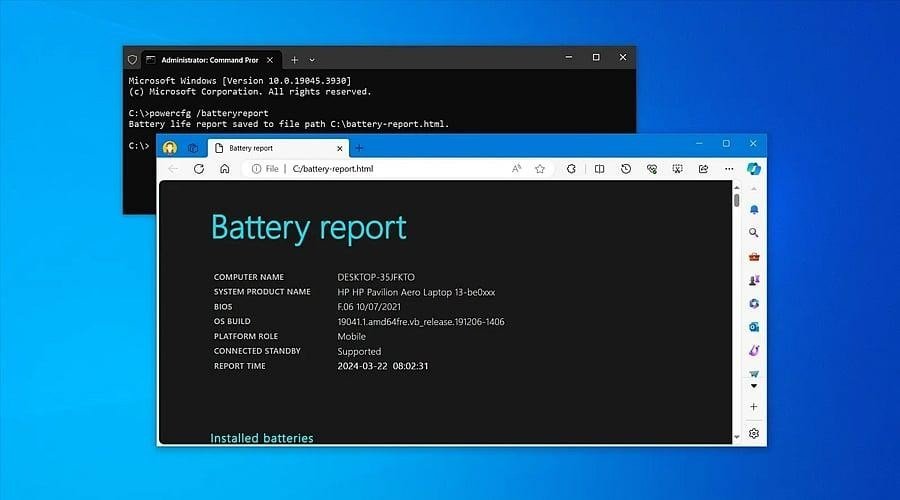
Enter the following command and press Enter:
powercfg /batteryreport
Windows will generate an HTML file containing information about your laptop’s battery.
After the command finishes, you should see a message similar to:
Battery life report saved to file path
The message includes the location of the report. On many laptops, it is saved in your user folder.
Step 3: Open the report.
- Open File Explorer.
- Navigate to the location displayed in Command Prompt.
- Find the battery report HTML file.
- Double-click it to open it in your default web browser.
You can now review your battery’s original capacity, current capacity, charging history, and estimated battery life.
Microsoft provides additional instructions for generating and reading this report in its Windows battery report guide.
How to Read Your Windows Battery Report
The battery report contains several sections, but you do not need to understand every technical detail to evaluate your battery.
Start with the installed batteries section.
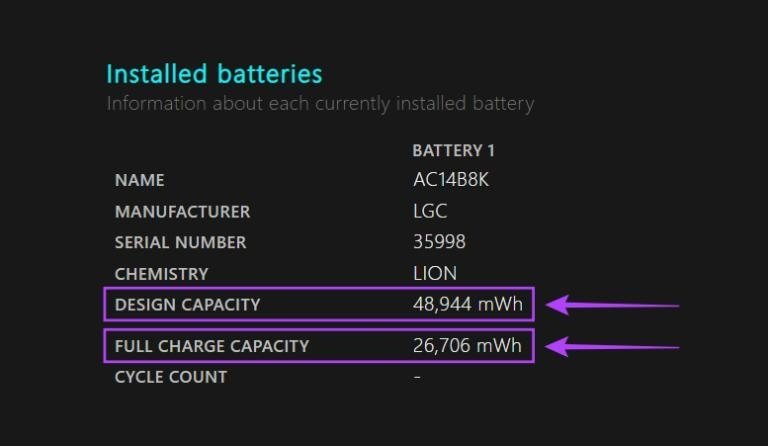
Design Capacity
Design capacity represents the amount of energy the battery was designed to hold when it was new.
For example, a laptop battery may have a design capacity of 50,000 mWh. This means its original rated capacity was approximately 50 watt-hours.
The actual figure depends on your laptop’s battery model.
Full Charge Capacity
Full charge capacity represents the amount of energy the battery can currently store when fully charged.
Suppose your report shows:
| Battery information | Example value |
| Design Capacity | 50,000 mWh |
| Full Charge Capacity | 38,000 mWh |
| Current battery level | 80% |
The battery can now store approximately 76% of its original rated capacity.
This difference is normal as lithium-ion batteries age. However, a large decline may explain why your laptop no longer lasts as long as it once did.
Cycle Count
A battery cycle represents the equivalent of using 100% of its capacity, although this does not have to happen in a single session. For example, using 50% of the battery one day and another 50% the next day is approximately one full cycle. The battery report may display the cycle count if your laptop’s hardware and firmware provide that information. Some devices show a blank value because they do not expose the data to Windows. A higher cycle count generally indicates more battery use, but it does not determine battery health by itself. Temperature, charging habits, battery chemistry, and age also affect capacity.
How to Calculate Laptop Battery Health Percentage
The Windows battery report does not always display a simple health percentage. You can calculate an estimate using the two capacity figures.
Use this formula:
BatteryHealth=FullChargeCapacityDesignCapacity100
Example calculation
Suppose your laptop has:
- Design Capacity: 60,000 mWh
- Full Charge Capacity: 45,000 mWh
The calculation is:
\[ \frac{45,000}{60,000}\times100=75\% \]
Your battery retains approximately 75% of its original rated capacity.
This is a capacity-based estimate, not a complete measurement of battery performance. It does not directly tell you how many hours your laptop will last or whether the battery is safe to use.
What is a good laptop battery health percentage?
There is no universal Windows battery-health threshold that applies to every laptop. The following ranges can help you interpret the result, but they are general guidelines rather than official replacement rules.
| Estimated battery health | General interpretation |
| 90–100% | Close to original capacity |
| 80–89% | Some normal capacity loss |
| 60–79% | Noticeable capacity loss |
| Below 60% | Substantial capacity loss |
A battery at 75% health may still be suitable for someone who mainly uses a laptop near a power outlet. The same battery may be inconvenient for someone who needs several hours of portable use.
Consider both the percentage and your actual battery runtime before deciding whether replacement is necessary.
How to Check Battery Health in Windows 11
Windows 11 offers several ways to review battery information, but the detailed capacity report remains the most useful built-in option.
Use the Windows battery report.
Follow the same Command Prompt procedure described earlier:
- Search for Command Prompt.
- Run powercfg /batteryreport.
- Open the generated HTML file.
- Compare Design Capacity with Full Charge Capacity.
The command is available in supported Windows 11 systems without requiring an additional application.
Check battery usage in settings.
Windows 11 also provides a battery usage overview.
- Open Settings.
- Select System.
- Choose Power & battery.
- Review the battery level and recent usage information.
This page helps you identify which applications are consuming power. However, it does not necessarily provide the same detailed capacity information as the battery report.
Use PC Health Check on supported devices.
Microsoft’s PC Health Check application includes a battery capacity section for supported devices. Availability depends on the device and its age.
The app can provide a more accessible view of battery capacity without requiring you to interpret an HTML report.
You can read Microsoft’s PC Health Check battery capacity instructions for additional information.
How to Check Battery Health in Windows 10
The process is nearly identical in Windows 10.
Generate a battery report.
- Click Start and search for Command Prompt.
- Open the application.
- Enter powercfg /batteryreport.
- Press Enter.
- Open the report from the location shown in the command output.
The report contains the same essential capacity information used to estimate battery health.
Check battery usage in settings.
Windows 10 also includes a battery usage page.
Open Settings, select System, and then choose Battery. Here, you can review battery usage and identify applications that consume more power than expected. Keep in mind that Windows 10 reached the end of standard support on October 14, 2025. Devices still running it can generate battery reports, but users should also consider their operating system’s security support status.
How to Check Laptop Battery Health Without Command Prompt
Regular laptop maintenance can help you monitor battery performance, manage heat, and identify potential problems before they affect your device’s overall performance.
The available options depend on your laptop model.
Check your manufacturer’s battery utility.
Some manufacturers provide built-in utilities that display battery condition, charging status, and recommended maintenance.
Examples include:
- Dell: Dell Power Manager or Dell Optimizer on supported devices.
- Lenovo: Lenovo Vantage on supported models.
- HP: HP Support Assistant or hardware diagnostics.
- ASUS: My ASUS on supported devices.
Open the relevant application and look for a Battery Health, Battery Information, or System Diagnosis section.
These applications may display a health status such as Good, Normal, or Replacement Recommended. Follow the manufacturer’s guidance when the application identifies a battery problem.
Check the BIOS or UEFI.
Some laptops provide battery diagnostics in their BIOS or UEFI settings.
Restart the laptop and use the manufacturer-specific key to enter the firmware menu. The key may be F2, F10, Esc, or another key depending on the model. Look for a battery information or diagnostics section. Not every laptop includes this feature, and the displayed information may vary.
Signs Your Laptop Battery May Need Replacement
A battery report can help identify capacity loss, but your laptop’s behaviour also matters.
1. Battery runtime has decreased significantly.
If your laptop previously lasted six hours but now lasts only two hours during similar tasks, the battery may have lost substantial capacity. Check the battery report to see whether the decline matches the measured capacity loss.
2. The laptop shuts down unexpectedly.
Unexpected shutdowns can indicate a battery problem, particularly when the laptop turns off even though Windows still displays a remaining charge. However, overheating, software problems, or power-management faults can also cause sudden shutdowns.
3. The battery percentage changes unusually.
A laptop that jumps from 40% to 10% or shuts down while displaying a high charge level may have a deteriorating battery or an inaccurate charge estimate. Run a battery report and check whether the reported capacity is unusually low.
4. The battery is swollen
A swollen battery is a safety concern, not simply a sign of reduced capacity. If the laptop’s case is bulging, the touchpad is lifting, or the battery appears physically expanded, stop using and charging the device. Do not press, puncture, or attempt to remove a swollen battery yourself. Contact the manufacturer or a qualified repair technician.
How to Improve Laptop Battery Life and Slow Battery Wear
You cannot restore lost battery capacity through software, but you can reduce unnecessary power consumption and help slow further battery deterioration.
Reduce unnecessary power consumption
- Lower screen brightness when practical.
- Close applications that are consuming excessive power.
- Use Energy Saver or Battery Saver when you need longer runtime.
- Reduce unnecessary background activity.
- Disconnect accessories you are not using.
These steps can improve the time your laptop runs on a charge, even if its battery health percentage remains unchanged.
Avoid excessive heat
High temperatures can accelerate lithium-ion battery aging. Avoid leaving your laptop in a hot car or using it on surfaces that block its cooling vents. If the device frequently becomes unusually hot during charging, investigate the cause.
Use smart charging when available
Some laptops include a charging limit or smart charging feature that helps reduce the time the battery spends at a high charge level. If your laptop supports this feature, enable it when you usually work near a power outlet. Microsoft also recommends avoiding excessive heat and using appropriate storage charge levels when a device will remain unused for an extended period.
FAQs
How do I check laptop battery health in Windows?
Open Command Prompt and run powercfg /batteryreport. Open the generated HTML file and compare Full Charge Capacity with Design Capacity to estimate your battery’s remaining capacity.
Does Windows show battery health directly?
Windows provides battery usage information in Settings, but the detailed battery report is generally the most useful built-in method for comparing original and current capacity.
Can I check battery health without installing software?
Yes. The built-in powercfg /batteryreport command generates a battery report without requiring a third-party application.
What battery health percentage means I should replace my laptop battery?
There is no single percentage that applies to every laptop. Consider replacement when battery runtime no longer meets your needs, the manufacturer recommends replacement, or the battery shows signs of physical damage.
Does charging my laptop overnight damage the battery?
Modern laptops generally include charging controls that prevent ordinary overcharging. However, keeping a battery at a high charge level in a hot environment for extended periods can accelerate battery aging. Use smart charging or a charging limit when available.
Conclusion
Checking laptop battery health in Windows is straightforward once you know where to find the battery report. The built-in powercfg /batteryreport command provides the information needed to compare your battery’s original design capacity with its current full-charge capacity.Use the resulting percentage as a guide rather than a strict replacement rule. If your laptop still provides enough runtime for your daily work, some capacity loss may not be a problem. If the battery drains rapidly, shuts down unexpectedly, or shows signs of swelling, investigate the issue and consider professional service.Regularly checking battery capacity and following sensible charging practices can help you understand your laptop’s condition and make a more informed decision about battery replacement.