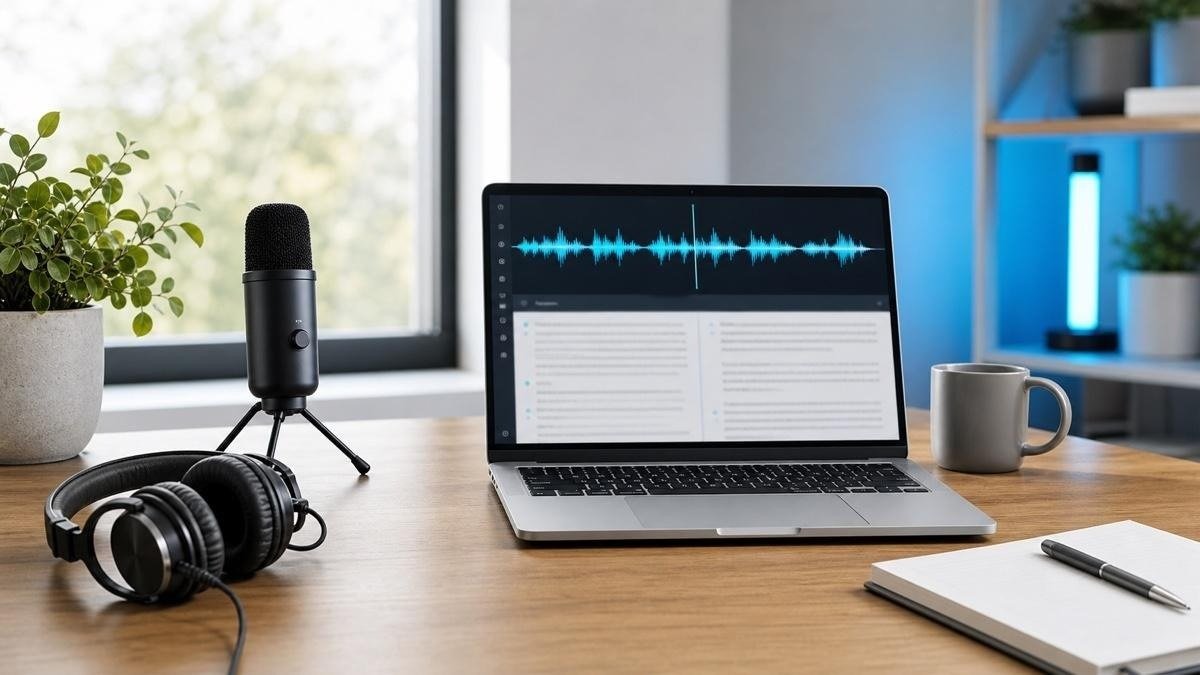
Alternative of SoundType AI for Laptops for Free: 7 Best Tools. Typing every word of a long interview, lecture, meeting, or voice recording can take much longer than expected. If you regularly work with audio, a speech-to-text tool can save hours by converting spoken words into written text automatically.
SoundType AI is one option for this task, offering audio and video transcription, speaker identification, transcript editing, and AI-powered summaries. However, its free version has limitations, and users who primarily work on Windows laptops or MacBooks may prefer a different solution.
Fortunately, several free tools can handle speech recognition, voice typing, and audio transcription without requiring an expensive subscription. Some work directly in a browser, while others run locally on your laptop and offer greater control over your recordings.
In this guide, we’ll explore seven free SoundType AI alternatives for laptops, explain what each tool does best, and help you choose one based on your actual needs. If you’re searching for an alternative of SoundType AI for laptop for free, several tools can help you convert speech into text without paying for a subscription.
What to Look for in a Free SoundType AI Alternative
Before choosing a replacement, consider how you plan to use it. Not every speech-to-text application performs the same job.
For example, a student who wants to dictate class notes needs a different solution from a journalist who regularly transcribes recorded interviews.
Here are some important features to consider:
- Transcription accuracy: The software should recognise spoken words correctly, including different accents and technical terms.
- Audio file support: Check whether you can upload existing recordings rather than only dictate through a microphone.
- Language compatibility: Choose a tool that supports the languages you regularly speak.
- Speaker identification: This feature is particularly useful when transcribing interviews, discussions, and group meetings.
- Free usage limits: Some applications restrict recording duration, monthly minutes, or file uploads.
- Privacy: Consider whether your recordings are uploaded to online servers or processed directly on your laptop.
Once you understand these requirements, comparing the available tools becomes much easier.
1. Windows Voice Typing – Best for Everyday Dictation
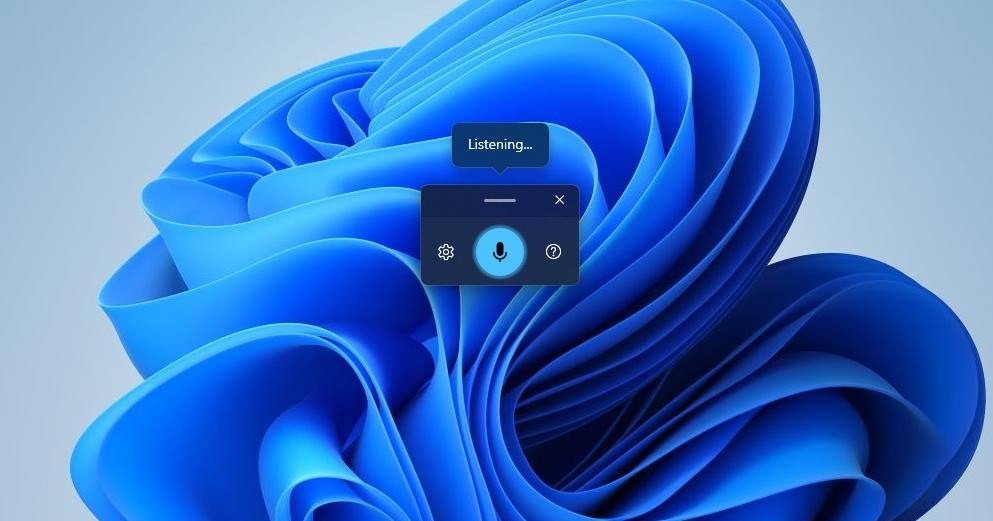
If you use a Windows laptop, you may not need to install another application for basic speech-to-text tasks. Windows already includes a built-in feature called voice typing.
It allows you to speak naturally and convert your words into text in almost any application with a text input field. You can use it while writing emails, preparing documents, entering information into websites, or creating notes.
Key features:
- Built directly into Windows 10 and Windows 11.
- Starts using the Windows + H keyboard shortcut.
- Supports automatic punctuation.
- Includes voice commands for basic editing.
- Supports multiple languages.
How to use it:
- Open a document or application where you want to write.
- Place your cursor inside a text field.
- Press Windows + H on your keyboard.
- Wait for the microphone indicator.
- Start speaking clearly.
- Review the generated text and correct any mistakes.
Microsoft explains the feature and its supported languages in its Windows Voice Typing guide.
Limitations: Voice Typing is designed for live dictation rather than uploading previously recorded audio files. It also requires an internet connection for its standard online speech recognition.
Verdict: This is an excellent starting point if you simply want to replace keyboard typing with your voice without paying for additional software.
2. Google Docs Voice Typing – Best for Writing Documents
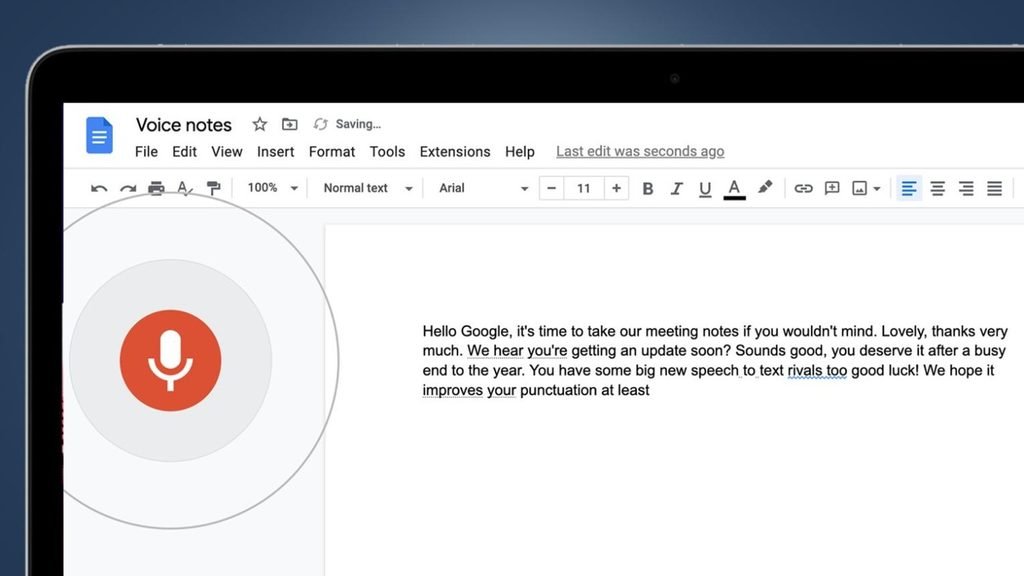
Google Docs Voice Typing is another convenient option for people who want to convert spoken words into written documents.
Instead of installing a separate transcription application, you can open Google Docs in a supported browser and dictate directly into a document.
This makes it particularly useful for students, bloggers, researchers, and professionals who regularly prepare written content.
Key features:
- Free voice typing within Google Docs.
- Works through supported browsers, including Chrome and Edge.
- Supports multiple languages and dialects.
- Allows basic voice commands for editing.
- Saves your work through Google Docs.
How to use it:
- Open Google Docs in your browser.
- Create a new document.
- Select Tools from the top menu.
- Choose voice typing.
- Select your preferred language.
- Click the microphone and start speaking.
You can follow Google’s official voice typing instructions for additional setup information.
Limitations: Google Docs Voice Typing is mainly intended for live dictation. It does not provide a direct way to upload an existing MP3 or WAV recording and convert the entire file into a transcript.
Verdict: If your main goal is writing articles, assignments, reports, or notes through speech, Google Docs is a practical, free alternative.
3. Whisper with Buzz – Best for Offline Audio Transcription
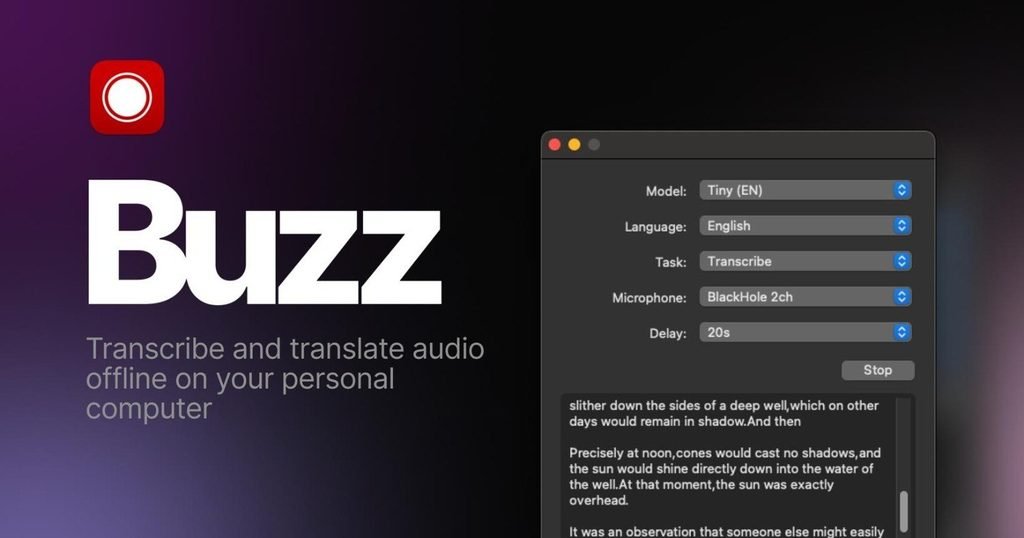
If you frequently work with recorded interviews, lectures, or long audio files, Whisper-powered applications are worth considering.
Whisper is an open-source speech recognition model developed by OpenAI. It can recognize speech in multiple languages and convert recordings into written transcripts.
However, Whisper itself is a model rather than a simple desktop application. You can use a graphical application such as Buzz to make the process easier without working directly with command-line instructions.
Key features:
- Supports recorded audio transcription.
- Uses the Whisper speech recognition model.
- Offers different model sizes.
- Can process recordings locally.
- Suitable for interviews, lectures, and research recordings.
One major advantage is that local transcription can keep your recordings on your own computer rather than requiring you to upload every file to an online service.
However, processing speed depends on your laptop’s hardware. Smaller models generally run more easily on modest computers, while larger models may need more processing power and memory.
Limitations: Setting up local transcription can take more effort than using a browser-based tool. You may also need to download speech recognition models before getting started.
Verdict: Whisper with a desktop interface such as Buzz is one of the strongest choices for people who want free transcription of existing audio files without depending on a monthly subscription.
4. Vibe – Best for Audio and Video Transcription
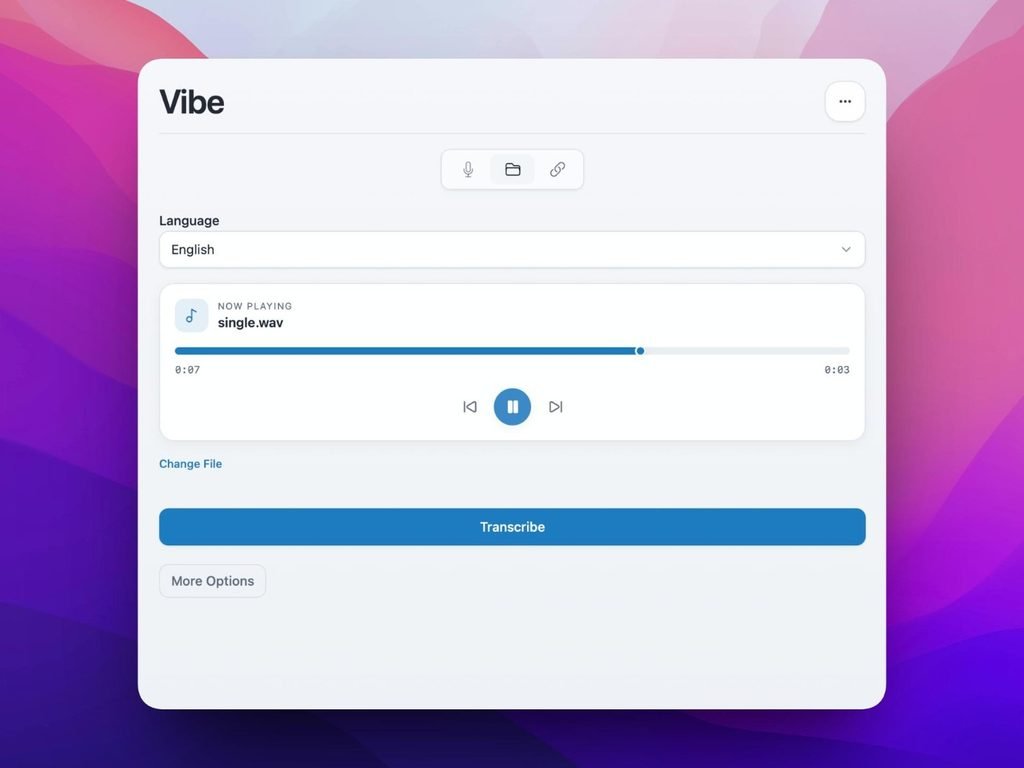
Vibe is another option for users who need more than basic voice typing.
It is an open-source desktop transcription application designed to convert audio and video recordings into text. It uses modern speech recognition models and provides a more accessible interface for working with recorded media.
This makes it useful for people who create YouTube videos, conduct interviews, prepare podcasts, or work with educational recordings.
Key features:
- Audio and video transcription.
- Local processing options.
- Support for multiple speech recognition models.
- Transcript export options.
- Batch processing for multiple recordings.
Unlike basic dictation software, Vibe is designed around existing media files. You can use it to extract spoken content from recordings and work with the resulting transcripts.
Limitations: Local transcription requires suitable hardware and storage. Downloading models and configuring the application may also take some time.
Verdict: Vibe is worth considering if you regularly convert recorded audio or video into written content and want more control over the transcription process.
5. Otter.ai – Best for Meeting Transcription
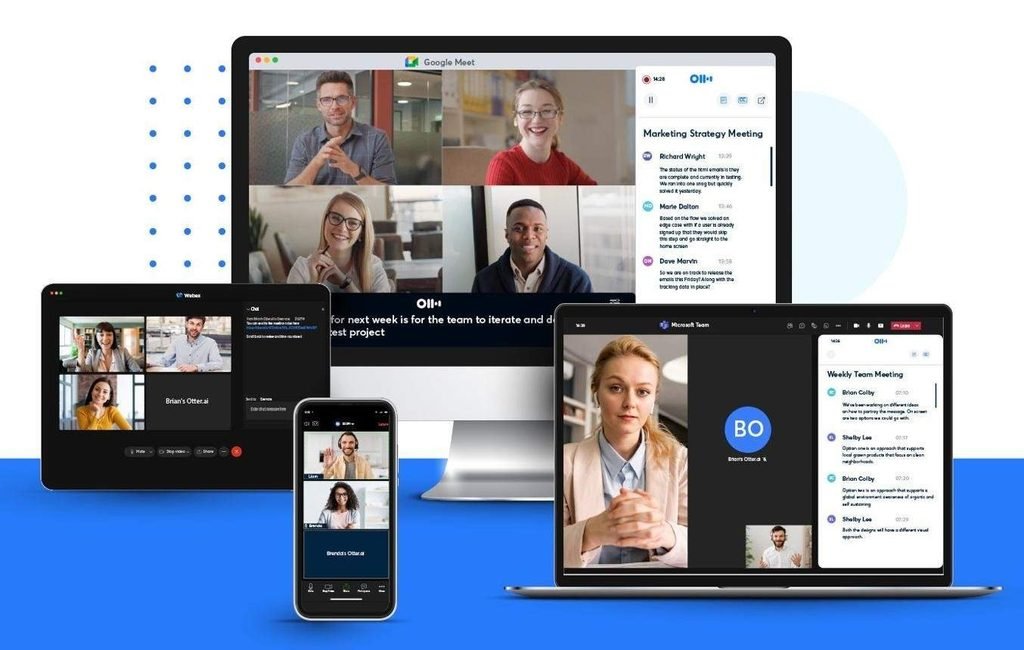
Otter.ai takes a slightly different approach from traditional speech-to-text applications.
Rather than focusing only on converting individual audio files into text, it is designed to help users capture conversations and organise meeting information.
It can be particularly helpful for remote employees, students, project teams, and professionals who attend frequent online meetings.
Key features:
- Live meeting transcription.
- Speaker identification.
- Searchable meeting notes.
- AI-generated meeting summaries.
- Integration with supported meeting platforms.
One useful feature is its ability to organize conversations into readable notes. Instead of reviewing an entire recording, you can quickly find important discussion points.
Limitations: Otter.ai’s free plan has usage restrictions. Advanced features and heavier transcription workloads may require a paid subscription. Language support and meeting integrations should also be checked before choosing it.
Verdict: If your primary requirement is recording and reviewing online meetings, Otter.ai can be more convenient than a basic transcription application.
6. Mac Dictation – Best Built-In Option for MacBook Users
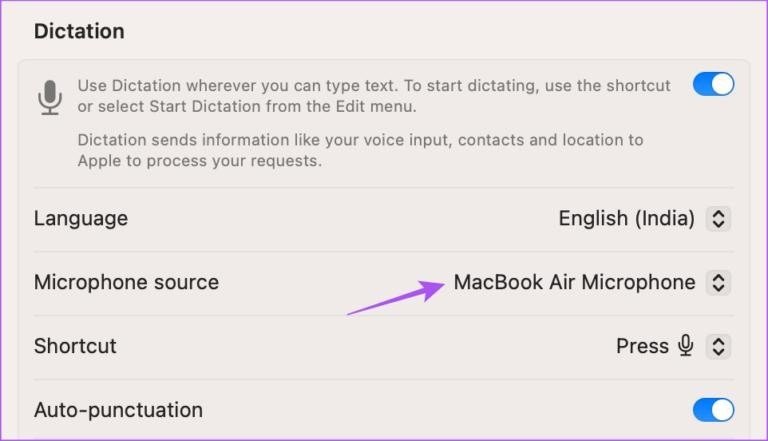
MacBook users also have access to a built-in dictation feature that can convert spoken words into text without installing a third-party application.
Apple Dictation is useful for everyday writing tasks, including emails, messages, notes, and documents.
You can enable it through your Mac’s keyboard settings and use the assigned shortcut to start speaking.
Key features:
- Built into macOS.
- Supports voice-based text entry.
- Works in many applications.
- Supports punctuation and basic voice commands.
- Offers language options depending on the macOS version and region.
The main benefit is convenience. You do not need to create another account or manage a separate subscription just to dictate text.
Limitations: Dictation is primarily designed for entering text through speech. It is not a complete replacement for applications that transcribe existing audio files, identify multiple speakers, or summarise lengthy meetings.
Verdict: Mac Dictation is a sensible free choice for MacBook owners who mainly want hands-free writing.
7. TurboScribe – Best for Simple Online Transcription
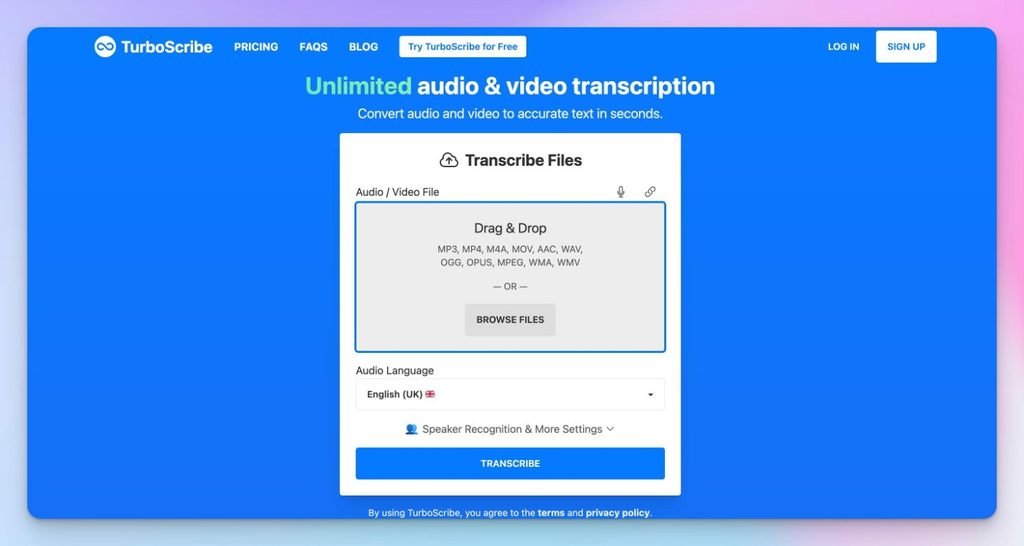
TurboScribe is a browser-based transcription service that focuses on converting audio and video files into written text.
It can be useful when you do not want to install desktop software or configure a local speech recognition model.
For example, you might have a recorded lecture saved on your laptop and simply want to upload it and receive a written transcript.
Key features:
- Browser-based audio transcription.
- Audio and video file support.
- Multiple language options.
- Speaker recognition options.
- Transcript export features.
Its straightforward workflow makes it suitable for beginners who want to avoid complicated software installation.
Limitations: The free version has restrictions on the number and duration of files you can process. Regular users with larger transcription workloads may eventually need a paid plan. Because it is an online service, you should also review its privacy practices before uploading sensitive recordings.
Verdict: TurboScribe is a convenient option for occasional transcription when you prefer an online service over locally installed software.
Quick Comparison: Which Free Alternative Should You Choose?
Choosing the right tool becomes easier when you compare the main differences.
| Tool | Best use | Laptop support | Free option |
| Windows Voice Typing | Live dictation | Windows | Yes |
| Google Docs | Document writing | Windows/Mac | Yes |
| Whisper with Buzz | Audio files | Windows/Mac/Linux | Yes |
| Vibe | Audio and video | Windows/Mac/Linux | Yes |
| Otter.ai | Meetings | Windows/Mac | Limited |
| Mac Dictation | Live dictation | Mac | Yes |
| TurboScribe | Online transcription | Windows/Mac | Limited |
Remember that a free option does not always mean unlimited usage. Some applications are completely free and open source, while others provide a limited free plan with optional paid upgrades.
How to Choose the Right SoundType AI Alternative
The best application depends on what you actually need to accomplish.
Here are some practical recommendations:
- For everyday typing: Choose Windows Voice Typing if you use a Windows laptop, or Mac Dictation if you own a MacBook.
- For writing articles and assignments: Google Docs Voice Typing is a convenient choice because your spoken words go directly into a document.
- For recorded interviews: Whisper with Buzz offers a more suitable workflow for converting saved audio files into text.
- For video content: Consider Vibe if you regularly work with audio and video recordings.
- For online meetings: Otter.ai is worth considering because it focuses on meeting notes and speaker identification.
- For occasional online transcription: TurboScribe provides a straightforward browser-based option.
You should also test a tool with a short recording before relying on it for important work. Speech recognition accuracy can vary depending on background noise, microphone quality, speaking speed, and accent.
Tips for Getting More Accurate Speech-to-Text Results
Even a good transcription application can produce mistakes when the original audio is unclear.
Fortunately, a few simple adjustments can improve the results.
1. Use a good microphone.
Your laptop’s built-in microphone may be sufficient for basic dictation, but an external microphone can improve recording quality, particularly in noisy environments.
2. Reduce background noise
Try to record in a quiet room. Background conversations, fans, and television sounds can make it difficult for speech recognition software to distinguish individual words.
3. Speak naturally and clearly.
Avoid speaking too quickly or swallowing words. A steady speaking pace generally makes transcription easier.
4. Select the correct language.
Always check the language settings before starting. Choosing an incorrect language can result in inaccurate or confusing transcripts.
5. Review the final transcript.
AI transcription is not perfect. Names, technical terms, numbers, and punctuation deserve particular attention. Always proofread important documents before sharing or publishing them.
FAQs
1. What is the best free SoundType AI alternative for laptops?
Whisper with Buzz is a strong choice for recorded audio transcription, while Windows Voice Typing and Google Docs are better for everyday dictation. The right option depends on whether you want to transcribe existing recordings or convert live speech into text.
2. Can I use SoundType AI alternatives without an internet connection?
Yes. Some applications, including locally configured Whisper-based desktop tools, can process recordings offline after the necessary models have been downloaded. However, browser-based services and standard online dictation features generally require an internet connection.
3. Which free transcription software works on Windows laptops?
Windows Voice Typing, Buzz, Vibe, and other compatible desktop applications can work on Windows laptops. Some are designed for live dictation, while others can transcribe existing audio and video files.
4. Is Whisper completely free to use?
OpenAI’s Whisper model is open source and available without a software subscription. However, running it locally requires compatible hardware, storage, and an appropriate application or setup. Using a paid third-party service built around Whisper may involve additional charges.
5. Can these tools transcribe different accents and languages?
Several tools support multiple languages and accents, but their accuracy varies. Whisper supports multilingual speech recognition, while other applications have their own language limitations. Testing a short sample in your preferred language is the best way to evaluate performance.
Conclusion
Finding a free SoundType AI alternative for your laptop does not have to be difficult. Several useful applications offer speech-to-text features without requiring you to purchase an expensive subscription.
For everyday dictation, Windows Voice Typing and Google Docs are convenient starting points. If you regularly work with recorded interviews, lectures, or video files, Whisper with Buzz and Vibe offer more suitable transcription workflows. Meanwhile, Otter.ai is worth considering for meeting notes, and TurboScribe provides a simple online option.
Ultimately, the best choice depends on your laptop, recording requirements, privacy preferences, and how frequently you need transcription. Start with a free option that matches your workflow, test its accuracy, and upgrade only if you genuinely need additional features.