Gaming laptops are designed to handle demanding games, but that does not mean they should run excessively hot all the time. If your laptop becomes extremely warm after a few minutes of gaming, its fans sound unusually loud, or your FPS suddenly drops during gameplay, something may be affecting its cooling performance.
The problem can be frustrating, especially when a game runs smoothly at first but starts lagging after 20 or 30 minutes. In some cases, the laptop may even freeze, restart, or shut down unexpectedly.
Learning how to fix laptop overheating while gaming starts with identifying the actual cause. High CPU and GPU usage, blocked ventilation, accumulated dust, outdated firmware, and demanding graphics settings can all contribute to excessive heat.
The good news is that you do not always need expensive repairs or new hardware. Several practical adjustments can improve airflow, reduce unnecessary workload, and help your laptop maintain more consistent performance.
This guide explains how to fix laptop overheating while gaming on Windows laptops, including the settings you can change, cooling practices you should follow, and warning signs that require professional attention.
Why Does a Laptop Overheat While Gaming?
Before trying different solutions, understand why your laptop generates so much heat during gaming.
Modern games place significant demands on the processor (CPU) and graphics processor (GPU). Both components consume more power when handling complex environments, high-resolution textures, advanced lighting, and demanding frame rates.
This additional workload produces heat that the laptop’s cooling system must remove.
Common causes include:
- Blocked air vents: Dust, fabric, and other obstructions restrict airflow.
- Dust buildup: Accumulated dust inside the cooling system reduces heat dissipation.
- High graphics settings: Demanding visual effects increase GPU workload.
- Background applications: Unnecessary programs consume CPU and memory resources.
- Poor ventilation: Soft surfaces prevent cooling fans from drawing in enough air.
- Outdated drivers or firmware: Software problems can sometimes interfere with performance and thermal management.
- Cooling hardware problems: A damaged fan, clogged heatsink, or deteriorated thermal interface can reduce cooling efficiency.
A warm laptop during gaming is normal. However, repeated thermal throttling, performance instability, and unexpected shutdowns deserve attention.
10 Ways to Fix Laptop Overheating While Gaming
The following solutions address the most common causes of gaming-related overheating. Start with the easier adjustments before moving toward internal cleaning or hardware repairs.
1. Place Your Laptop on a Hard, Flat Surface
One of the easiest ways to reduce laptop overheating is to improve airflow around the device.
Most gaming laptops pull cool air through intake vents, often located underneath the chassis, and release hot air through side or rear exhaust vents. Placing the laptop on a bed, blanket, sofa, or cushion can block these openings.
Follow these simple practices:
- Use your laptop on a hard desk or flat surface.
- Keep the bottom and side ventilation openings uncovered.
- Leave enough space around the exhaust vents for hot air to escape.
- Avoid placing the laptop directly against a wall.
- Do not use the laptop on soft fabric during long gaming sessions.
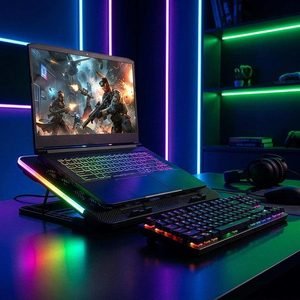
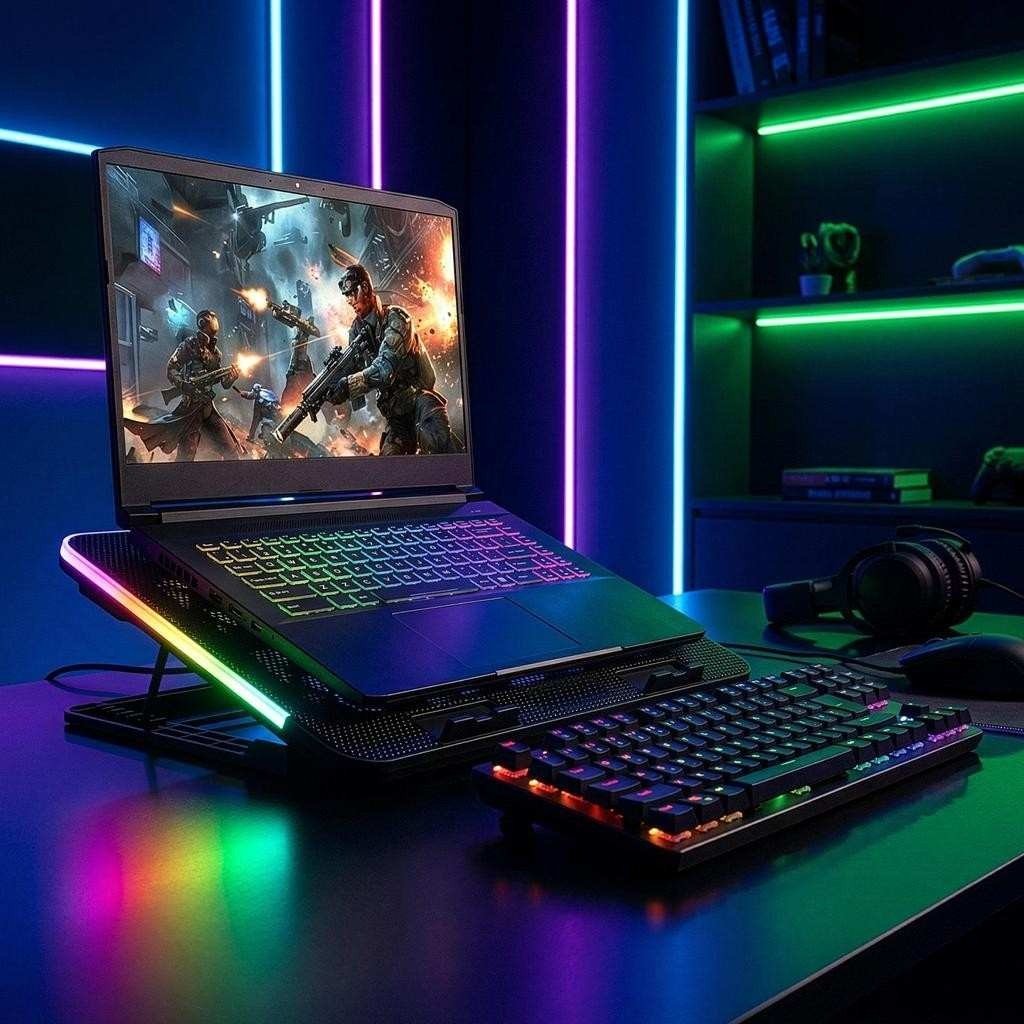
If your laptop has bottom-mounted intake vents, a compatible laptop stand can raise the chassis slightly and improve airflow.
This solution costs nothing and is a sensible first step before purchasing additional cooling accessories.
2. Clean Dust From Laptop Cooling Vents
Dust buildup is another common reason gaming laptops develop cooling problems over time.
As dust accumulates around the fans, heatsinks, and ventilation openings, airflow becomes restricted. The fans may spin faster to compensate, but the cooling system may still struggle to remove heat efficiently.
To address external dust:
- Shut down your laptop completely.
- Disconnect the charger and other accessories.
- Inspect the intake and exhaust openings.
- Use an electronics-safe compressed-air duster in short, controlled bursts where appropriate.
- Avoid inserting objects into the ventilation openings.
Do not use a household vacuum or force the internal fans to spin with compressed air. Improper cleaning can damage delicate components.
If dust has accumulated deep inside the cooling system, professional internal cleaning may be necessary. A technician can inspect the fans and heatsinks without putting unnecessary pressure on the hardware.
3. Lower In-Game Graphics Settings
High graphics settings can push your GPU to work harder than necessary, particularly when playing demanding AAA games.
You do not always need Ultra settings to enjoy good visuals. Reducing a few demanding options can lower GPU workload and help control heat.
Consider adjusting these settings:
| Graphics setting | Recommended adjustment |
| Shadow quality | High or Medium |
| Ray tracing | Disable if temperatures are excessive. |
| Anti-aliasing | Medium or recommended |
| Texture quality | Match available GPU memory. |
| Ambient occlusion | Medium |
| Resolution scaling | Reduce slightly if necessary. |
| View distance | High or Medium |
Start by reducing the most demanding settings rather than lowering everything at once.
For example, disabling ray tracing and reducing shadow quality may provide a useful balance between visual quality and thermal performance.
The best configuration depends on your GPU, game, resolution, and cooling system.
4. Limit Your Game’s FPS
Allowing a game to produce unlimited frames can make your GPU work harder than necessary.
For example, if your laptop display supports 144Hz but your GPU is rendering 220 FPS, the additional frames may increase power consumption and heat without providing a meaningful visual benefit.
An FPS cap can help control this workload.
You can limit FPS through:
- The game’s built-in graphics settings.
- NVIDIA Control Panel, where supported.
- AMD Software: Adrenalin Edition, where supported.
- A compatible frame-rate management utility.
For a 144Hz display, you could initially test a 120 FPS limit. If temperatures remain high, try a lower cap.
Do not assume that one FPS limit works for every game. Competitive games may benefit from higher frame rates, while slower single-player titles often remain enjoyable with lower limits.
5. Close Unnecessary Background Applications
Gaming is already a demanding activity. Running several unnecessary applications at the same time can increase CPU usage, memory pressure, and overall system workload.
Before launching a demanding game, close applications you do not need.
Common examples include:
- Unused browser tabs and windows.
- Background video-streaming applications.
- Unnecessary launchers.
- Resource-heavy editing software.
- Unused downloads and file-processing applications.
You can identify resource-intensive processes through Windows Task Manager.
Press Ctrl + Shift + Esc, open the Processes tab, and review CPU, Memory, and GPU usage.
Close only applications you recognize and do not need. Avoid ending unfamiliar Windows system processes because doing so may cause software instability.
This adjustment will not solve blocked vents or faulty cooling hardware, but it can reduce unnecessary workload.
6. Change Your Laptop’s Power and Performance Mode
Most gaming laptops include performance profiles that control processor behaviour, power consumption, and fan speed.
A turbo or extreme performance profile may increase CPU and GPU power limits, producing more heat and fan noise.
If your laptop becomes excessively hot, test a Balanced or Performance profile that offers more controlled power management.
You can also check Windows power settings:
- Open Settings.
- Select System.
- Choose Power & battery.
- Find the Power mode option.
- Select Balanced where available.
On some gaming laptops, the manufacturer’s control application provides additional thermal profiles.
For example, ASUS Armoury Crate, Lenovo Vantage, and MSI Center offer model-dependent performance or fan-control features.
Avoid assuming that the highest performance mode is always the best choice. A slightly lower power limit may provide more consistent gaming performance if the laptop is otherwise thermal throttling.
Microsoft explains the differences between Windows power modes in its official power mode guidance.
7. Use a Laptop Cooling Pad
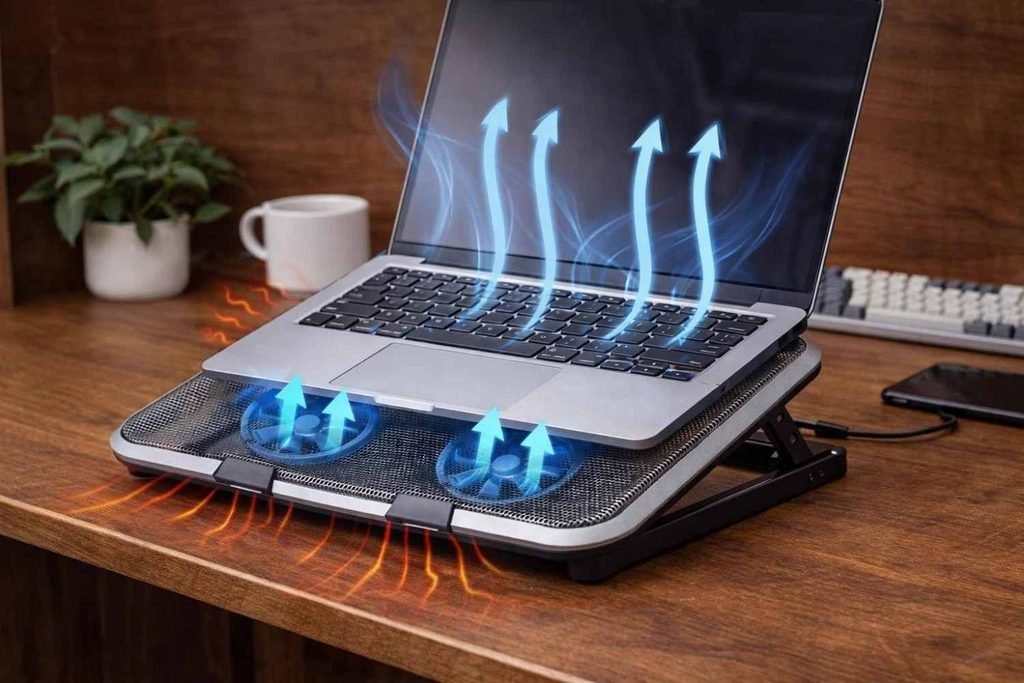
A laptop cooling pad is an external accessory that sits underneath your laptop and uses additional fans to improve airflow.
It can be particularly useful for gaming laptops with bottom-mounted intake vents.
Before purchasing one, consider:
- Compatibility with your laptop’s size.
- Fan placement and airflow direction.
- Adjustable height and stability.
- Noise levels.
- USB power requirements.
A cooling pad is not a guaranteed solution for every laptop. Its effectiveness depends on the device’s ventilation design and the amount of airflow it can provide.
If your laptop already has a good cooling system, a simple elevated stand may be sufficient. However, a cooling pad can offer additional airflow when the original cooling system benefits from external assistance.
8. Update Graphics Drivers and Laptop Firmware
Outdated graphics drivers or problematic firmware can sometimes contribute to performance instability, fan-control problems, or unexpected behaviour under heavy workloads.
Keeping your laptop’s software updated is a useful troubleshooting step.
For graphics drivers:
- NVIDIA users can check the NVIDIA app.
- AMD users can check AMD software.
- Intel users can check Intel Driver & Support Assistant or their laptop manufacturer’s support page.
Also check Windows Update for relevant system updates.
BIOS or UEFI updates may include thermal-management improvements for certain laptop models. However, do not install firmware simply because a newer version exists.
Check the release notes, confirm that the update is intended for your exact laptop model, and follow the manufacturer’s instructions. An interrupted or incorrect BIOS update can create serious problems.
9. Monitor CPU and GPU Temperatures During Gaming
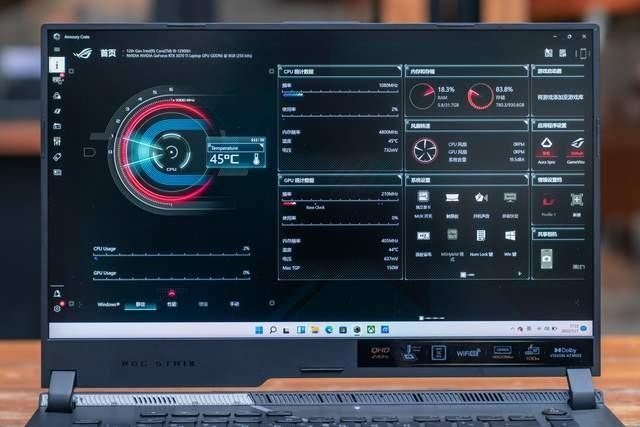
You cannot fix overheating effectively without understanding how hot your laptop actually becomes.
Temperature monitoring tools help you identify whether the CPU, GPU, or both are reaching unusually high temperatures during gameplay.
Some commonly used options include:
- HWiNFO: Provides detailed hardware sensor information.
- HWMonitor: Displays temperature, voltage, and other sensor readings.
- MSI Afterburner: Can display GPU-related information through an in-game overlay.
Start your monitoring software before launching a demanding game. Watch the temperature readings during gameplay and compare them with the specifications for your particular processor and graphics card.
Remember that CPU and GPU temperature limits differ by model. A temperature that is acceptable for one processor may be excessive for another.
Look for patterns rather than reacting to a single temperature spike.
For example, if temperatures rise steadily, FPS drops, and the processor reduces its clock speed, thermal throttling may be affecting performance.
For a more detailed explanation, read our guide on how to monitor temperature on laptop.
10. Replace Thermal Paste or Get Professional Cooling Repairs
If your laptop continues overheating despite improved airflow, lower graphics settings, and regular cleaning, the cooling system may require professional attention.
Thermal paste helps transfer heat from the processor and graphics chip to the heatsink. Over time, thermal interface materials can deteriorate or lose their effectiveness, depending on the laptop design and usage conditions.
Other possible hardware problems include:
- A damaged or failing cooling fan.
- Blocked internal heatsink fins.
- Poor contact between the heatsink and processor.
- Damaged heat pipes.
- Faulty fan-control hardware.
Replacing thermal paste can help in some cases, but it is not a universal solution. Some gaming laptops use specialized thermal interface materials that require specific handling.
If your device is still under warranty, contact the manufacturer before opening it. A qualified technician can inspect the cooling assembly and determine whether cleaning, fan replacement, or thermal-interface service is necessary.
Dell’s official laptop overheating troubleshooting guide also explains how blocked vents, dust, cooling hardware faults, and thermal throttling can affect system performance.
How to Know Whether Your Gaming Laptop Is Actually Overheating
A laptop becoming warm during gaming does not automatically indicate a cooling problem.
The CPU and GPU naturally generate more heat when handling demanding workloads. Gaming laptops also have compact cooling systems, so their fans may become noticeably louder during intensive sessions.
The important question is whether the temperature is affecting performance or causing instability.
| Symptom | What it may indicate |
| Loud fans during gaming | Normal cooling response under heavy workload |
| Gradually declining FPS | Possible thermal throttling |
| Sudden performance drops | Thermal or power-related limitation |
| Unexpected shutdowns | Possible overheating or hardware fault |
| High temperatures while idle | Possible cooling or background-process problem |
| Fan not spinning properly | Possible fan or control-system failure |
Thermal throttling is a protective mechanism that reduces processor speed when temperatures approach the hardware’s thermal limits. It helps prevent excessive heat from damaging components, although it can reduce gaming performance.
You should investigate repeated throttling, freezes, or shutdowns rather than attempting to disable thermal protection.
Mistakes to Avoid When Fixing Laptop Overheating
Some popular troubleshooting suggestions can create additional problems when applied without understanding the laptop’s cooling design.
Avoid these mistakes:
- Disabling thermal protection: Never disable safety mechanisms to force higher performance.
- Using extreme fan-control settings: Incorrect fan settings may create unnecessary noise or interfere with automatic cooling.
- Opening the laptop without experience: Internal components and battery connections can be damaged during improper repairs.
- Applying random undervolting settings: Unstable CPU or GPU voltage adjustments can cause crashes and performance problems.
- Ignoring repeated shutdowns: Unexpected shutdowns during gaming deserve proper diagnosis.
- Using unsuitable cleaning equipment: Household vacuums and uncontrolled compressed air can damage fans or sensitive components.
A good troubleshooting approach focuses on identifying the cause rather than applying every possible adjustment at once.
FAQs
Why does my laptop overheat after 20 minutes of gaming?
A laptop may become hotter after 20 minutes because its CPU and GPU are handling sustained workloads. If the temperature continues rising and FPS starts dropping, check airflow, dust buildup, and thermal throttling.
Is it normal for a gaming laptop to reach 85°C?
It can be normal for some gaming laptop processors or graphics chips to reach 85°C under heavy workloads. However, acceptable operating temperatures depend on the exact CPU and GPU models. Check the manufacturer’s specifications rather than using one temperature limit for every laptop.
Does a cooling pad really help with laptop overheating?
Yes, a cooling pad can improve airflow beneath compatible laptops and help reduce temperatures. Its effectiveness depends on the laptop’s ventilation design, fan placement, and cooling requirements.
Should I keep my gaming laptop plugged in while playing games?
Generally, yes. Gaming laptops are designed to deliver their intended performance while connected to their appropriate power adapter. Use the original or manufacturer-approved charger with the correct wattage.
Can outdated graphics drivers cause laptop overheating?
Outdated or problematic graphics drivers can sometimes contribute to inefficient performance or software-related issues. Updating drivers may help, but physical problems such as blocked vents, dust, and failing fans require separate attention.
Conclusion
Fixing laptop overheating while gaming starts with understanding why your device is generating excessive heat. Blocked vents, dust buildup, demanding graphics settings, unnecessary background applications, and cooling-system problems are among the common causes. Start with simple solutions such as improving airflow, cleaning external vents, limiting FPS, and adjusting graphics settings. If temperatures remain unusually high, monitor CPU and GPU readings and consider professional cooling-system maintenance.Most importantly, do not ignore repeated thermal throttling, unexpected shutdowns, or unusual fan behavior. Addressing these problems early can help maintain stable gaming performance and protect your laptop’s hardware over time.