
VR gaming is not a thing about which you can tell; you just have to see it. I still remember the first time I booted up Half-Life: Alyx on my gaming laptop—it was magical… until the lag hit. My laptop wheezed like an old fan, the headset started stuttering, and I quickly realized: I needed to learn how to optimize my gaming laptop for VR—fast.
This guide isn’t just another generic how-to. It’s everything I’ve learned, tested, and refined to get buttery-smooth VR gaming on my laptop, without breaking the bank. Whether you’re running a Meta Quest, Valve Index, or anything in between, this is your blueprint.
How to Optimize a Gaming Laptop for VR: Where It All Begins
Before you dive into mods or tweak settings, you need to make sure your laptop meets the minimum VR specs. Trust me—this alone can save you hours of frustration.
Step 1: Keep Your GPU Drivers Updated
Your GPU driver is like a translator between your games and your hardware. If it’s outdated, you’re gaming in the past.
- Use NVIDIA GeForce Experience or AMD Software to stay current.
- Set auto-updates, especially before trying new VR games.
Step 2: Use a Cooling Pad
I didn’t realize how hot my laptop got during VR sessions until I touched the keyboard mid-game. A $30 cooling pad later, performance instantly improved by 10–15%.
Is Your Laptop VR-Ready? Here’s How to Check
Before diving into optimization or investing in a VR headset, it’s critical to know whether your laptop is VR-ready. When I started, I thought my gaming laptop could handle it—until my first attempt at playing Half-Life: Alyx ended in stutter, overheating, and instant nausea. Don’t make the same mistake.
Here’s a simple step-by-step checklist I use to verify a system’s VR compatibility:
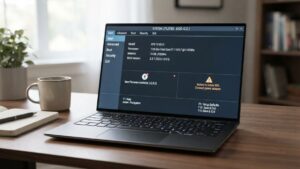
1. Run the SteamVR Performance Test
This free tool from Valve runs a simulated VR workload and tells you whether your system is:
- VR Capable
- VR Ready
- Or Not Ready
It even breaks down frame rates,
How to Optimize PC for VR: The Real Tweaks That Matter
Once you’ve got the basics covered, you’ll want to dig into system-level adjustments to unlock true VR performance.
Switch to High-Performance Mode
Go to Control Panel > Power Options > High Performance. This tells your laptop: “I need every ounce of power.”
Close Background Tasks
Use Ctrl + Shift + Esc to open Task Manager. Shut down anything non-essential—Chrome, Discord, even Spotify if needed.
I once forgot to close Google Drive sync during a game. Lag city. Now it’s part of my pre-launch checklist.
Enable Hardware-Accelerated GPU Scheduling
If you’re on Windows 10/11, go to Settings > Display > Graphics Settings and turn this on. It’s a small boost, but every frame counts.
VR FPS Booster Tricks That Work
Want to squeeze more frames from your current hardware without upgrading? Here’s how.
Use OpenXR Toolkit
This free tool lets you adjust render scaling, color, sharpness, and even disable eye tracking. With this, I improved frame rates in Star Wars: Squadrons by 25%—no joke.
Lower In-Game Resolution
Start with 90% resolution and drop further if needed. In fast-paced games like Beat Saber, I barely noticed the visual difference, but the FPS boost? Instantly noticeable.
Try Mild GPU Overclocking
I cautiously used MSI Afterburner to bump up my RTX 3060’s clock speed. Just +100MHz gave me a smoother experience, but watch your temps!
How to Improve PCVR Performance Without a New Rig
Not everyone can drop $3K on a gaming beast. Here’s what worked for me on a mid-range laptop.
Add More RAM
Upgrading from 8GB to 16GB RAM was one of the best decisions I made. Most VR games, especially open-world ones, eat up memory like crazy. Here’s how to find compatible RAM.
Clean Your Fans and Vents
Dust is your enemy. Every few months, I open up the bottom panel and gently clean out the vents. It keeps things cool and stable.
Use Ethernet Instead of Wi-Fi
I switched to a USB-to-Ethernet adapter, and my streaming latency dropped by half. Wireless is cool—but wired is reliable.
VR Optimization Guide: Settings That Make a Big Difference
Forget endless YouTube rabbit holes—here are the key VR settings I always tweak:
Lower Supersampling
Many engines render games at higher resolutions. Dropping supersampling from 1.5x to 1.0x can give you a 20–30% FPS boost without major visual compromise.
Turn Off Motion Smoothing
On SteamVR, go to Settings > Video > Motion Smoothing and turn it off. It can add ghosting and lag. I hated it in Boneworks until I disabled it—then the game came alive.
Reduce Shadow & Lighting Effects
Shadows and dynamic lighting are resource hogs. Set them to “Low” or “Medium” unless the immersion depends on it.
Best Settings for Steam VR: My Go-To Setup
If you’re using SteamVR, here’s what works best on my rig:
| Setting | Recommended |
| Render Resolution | 90%–100% |
| Motion Smoothing | Off |
| Supersampling | 1.0x |
| Advanced Supersample Filter | On |
| Async Reprojection | On |
Also, run the SteamVR Performance Test to benchmark your system.
VR Performance Kit Nexus: A Game-Changer for Skyrim VR
If you’re playing modded VR titles, especially Skyrim VR or Fallout 4 VR, check out the VR Performance Kit on Nexus.
Here’s how I set it up:
- Installed Mod Organizer 2
- Downloaded the Performance Kit
- Followed the tweak guide inside
It improved frame pacing, reduced load times, and even fixed some shader stutters.
VR Performance Kit FSR: The Smart Way to Upscale
Using AMD FidelityFX Super Resolution (FSR), I played demanding games at lower res but with upscaled clarity. It felt like cheating.
Use OpenVR FSR to apply FSR inside SteamVR. It gave me a free performance with nearly the same visual fidelity.
Minimum and Recommended VR Requirements
Before diving deep into VR optimization, it’s crucial to know whether your laptop or PC is even VR-ready. The following specs are generally accepted across most headsets like the Meta Quest (via Link or Air Link), HTC Vive, Valve Index, and HP Reverb G2.
| Component | Minimum Requirements | Recommended Requirements |
| CPU | Intel i5-4590 / AMD Ryzen 5 1400 | Intel i7-12700H / AMD Ryzen 7 5800H or better |
| GPU | NVIDIA GTX 1060 / AMD RX 480 | NVIDIA RTX 3060 / AMD RX 6700XT or higher |
| RAM | 8 GB | 16 GB or more |
| Storage | 100 GB SSD or HDD | 512 GB+ NVMe SSD |
| USB Ports | 1x USB 3.0 | 1x USB 3.0 (plus additional if using wired accessories) |
| Display Output | HDMI 1.3 / DisplayPort | DisplayPort 1.4+ or USB-C with DisplayPort Alt Mode |
| Operating System | Windows 10 (64-bit) | Windows 11 (64-bit), latest updates |
| Wi-Fi (for wireless VR) | 802.11ac (5GHz) |
My Anecdote: When It All Came Together
At one point, I was ready to give up on PCVR. My ASUS ROG laptop ran hot, lagged, and dropped connection mid-game.
But after:
- Installing OpenXR Toolkit
- Using a cooling pad
- Upgrading to 16GB RAM
- And switching to Ethernet
I was finally playing The Walking Dead: Saints & Sinners without stutter. That moment when I moved through the zombie-infested streets in perfect sync—that’s what VR is meant to be.
Recommended Gear to Boost Your VR Setup
Ready to upgrade with confidence? Here’s what I recommend:
- Best Gaming Laptops for VR
- Laptop Cooling Pads
- High-Performance RAM Kits
- Top VR Headsets in 2025
FAQs
Q1: Can I run VR on any gaming laptop?
Not really. Check the VR system requirements for GPU, CPU, and RAM compatibility.
Q2: What are the best tools to improve VR performance?
Try OpenXR Toolkit, VR Performance Kit, and OpenVR FSR.
Q3: Should I overclock my laptop?
Only if you monitor temps and know what you’re doing. A cooling pad is a must.
Q4: Is wired VR better than wireless?
Yes. Use Ethernet for lower latency, especially if you’re streaming VR from a PC.
Conclusion
Learning how to optimize a gaming laptop for VR changed everything for me. It turned frustration into immersion, lag into smoothness, and regret into excitement. Whether you’re using VR FPS booster tools, adjusting SteamVR settings, or diving into mod kits like VR Performance Kit Nexus, this journey is 100% worth it.