A laptop can feel perfectly normal during everyday browsing and then become noticeably hotter when you open a demanding application. The fans get louder, performance starts dropping, and sometimes the keyboard area becomes uncomfortable to touch. The difficult part is knowing whether this is normal processor activity or a sign that the cooling system needs attention.
Guessing based on how warm the laptop feels is not particularly useful. The CPU, GPU, and SSD have their own temperature sensors, and their readings can tell you considerably more about what is happening inside the machine.
If you are wondering how to check the laptop temperature without opening the device, there are several straightforward methods available. Windows Task Manager can display GPU temperature on supported hardware, while dedicated monitoring utilities provide more detailed information about the processor and other components.
This guide covers the most practical monitoring methods for Windows 10 and Windows 11, explains how to interpret temperature readings, and shows you what to investigate when your laptop consistently runs hotter than expected.
How to Check Laptop Temperature: Which Method Should You Use?
Before installing monitoring software, understand which method provides the information you need. Not every Windows feature can display every hardware temperature.
| Monitoring method | What you can check | Best use |
| Task Manager | Supported GPU temperature | Quick graphics temperature check |
| HWiNFO | CPU, GPU, SSD, and available sensors | Detailed monitoring |
| HWMonitor | Supported hardware temperatures | Simple sensor overview |
| BIOS/UEFI | Available processor or system sensors | Basic check without Windows |
| Manufacturer utility | Supported temperatures and fan information | Model-specific monitoring |
For most users, HWiNFO is a sensible starting point because it displays multiple sensor readings together. If you only want to check your graphics card temperature, Task Manager may be sufficient.
One important distinction: Windows does not normally provide a universal live CPU temperature display through its standard interface. You will need a compatible monitoring utility or a firmware screen to obtain that reading.
How to Check the Laptop Temperature on Windows 11 and Windows 10
The following methods cover different situations, from checking a GPU reading in seconds to monitoring processor temperatures during demanding work.
1. Check GPU Temperature Through Windows Task Manager
You do not necessarily need additional software to inspect your graphics processor. Windows Task Manager can show GPU temperature when the hardware and graphics driver expose the required sensor information.
Here is how to find it:
- Press Ctrl + Shift + Esc to launch Task Manager.
- Select the Performance tab from the sidebar.
- Choose GPU 0 or GPU 1.
- Find the GPU Temperature reading in the performance panel.
If your laptop has integrated graphics and a dedicated graphics card, both may appear separately. Select the GPU that is handling your current application or game.
There is one limitation worth remembering: Task Manager does not normally display CPU temperature. Also, some graphics adapters do not provide a temperature reading through this interface.
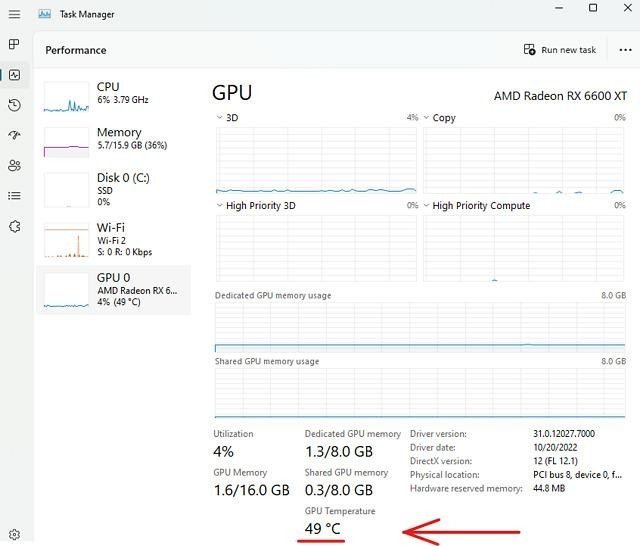
If the temperature field is missing, it does not automatically mean your GPU has no temperature sensor. Try a dedicated monitoring application instead.
2. Use HWiNFO to Monitor CPU and GPU Temperatures
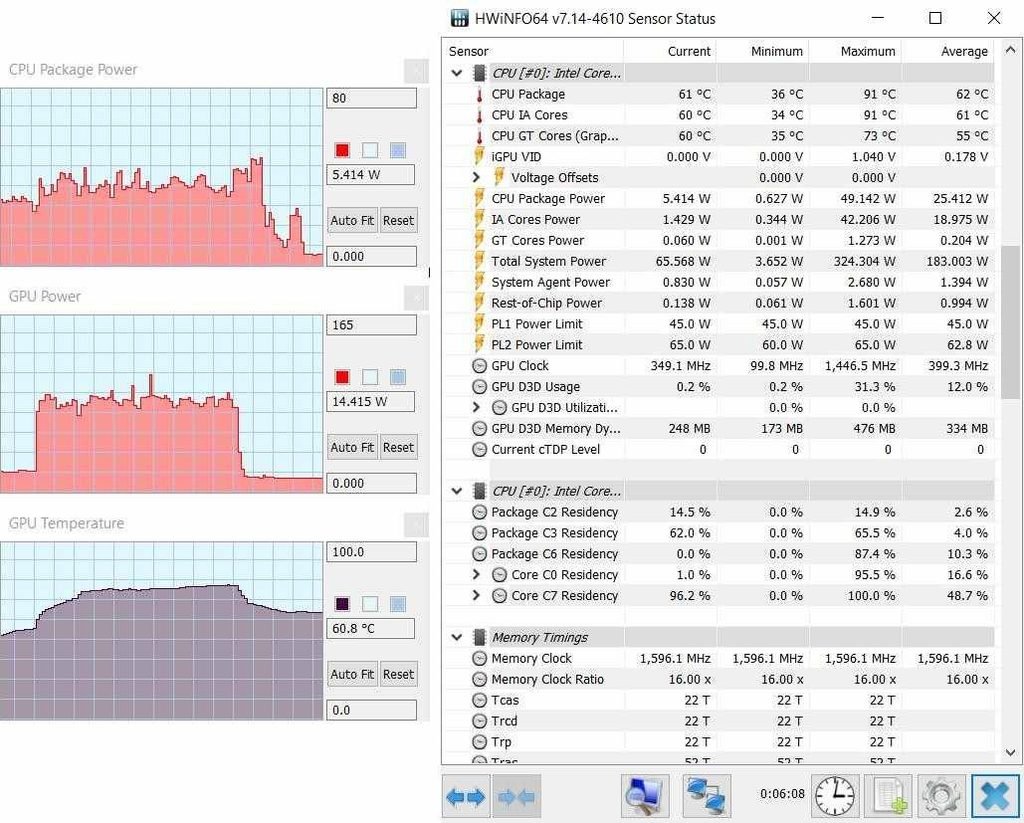
HWiNFO is particularly useful when you want to inspect several hardware components without switching between different applications.
It collects information from supported hardware sensors and presents the readings in an organized window.
To get started:
- Visit the official HWiNFO download page.
- Download and launch the application.
- Select Sensors-only when the startup options appear.
- Wait for the sensor list to load.
- Locate your processor section and expand it if necessary.
- Review the temperature entries and their corresponding values.
Depending on your processor, the relevant reading may appear under names such as CPU Package, CPU Die, or Tctl/Tdie.
Do not assume every temperature label represents the same measurement. Individual core readings, package temperatures, and control temperatures can differ.
HWiNFO also provides several useful columns:
- Current: The latest temperature reported by the sensor.
- Minimum: The lowest recorded reading since monitoring started.
- Maximum: The highest recorded reading during that period.
- Average: The average value, when supported by the sensor display.
For example, a processor might show 48°C while you are browsing but reach a much higher temperature during a demanding application. Looking at the maximum reading helps you identify that difference.
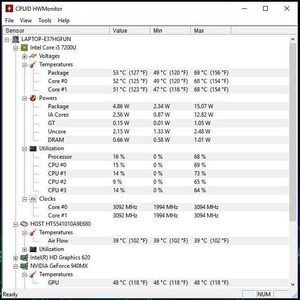
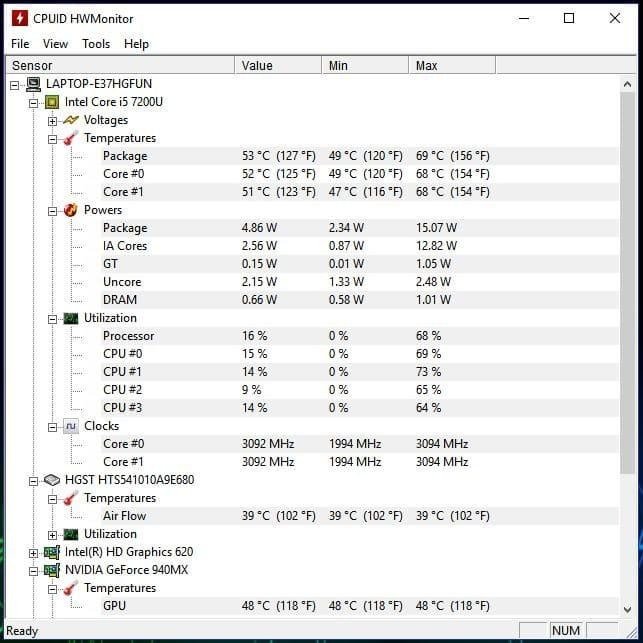
3. Check Temperatures With HWMonitor
If HWiNFO displays more technical information than you need, HWMonitor offers another way to inspect supported hardware sensors.
The interface organizes information into expandable sections, making it easier to locate individual components.
Follow these steps:
- Download HWMonitor from its developer’s official website.
- Install and launch the application.
- Find your processor in the hardware list.
- Expand its temperature section.
- Locate the GPU or storage sections if you want additional readings.
- Compare the current values with the minimum and maximum figures.
HWMonitor can also display information such as fan speeds, voltages, and storage-related sensor data when supported.
It is worth remembering that neither monitoring application can display information that your laptop’s hardware or firmware does not expose. A missing sensor reading is not necessarily evidence of a hardware fault.
4. Look for Temperature Information in BIOS or UEFI.
You can sometimes check processor temperature without opening Windows or installing another application.
Many laptop firmware interfaces include hardware-monitoring or system-health pages, although this feature is not available on every model.
To look for it:
- Save your work and restart the laptop.
- Press the appropriate startup key, such as F2, F10, Esc, or Delete.
- Enter the BIOS or UEFI interface.
- Look for Hardware Monitor, System Health, Thermal, or a similar section.
- Check whether the firmware displays a processor temperature.
The correct key and menu names depend on the manufacturer.
This method has an important limitation. A reading taken inside firmware does not represent the same workload as a laptop running a game or editing application. The processor is usually doing very little work at that point.
Use BIOS or UEFI for a basic inspection, not as your only method of investigating overheating during everyday use.
How to Check Laptop Temperature While Gaming
Gaming is one situation where temperature monitoring becomes particularly useful. A laptop can remain relatively cool during browsing but generate considerably more heat when its processor and graphics card handle a demanding game.
A single reading taken before starting a game will not tell you much about sustained performance.
Instead, use this simple testing process:
- Open HWiNFO and enter Sensors-only mode.
- Locate the CPU and GPU temperature readings.
- Note their current values before starting the game.
- Launch your usual game and play for approximately 15 minutes.
- Return to the sensor window and inspect the maximum readings.
- Check whether the processor reports thermal-throttling activity if that sensor is available.
Try to repeat the test under similar conditions if you want to compare results after changing graphics settings or improving airflow.
Pay attention to what happens alongside the temperature increase. If the game maintains its normal frame rate and the laptop remains stable, a high reading does not automatically indicate a fault.
However, a gradual performance decline, repeated throttling, or unexpected shutdowns deserve further investigation.
If you discover that your gaming laptop is struggling with excessive heat, our guide on how to fix laptop overheating while gaming explains practical cooling adjustments and troubleshooting steps.
What Is a Normal Laptop Temperature?
There is no universal temperature that applies to every laptop. Processor generation, graphics hardware, cooling design, ambient temperature, and power settings all influence the readings.
A processor running at a relatively low temperature during light browsing can become considerably hotter during video rendering or gaming. That change alone does not prove something is wrong.
Use the following descriptions as general context rather than strict safety limits:
| Laptop activity | What to expect |
| Idle or light browsing | Relatively low and stable readings |
| Office applications | Moderate temperature changes depending on background activity |
| Video editing and rendering | Higher sustained CPU and GPU temperatures |
| Gaming | Increased temperatures and faster fan speeds |
| Sustained readings near the component’s thermal limit | Investigate cooling and performance behavior. |
Understand Your Processor’s Temperature Limit
The most reliable way to evaluate a processor temperature is to identify the exact CPU model and check its manufacturer specifications.
For example, Intel explains that Tjunction max is the temperature limit at which a processor activates internal thermal-control mechanisms. The value varies by processor, and Intel states that it is commonly between 100°C and 110°C for its products.
This does not mean every Intel laptop should routinely operate at those temperatures. It also does not establish a universal limit for AMD processors or graphics cards.
Read the manufacturer’s Intel processor temperature guidance and look up the specifications for your particular processor.
Intel
Remember that a brief temperature spike and sustained operation near a thermal limit are two different situations. Duration, throttling, and system stability matter just as much as the displayed number.
Signs That Your Laptop May Have a Cooling Problem
Temperature monitoring becomes more valuable when you connect the readings with what the laptop is actually doing.
Watch for these warning signs:
- Fans running constantly: The cooling fans remain unusually loud even when you are performing simple tasks.
- Performance drops: Games or applications become noticeably slower after running for several minutes.
- Repeated thermal throttling: The processor reduces its operating speed to control heat.
- Unexpected shutdowns: The laptop turns off during demanding workloads.
- Unusual heat at idle: The device becomes hot even when no resource-intensive application is running.
- Abnormal fan behavior: A fan makes grinding noises or appears not to operate correctly.
These symptoms can have different causes. For example, background applications can increase processor usage, while blocked ventilation can prevent the cooling system from removing heat efficiently.
Do not diagnose a hardware problem using one symptom alone. Compare temperature readings, CPU usage, fan behavior, and performance before deciding what needs attention.
How to Reduce Laptop Temperature Safely
If your readings suggest that the laptop is running hotter than expected, start with changes that do not require opening the device.
1. Give the Cooling System Enough Space
Place the laptop on a hard, flat surface. Beds, blankets, and cushions can obstruct ventilation openings, particularly when the intake vents are underneath the chassis.
Leave enough space around the exhaust openings so that warm air can escape.
2. Remove Dust From External Vents
Inspect the ventilation openings for visible dust and debris.
Turn off the laptop and disconnect its charger before cleaning. Use suitable electronics-cleaning equipment according to the manufacturer’s instructions.
Avoid inserting objects into the vents or forcing internal fans to spin with compressed air. If the cooling system is heavily blocked internally, professional cleaning is a safer option.
3. Check Background CPU Usage
A laptop may run hot because an application is consuming processor resources without your knowledge.
Open Task Manager, select Processes, and review the CPU column. Close applications you recognize and no longer need.
Do not terminate unfamiliar Windows processes simply because they appear near the top of the list.
4. Adjust Power and Performance Settings
Many laptops include manufacturer utilities that offer quiet, balanced, and performance profiles.
A high-performance profile may allow the processor and graphics card to consume more power, which can increase heat generation.
Try a balanced profile during everyday work. Keep performance settings appropriate for the applications you are running.
5. Investigate Persistent Cooling Problems
If the laptop remains unusually hot after improving airflow and reducing unnecessary workload, the issue may involve its internal cooling hardware.
Possible causes include a failing fan, obstructed heatsink, damaged heat pipe, or deteriorated thermal interface material.
If the laptop is under warranty, contact the manufacturer before opening it. A qualified technician can determine whether internal cleaning or component replacement is necessary.
Heat can also affect battery aging over time. If you have noticed that your laptop’s battery runtime has declined alongside temperature problems, see our guide on how to check laptop battery health in Windows.
FAQs
How to check the laptop temperature without installing software?
You can use Task Manager to view GPU temperature on supported hardware. Some laptops also display processor temperature through BIOS or UEFI. However, Windows does not normally provide a universal built-in live CPU temperature display.
Does Windows 11 show CPU temperature?
No. Standard Windows 11 Task Manager does not normally show CPU temperature. You can use HWiNFO or HWMonitor to read supported processor sensors.
Is 90°C too hot for a laptop?
Not necessarily. Some laptop processors can reach 90°C during demanding workloads without exceeding their specified operating limits. Check the exact processor specifications and look for sustained throttling or instability before deciding whether the temperature is abnormal.
Can I check laptop temperature while playing a game?
Yes. Open a compatible monitoring utility before launching your game. Monitor CPU and GPU readings during gameplay, then review the maximum temperatures and available thermal-throttling indicators.
Why does my laptop get hot even when I am not using demanding applications?
Background updates, resource-intensive processes, restricted airflow, high room temperatures, and cooling-system faults can all contribute to unwanted heat. Check Task Manager and monitor temperatures during a period when the laptop should be idle.
Conclusion
Knowing how to check the laptop temperature gives you a more reliable way to investigate unusual heat, performance drops, and noisy cooling fans. You do not need to open the laptop or purchase expensive equipment to get started.
Use Task Manager for a quick GPU check, HWiNFO for detailed CPU and GPU monitoring, or BIOS/UEFI when you need a basic firmware reading. For the most useful results, compare temperatures during light use and a repeatable demanding workload.
Most importantly, do not judge your laptop by one temperature number. Check the processor’s specifications, observe how long the temperature remains high, and look for signs of throttling or instability. If the problem continues after improving airflow and reducing unnecessary workload, arrange a proper cooling-system inspection.