Using a laptop as a monitor is possible, but not the way most people try it. Plugging an HDMI cable between a desktop and a laptop usually shows nothing, because laptop HDMI ports normally send video out rather than take it in. The method that works depends on your devices, your network, and how much lag you can tolerate. This guide walks through five practical approaches, covering Windows, Mac, wireless, and wired setups, so you can turn a spare laptop into a second screen without buying new hardware. A quick compatibility check comes first, followed by each method with clear steps.
Using a Laptop as a Monitor: What Works and What Doesn’t
Yes, using a laptop as a monitor works, but the signal has to arrive over a network or through special hardware, not through an ordinary video cable. Windows and macOS both include wireless options; a third-party app such as Spacedesk covers mixed setups, and a capture card handles wired, low-latency needs.
Why a Standard HDMI Cable Usually Won’t Work
The HDMI and USB-C ports on most laptops are built to send video to a monitor, not receive it from another device, which is why using a laptop as a monitor over a plain cable usually fails. In practice, the laptop typically shows no new image. A few rare laptops include a true video input, which Method 1 covers. For a deeper look at the hardware limits, see our guide on how to use a laptop as a desktop monitor without software.
The 5 Methods at a Glance
| Method | Works with | Connection | Extra needs | Best for |
| 1. Built-in video input | Laptops with a true input port | Wired | Matching cable | Simplest setup, if supported |
| 2. Windows Wireless Display | Windows PCs | Wireless | Optional Windows feature | Windows-to-Windows setups |
| 3. Third-party app (Spacedesk) | Windows main PC; many viewers | Wi-Fi or Ethernet | Software on both devices | Mixed or older setups |
| 4. AirPlay to a Mac | iPhone, iPad, or Mac sources | Wireless | The AirPlay receiver turned on. | Apple-only setups |
| 5. Capture card | Any HDMI source | Wired | Capture card and viewer app | Gaming and consoles |
Before You Start: A Quick Compatibility Check
Before using a laptop as a monitor, run through this list to avoid connection trouble.
- Windows version: The Wireless Display app requires Windows 11, version 22H2 or later, on the receiving laptop. Older versions use the Connect app. Microsoft
- Same network: Both devices need Wi-Fi turned on, and app-based methods work best when both share one network.
- Power: Plug in both machines, since screen sharing keeps the display and Wi-Fi busy.
- Resolution: Note each screen’s native resolution so you can match display settings later.
Method 1: Use a Laptop With a Built-In Video Input
The simplest option is also the rarest. A small number of laptops include a real video input port, which makes using a laptop as a monitor far more straightforward. If yours has one, connect the source device with the matching cable and follow the manufacturer’s steps to enable input mode. Check the manufacturer’s specification sheet or manual for the words “video input” or “HDMI in” before buying a cable. If the spec sheet doesn’t mention input support, move on to Method 2.
Method 2: Use Windows Wireless Display
Windows includes a built-in way to project one PC’s screen to another, which makes it the first thing to try when using a laptop as a monitor for another Windows PC. Microsoft’s screen mirroring and projecting guide documents the process.
Set Up the Receiving Laptop
- On the laptop that will act as the screen, open Start > Settings > System > Projecting to this PC.
- Under the Wireless Display prompt, select Optional features, then View features and search for “wireless display.”
- Check Wireless Display, select Next, then Install.
- Search for “wireless display” in the taskbar and open the app. Leave it running while you connect.
On earlier Windows versions, search for “connect” and open the Connect app instead.
Connect From Your Main PC
On the PC you want to extend, press Windows + K and choose the laptop from the list. You can also search for Cast and select Connect to a wireless display. If the laptop doesn’t show up, confirm that Wi-Fi is on and the Wireless Display app is open on the laptop.
Choose Extend or Duplicate.
Press Windows + P on the main PC to pick a display mode. Microsoft lists four choices: PC screen only, Duplicate, Extend, and Second screen only. Choose Extend if you want the laptop to add workspace, which is the usual goal when using a laptop as a monitor for extra windows. Choose Duplicate for presentations. Because the picture travels over Wi-Fi, expect some delay. It suits documents and reference windows better than fast games.
Method 3: Use a Third-Party App Like Spacedesk
A third-party app is the practical choice for using a laptop as a monitor when Windows Wireless Display isn’t available or performs poorly. Spacedesk is one example: a driver runs on the main Windows PC, and a viewer app on the second device turns that screen into an extra display. The project lists viewers for Windows, Android, iOS, and web browsers, so a tablet, phone, or another computer can often serve as the screen. Review the developer’s current licence terms before using it for work.
Install the driver and viewer.
- On the main Windows PC, download and install the SpaceDesk driver from the developer’s website.
- On the laptop, install the matching SpaceDesk viewer.
- Connect both devices to the same network, then open the viewer on the laptop.
- Select the main PC when it appears in the viewer.
If the screen doesn’t extend automatically, open Settings > System > Display on the main PC, select the SpaceDesk display, and choose Extend desktop to this display.
Improve Speed and Sharpness
A wired connection usually gives steadier results than Wi-Fi when using a laptop as a monitor, so connect both devices to the same router with Ethernet if possible. Then open Settings > System > Display, select the new display, and adjust resolution and scaling until text looks sharp. Close heavy background apps on the laptop, because the viewer needs steady processing to keep the video smooth.
Method 4: Use AirPlay When Your Laptop Is a Mac
For Mac owners, using a laptop as a monitor relies on Apple’s AirPlay Receiver feature, which can show content from other Apple devices on the MacBook’s screen.
Turn On AirPlay Receiver
On the Mac, open System Settings > General > AirDrop & Handoff (labeled AirDrop & Continuity on newer versions) and turn on AirPlay Receiver. Then choose who may stream to it: your own devices, anyone on the same network, or everyone. Apple notes that the AirPlay receiver needs macOS 12 or later. On the iPhone, iPad, or other Mac, use the AirPlay or Screen Mirroring control and select your MacBook.
Know the Limits
Apple’s AirPlay documentation lists an iPhone, iPad, or another Mac as the devices that can send content to a Mac. It doesn’t list Windows PCs. Apple also says that when an iPhone or iPad uses a Mac as a second display, the feature works with supported apps such as Keynote and Photos. Treat AirPlay as a convenient route to using a laptop as a monitor inside the Apple ecosystem, not a universal one. If your main computer runs Windows, use Method 3 instead.
Method 5: Use a Capture Card for a Wired Connection
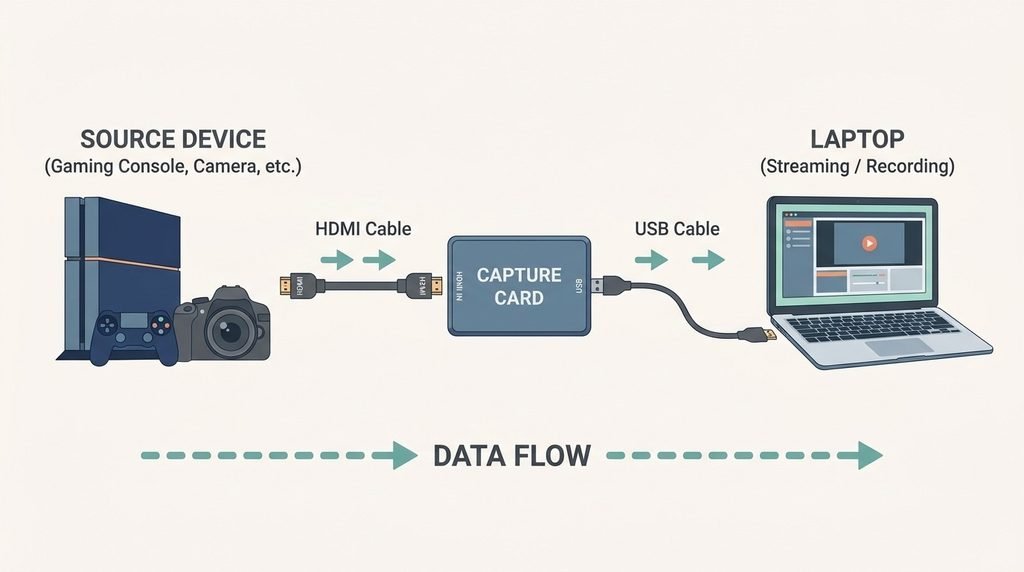
A capture card is the answer when you need a wired link or your source device only outputs HDMI, such as a game console. The setup works like this: the source device connects to the capture card by HDMI, the card connects to the laptop by USB, and a viewer app such as OBS Studio displays the incoming feed on the laptop.
This is the only method here that needs extra hardware, so confirm the card works with your laptop before buying. A wired path generally adds less delay than wireless casting, which matters for gaming, though you may still notice slight lag. Using a laptop as a monitor this way also means installing software, so it isn’t a no-install solution.
Troubleshooting Problems When Using a Laptop as a Monitor
Problems with using a laptop as a monitor often come down to network, power, or display settings.
The laptop doesn’t appear in the device list.
Confirm Wi-Fi is on, both devices share a network, and the receiving app is open. Microsoft’s own troubleshooting note for Wireless Display says the same. If the laptop still doesn’t appear, restart both devices and reopen the app before trying again.
Lag, Blur, or Choppy Video
Lag is a common complaint when using a laptop as a monitor wirelessly, and wireless connections compress video, so some delay is normal. To reduce it, move closer to the router, close other bandwidth-heavy apps, or switch to Ethernet with a method that supports it.
Wrong Orientation or Resolution
If the extended screen appears sideways, open Settings > System > Display, select that screen, and set the orientation to Landscape. Match the resolution to the laptop’s native setting for sharper text. Our guide on how to rotate a vertical laptop screen back to normal walks through the fix in detail.
Heat and Sleep Settings
Using a laptop as a monitor means it runs for hours, so keep it plugged in and give its vents room to breathe. Open Settings > System > Power & battery and extend the screen and sleep timers so the laptop doesn’t go to sleep and drop the connection mid-session.
Frequently Asked Questions
Can I use my laptop as a monitor with a regular HDMI cable?
Usually not. Most laptop HDMI ports only send video out, so a plain cable between two computers won’t work. Use a wireless display, a third-party app, or a capture card instead.
Can I use a laptop with a broken keyboard as a monitor?
Often yes. Using a laptop as a monitor mainly requires a working screen and Wi-Fi, plus the ability to sign in and launch the receiving app. An external USB keyboard or mouse can replace damaged input devices. Keep the laptop plugged in.
Can I use a Mac as a monitor for a Windows PC?
Apple’s AirPlay documentation doesn’t list Windows PCs as sources, so AirPlay isn’t the route. A third-party app such as Spacedesk is more realistic. It lists viewers for several platforms, so confirm the current Mac options on its download page.
Is wireless or wired better for using a laptop as a monitor?
Wired is usually better when responsiveness matters, because it avoids wireless compression and interference. Wireless is more convenient and works well for documents, chat windows, and reference material. Choose wired for gaming or video work and wireless for everyday tasks.
Conclusion
The best method for using a laptop as a monitor depends on what you own. On two Windows PCs, start with Wireless Display because it’s built in. For mixed devices or older Windows versions, try a third-party app such as Spacedesk. Apple users can rely on AirPlay when the source is an iPhone, iPad, or Mac, and a capture card suits gaming or consoles. Before buying anything, check your laptop’s ports and Windows version. Start with the built-in options, and only spend money if lag becomes a problem. With the right method, using a laptop as a monitor can put a spare screen to work.