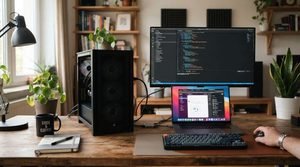
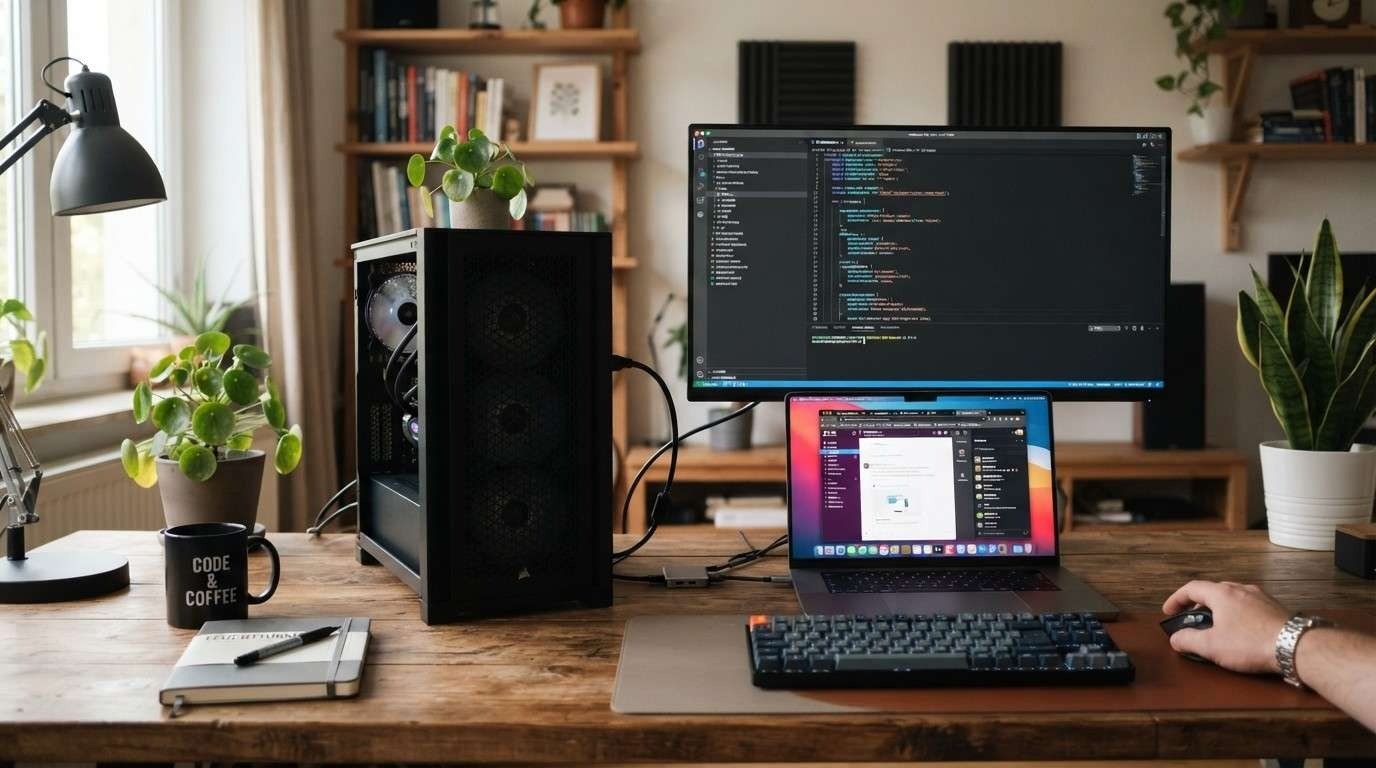
Trying to figure out how to use laptop as desktop monitor usually starts the same way: a spare laptop is sitting around, a desktop PC or console needs a second screen, and buying a new monitor feels unnecessary. The honest answer is that it’s possible, but only under specific conditions, and most of the “plug and play” advice floating around skips over one important detail—almost no laptop is built to receive a video signal the way a real monitor does. This article breaks down exactly what works without installing anything, what genuinely requires software or hardware, and how to avoid buying the wrong cable.
How to Use Laptop as Desktop Monitor: What’s Actually Possible
A laptop screen is physically capable of displaying whatever a desktop PC sends it, but the port doing the connecting matters more than most buying guides admit. Laptop HDMI and USB-C ports are engineered to send video out to an external display, not take video in. That single design choice is why so many people ask if it is possible to use a laptop as a PC monitor and get conflicting answers online.
There are really three categories of solutions:
- True hardware input — a small number of laptops (mostly older gaming models) include a dedicated HDMI-in port that lets them act as a monitor with zero software.
- Native OS wireless casting — Windows and macOS both include built-in screen-projection tools that don’t require downloading any third-party app.
- Capture card plus software—the most flexible method for laptops without HDMI-in, but it does require an app like OBS Studio, so it falls outside a strictly “no software” approach.
Knowing which category applies to your laptop model determines whether this project takes ten minutes or requires buying an adapter first.
Why Most Laptops Can’t Accept a Direct HDMI Signal
This is the part that trips up the most people. Laptop and desktop HDMI ports are source-device ports, meaning they’re wired to output signals to monitors, TVs, and projectors—never to receive them. Even though the connector looks identical on both ends, the internal circuitry only runs in one direction on the overwhelming majority of consumer laptops.
So if someone asks, “Can I use my laptop as a monitor with HDMI by simply running a cable from their desktop’s graphics card to the laptop’s HDMI port?, nothing will appear on screen. The laptop doesn’t recognize an incoming signal because its HDMI chipset was never built to process one. A few gaming laptops released years ago, including select Alienware models, were exceptions with genuine HDMI-in support, but this feature has largely disappeared from current 2026 laptop lineups as manufacturers prioritize thinner designs and USB-C convergence instead.
Using Laptop as Second Monitor With USB-C: What DisplayPort Alt Mode Really Does
USB-C confuses this topic further because the connector supports a feature called DisplayPort Alt Mode, which lets a single USB-C port carry a full video signal. The catch is that on almost every laptop, DisplayPort Alt Mode is also configured strictly for output, letting the laptop drive an external monitor rather than receive video from one. A handful of portable monitors and specialty displays support USB-C video input, but that capability is rare in standard laptops, so using a laptop as a second monitor with USB-C generally isn’t viable without external hardware that converts the signal.
Before buying any adapter, check the laptop’s official specification sheet for language like “DisplayPort Alt Mode” or a small DP icon next to the port—that confirms output support, not input support, which is the detail most shoppers overlook.
Using a Laptop as a Second Monitor Wirelessly, Without Installing Anything
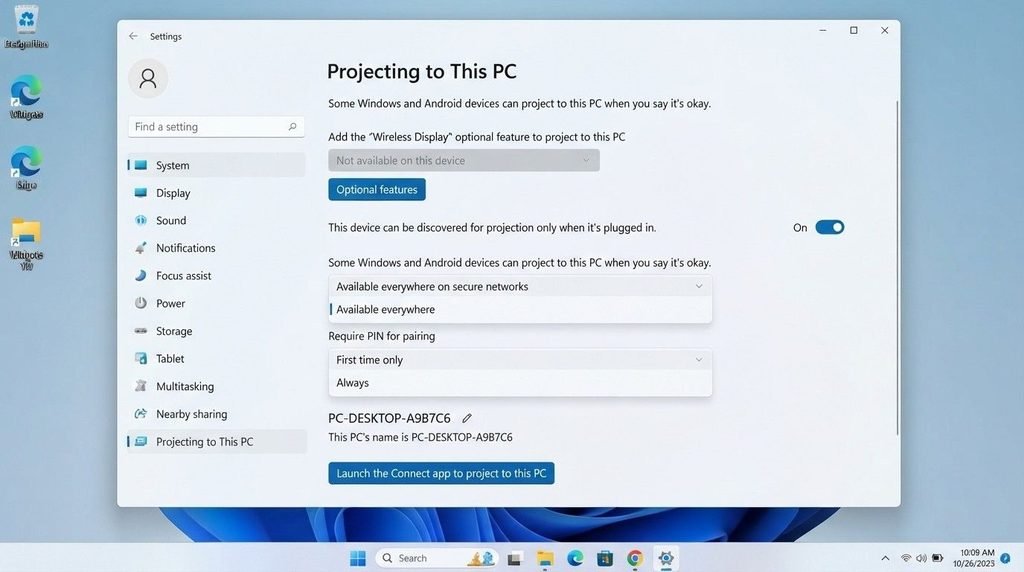
For readers specifically looking for how to use a second laptop as a monitor wirelessly, this is where a genuinely software-free method exists. Windows includes a built-in feature called “Projecting to This PC,” accessible from Settings, which allows one Windows device to wirelessly receive a screencast from another using the Miracast standard. Because this feature ships as part of Windows rather than a separate download, it satisfies a strict “no extra software” requirement, according to Microsoft’s own guidance on screen mirroring and projecting. Windows 10 Forums
macOS users have a comparable built-in option through AirPlay, which lets a Mac receive a mirrored screen from another Apple device on the same network without installing anything beyond what ships with the operating system.
The tradeoff with wireless casting is latency. Because video is compressed and transmitted over Wi-Fi rather than through a direct cable, there’s a small but noticeable delay between action and display. That makes this method fine for presentations, secondary reference screens, or casual viewing, but a poor fit for fast-paced gaming or precision creative work where every millisecond of input lag matters.
Use a laptop as a desktop with the lid closed.
Once a laptop is successfully receiving a signal, whether through a rare HDMI-in port or a wireless cast, many people want to use laptop as desktop with the lid closed to save desk space and avoid glare from the built-in webcam or keyboard backlight. On Windows, this requires changing the “closed lid” power setting so the machine doesn’t sleep when the screen folds down, then connecting an external keyboard and mouse if the laptop is being used as a full desktop replacement rather than a simple display. On a MacBook, closed-lid operation (sometimes called clamshell mode) works similarly but generally requires the laptop to be plugged into power and paired with an external keyboard, mouse, and display connection.
It’s worth noting that closed-lid setups only make sense when the laptop is functioning as a desktop replacement, not when the laptop’s own screen is the one being used as the second monitor—in that case, the lid obviously needs to stay open.
How to Use Laptop as Desktop Monitor With a Capture Card (When Software Is Acceptable)
For anyone who decides a small software install is an acceptable tradeoff for better performance, the most reliable method is a USB capture card. This is also the standard answer to use laptop as monitor with HDMI without a capture card—the honest response is that it’s not possible for the majority of laptops, because a capture card is exactly what bridges the input gap that laptop HDMI ports lack. According to the USB-C DisplayPort documentation published by Dell, video connections over both HDMI and USB-C require compatible hardware at every stage of the chain, and a capture device serves that role when the laptop itself has no input pathway. IT Pro
The setup is straightforward: the external source (a desktop PC, gaming console, or camera) connects to the capture card’s HDMI-in port, the capture card connects to the laptop over USB, and an app like OBS Studio displays the incoming feed as if it were a webcam source. This method delivers noticeably lower latency than wireless casting and works well for using laptop as second monitor in HDMI-in situations where reliability matters more than avoiding a small software download.
Can I Use My Laptop as a Monitor for My PS5?
Yes, but the same rules apply. A laptop without HDMI-in cannot display a PS5 signal by simply connecting an HDMI cable between the two devices. The realistic options are a capture card paired with software or checking whether the specific laptop model is one of the rare exceptions with native HDMI input. Console gaming also benefits less from wireless casting methods because of the added input lag, so players prioritizing responsiveness typically lean toward the capture card approach despite the extra software step.
Will There Be a Problem If I Use My Laptop as a Monitor?
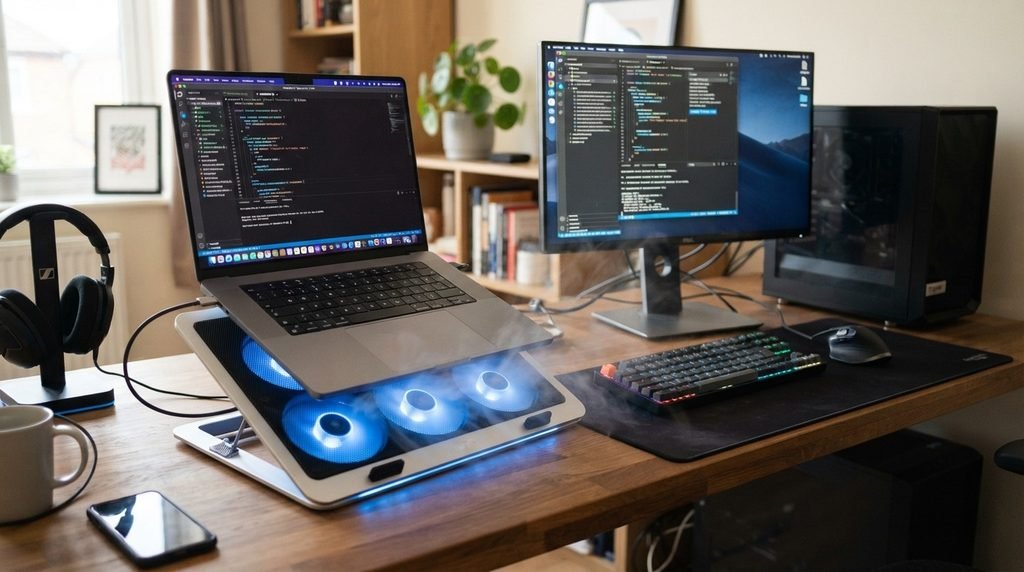
Repurposing a laptop this way is generally safe, but a few practical issues come up often. Running a laptop lid-open for extended stretches, especially while plugged in, generates more heat than typical browsing or document work, so airflow and placement matter more than usual. A cooling pad can help manage this during long sessions, and our guide to picking laptop cooling pads for better airflow and heat prevention covers models suited to sustained use. It’s also worth building basic upkeep into the routine, since a laptop doing double duty as a display benefits from the same care outlined in our laptop maintenance guide covering performance and lifespan tips, particularly around dust buildup and battery health when the machine stays plugged in for hours at a time. Microsoft Learntechycircle
Battery wear is a smaller but real concern — keeping a laptop constantly charged while running a display feed can add strain over time, so checking the manufacturer’s battery guidance is worth the five minutes it takes.
Choosing the Right Method for Your Situation
Matching the method to the actual goal avoids wasted money on the wrong cable. Wireless casting suits people who want a genuinely software-free second screen for light tasks. A capture card suits anyone prioritizing responsiveness who’s fine with one small software install. And checking for a rare HDMI-in port is worth five minutes before assuming either of the above is necessary. Readers exploring how to use laptop as a primary monitor for PC setups long-term should lean toward the capture card method, since it offers the most stable, low-latency connection for daily use.
FAQs
Is it possible to use a laptop as a PC monitor?
Yes, but only through a wireless casting feature built into the operating system, a capture card, or the rare laptop model with a genuine HDMI input. A standard HDMI cable alone won’t work.
Can I use my laptop as a monitor with HDMI?
Only if the laptop has a true HDMI-in port, which is uncommon on current models. Otherwise, a USB capture card is the practical workaround, though it requires software like OBS Studio to display the feed.
How to use a laptop as a monitor only?
Use the operating system’s built-in wireless display feature (Windows Projecting to This PC or macOS AirPlay) for a no-install option or a capture card for lower-latency performance.
Will there be a problem if I use my laptop as a monitor?
Not typically, though extended use can raise heat levels and add strain on the battery if the laptop stays plugged in for long sessions. A cooling pad and normal maintenance help offset this.
Can I use my laptop as a monitor for a PS5?
Yes, using the same capture card method described above, since the PS5 outputs HDMI and most laptops can’t accept that signal directly.
How to use laptop as desktop monitor without buying anything extra?
Wireless casting through Windows or macOS is the only method that avoids both new hardware and new software, though it comes with more input lag than a wired connection.
Does using laptop as second monitor with USB-C work the same as HDMI?
Not usually. Most laptops’ USB-C ports only output video through DisplayPort Alt Mode rather than accepting it, so USB-C typically isn’t a shortcut around the HDMI input problem.
Conclusion
The real answer to how to use laptop as desktop monitor depends entirely on what the laptop’s ports were built to do. Genuine software-free options exist through built-in wireless casting on Windows and macOS, and through the small number of laptops with true HDMI-in support. For everyone else, a capture card paired with lightweight software remains the most dependable route, especially for gaming or professional work where lag matters. Checking the exact port capabilities before buying any cable or adapter saves both money and frustration, and pairing the setup with basic cooling and maintenance habits keeps the laptop running well under the added workload.