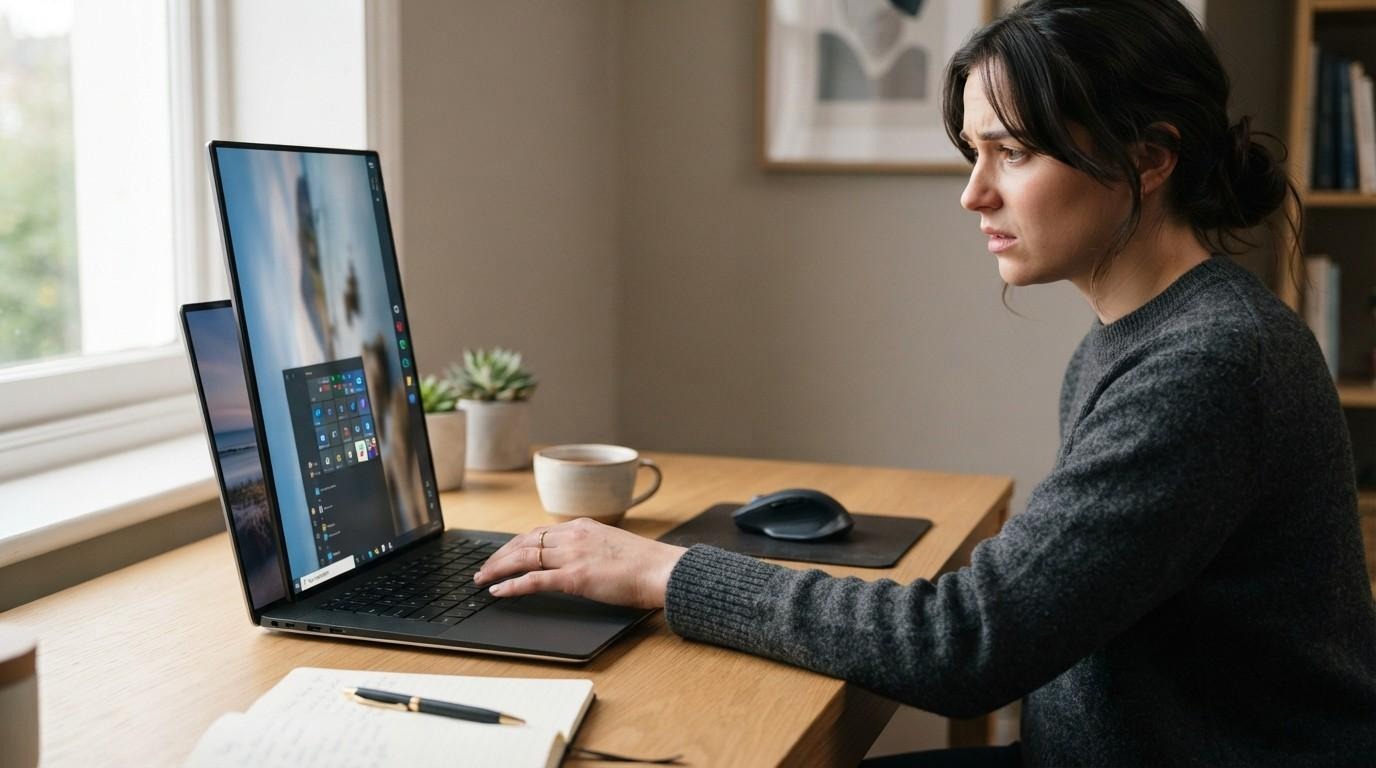
If your screen is vertical on laptop, do not worry. Your laptop display is probably set to portrait or portrait (flipped) instead of the normal landscape orientation.
This commonly happens when a keyboard shortcut is pressed accidentally, display settings are changed, a graphics driver is updated, or a convertible laptop switches into tablet mode.
The fastest solution is to open Settings > System > Display, find Display orientation, and select Landscape. Microsoft recommends using the Display settings menu to change screen orientation in both Windows 11 and Windows 10.
This guide explains how to rotate a laptop screen back to normal on Windows 11, Windows 10, Windows 7, Lenovo laptops, external monitors, and mobile phones.
Quick Fix When Your Laptop Screen Is Vertical
The most reliable way to restore a vertical or sideways laptop display is through Windows Display settings. According to Microsoft’s official Windows display orientation guide, users can open Settings > System > Display and select the required option from the Display orientation menu. For a standard laptop screen, choosing landscape should return the display to its normal horizontal position.
Try these solutions in order:
- Press Ctrl + Alt + Up Arrow.
- Right-click the desktop and select Display settings.
- Find display orientation.
- Select Landscape.
- Click Keep changes.
The keyboard shortcut does not work on every computer. It depends on the graphics hardware, driver, and whether display hotkeys are enabled. The Windows display settings method is therefore the most reliable solution.
Why Is My Laptop Screen Vertical?
A vertical or sideways laptop screen is normally caused by a display orientation change rather than a damaged screen.
Common causes include:
- An accidental keyboard shortcut
- Display orientation being changed to Portrait
- Automatic rotation on a 2-in-1 laptop
- A graphics driver update
- Incorrect Intel, AMD, or NVIDIA graphics settings
- The wrong display being selected in a multiple-monitor setup
- A temporary display-driver problem
Windows supports four common display orientations:
| Display orientation | What it does |
| Landscape | Normal horizontal laptop screen |
| Portrait | Rotates the screen vertically |
| Landscape (flipped) | Turns the screen upside down |
| Portrait (flipped) | Rotates the screen vertically in the opposite direction |
For a standard laptop, landscape is normally the correct option.
How to Rotate a Laptop Screen Back to Normal
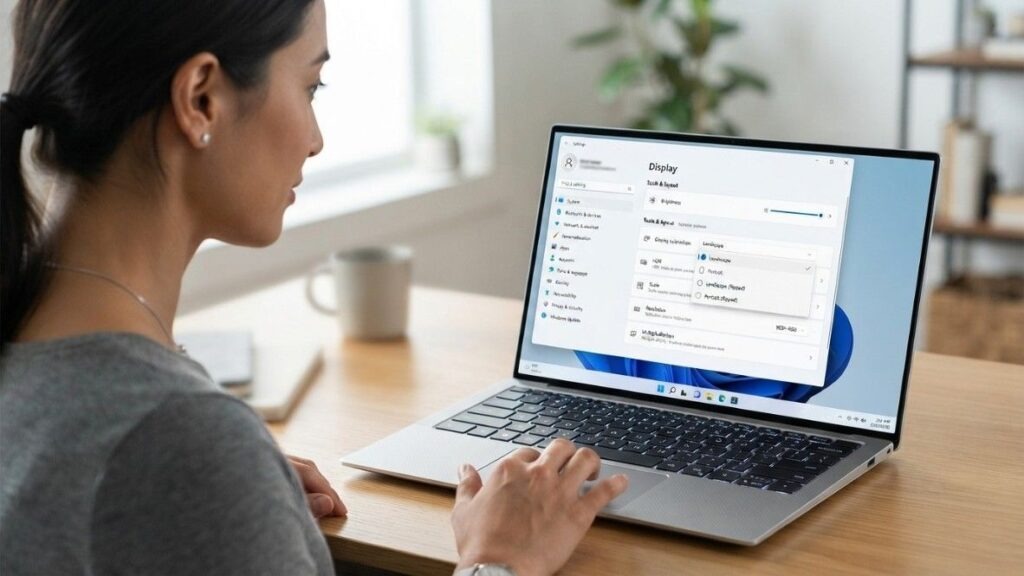
The following method works on most Windows laptops, including Dell, HP, Lenovo, Acer, ASUS, Samsung, and Microsoft Surface devices.
Step 1: Open Display Settings
Right-click an empty area of your desktop.
Select “Display settings” from the menu.
You can also press:
Windows key + I
Then go to:
System > Display
Step 2: Find Display Orientation
Scroll down to the scale & layout section.
Look for an option called Display orientation.
Step 3: Select Landscape
Open the display orientation menu and choose one of the following:
Landscape
Your screen should immediately return to its normal horizontal position.
Step 4: Keep the New Settings
Windows will ask whether you want to keep the display changes.
Select Keep changes.
If you choose the wrong orientation, wait for Windows to restore the previous setting or select Revert.
Screen Is Vertical on Laptop Windows 11
When the screen is vertical on laptop Windows 11, use these steps:
- Right-click your desktop.
- Select Display settings.
- Scroll to Scale & layout.
- Open the display orientation menu.
- Select Landscape.
- Click Keep changes.
Alternatively, open:
Start > Settings > System > Display
Microsoft’s current Windows guidance confirms that display orientation can be changed through Settings > System > Display.
What If You Have Two Screens?
If an external monitor is connected, select the screen that is showing vertically before changing the orientation.
Windows displays connected screens as numbered boxes, such as:
- Display 1
- Display 2
- Display 3
Click Identify if you do not know which display needs to be corrected.
Changing the orientation while the wrong display is selected may rotate your external monitor instead of your laptop screen.
Screen Is Vertical on Laptop Windows 10
If the screen is vertical on laptop Windows 10, follow these instructions:
- Click the Start button.
- Open Settings.
- Select System.
- Open Display.
- Scroll to Scale and layout.
- Find display orientation.
- Select Landscape.
- Click Keep changes.
You can also reach this menu by right-clicking your desktop and selecting Display settings.
Microsoft officially ended standard support for Windows 10 Home and Pro on October 14, 2025. Windows 10 computers may continue to operate, but Microsoft recommends moving to a supported version of Windows where possible.
Screen Is Vertical on Laptop Windows 7
If the screen is vertical on laptop Windows 7, the settings menu looks different.
Follow these steps:
- Right-click an empty part of the desktop.
- Select Screen resolution.
- Find the Orientation menu.
- Select Landscape.
- Click Apply.
- Select Keep changes.
You may also find rotation controls inside the Intel, NVIDIA, or AMD graphics control panel installed on the computer.
Windows 7 support ended on January 14, 2020, which means it no longer receives standard security updates from Microsoft. Upgrading to a supported operating system is strongly recommended, especially when the laptop is connected to the internet.
Keyboard Shortcut to Rotate the Laptop Screen
On some laptops, you can rotate the screen with the following keyboard shortcuts:
| Keyboard shortcut | Screen position |
| Ctrl + Alt + Up Arrow | Normal Landscape |
| Ctrl + Alt + Down Arrow | Upside-down Landscape |
| Ctrl + Alt + Left Arrow | Portrait |
| Ctrl + Alt + Right Arrow | Portrait (flipped) |
Therefore, when your laptop screen is sideways, try:
Ctrl + Alt + Up Arrow
AMD documents these display hotkeys for supported AMD software configurations. However, the shortcuts may be unavailable during certain activities or when particular display features are enabled.
Why Is Ctrl + Alt + Arrow Not Working?
Screen-rotation keyboard shortcuts are not supported on every laptop, and some computer manufacturers may disable the rotation feature. If Ctrl + Alt + Up Arrow does not work, follow Intel’s display orientation troubleshooting instructions and change the orientation through Windows display settings. Select Landscape to restore a normal screen and avoid the flipped orientation options unless you intentionally need them.
The shortcut may not work because:
- Your graphics driver does not support rotation hotkeys
- Hotkeys have been disabled
- Your laptop manufacturer uses different shortcuts
- Intel Graphics Command Center has system hotkeys disabled
- Windows or the graphics driver manages orientation directly
- Another program has reserved the same shortcut
Intel currently recommends using Windows Display Settings for screen rotation when the option is available.
You do not need to install third-party rotation software just because the shortcut fails. Use Settings > System > Display > Display orientation > Landscape instead.
Screen Is Vertical on Laptop
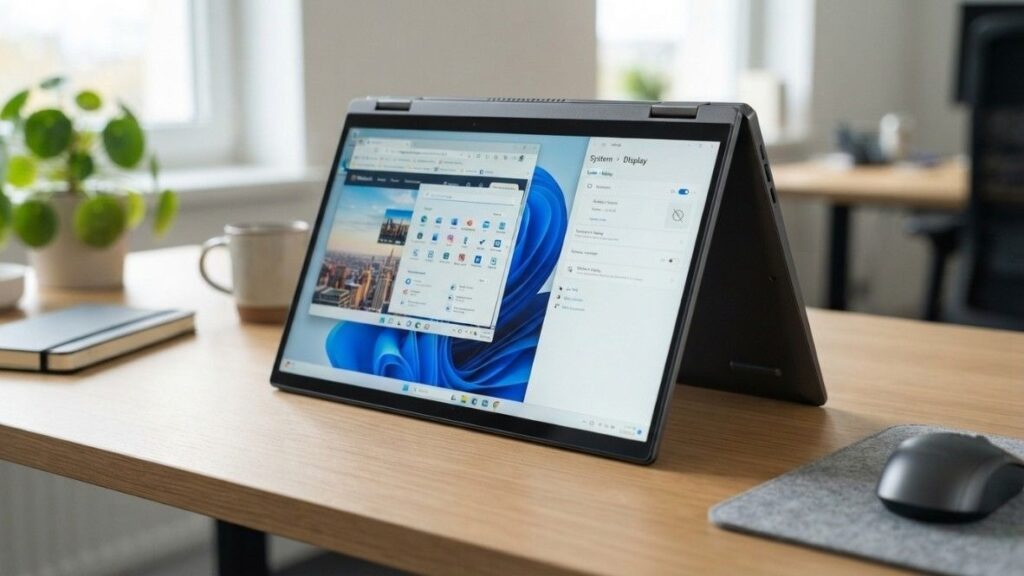
When the screen is vertical on laptop, the Lenovo laptop’s regular Windows Display settings method normally solves the problem:
- Right-click the desktop.
- Select Display settings.
- Choose the affected display.
- Set display orientation to landscape.
- Keep the changes.
Lenovo laptops use Windows display controls, but Yoga, IdeaPad Flex, and ThinkPad Yoga models may also include automatic screen rotation because they can operate in laptop, tent, stand, or tablet mode.
Lenovo documents rotation and rotation-lock controls for supported Yoga and IdeaPad devices.
Stop a Lenovo Laptop Screen From Rotating Automatically
If the display returns to vertical whenever you move the laptop:
- Put the device in normal laptop mode.
- Open Settings.
- Go to System > Display.
- Look for rotation lock.
- Turn rotation lock on.
- Confirm that Display orientation is set to Landscape.
On some Lenovo convertible laptops, the rotation lock option may only become available when the device is in tablet or tent mode.
How to Rotate Screen on Laptop Windows 10 Using Graphics Settings
If Windows display settings do not work, check your graphics control panel.
Intel Graphics
Modern Intel systems generally rely on Windows display settings:
- Right-click the desktop.
- Select Display settings.
- Set display orientation to landscape.
You can also open Intel Graphics Command Center and inspect the Display section, although available controls depend on the laptop and graphics driver.
AMD Graphics
For compatible AMD systems:
- Open AMD Software.
- Go to the Display section.
- Select the correct monitor.
- Choose the normal landscape orientation.
Supported AMD configurations may also respond to Ctrl + Alt + Up Arrow.
NVIDIA Graphics
To rotate a screen through NVIDIA Control Panel:
- Right-click the desktop.
- Open NVIDIA Control Panel.
- Expand Display.
- Select Rotate display.
- Choose the affected display.
- Select Landscape.
- Apply the change.
NVIDIA’s official controls support landscape, portrait, and inverted display modes.
What to Do If Display Orientation Is Missing
Sometimes the display orientation menu is unavailable, disabled, or missing.
Try the following fixes.
Select the Correct Display
If more than one monitor is connected, click the correct numbered display before looking for the orientation option.
Restart the laptop.
A restart can reload the graphics driver and remove temporary display-setting errors.
Check for Windows updates.
On Windows 11:
Settings > Windows Update > Check for updates
Microsoft notes that unexpected resolution or display changes can sometimes require a graphics-driver update.
Update the graphics driver.
Keeping Windows and your graphics drivers updated can prevent compatibility issues and recurring display-orientation problems. Regular updates also improve system stability and ensure that the laptop correctly recognizes connected screens and orientation settings. For more practical device-care recommendations, read this detailed laptop maintenance guide, which covers software updates, driver management, hardware care, and performance optimization.
Open Device Manager and follow these steps:
- Expand Display Adapters.
- Right-click your graphics device.
- Select Update driver.
- Choose Search automatically for drivers.
For better compatibility, you can also download the correct driver from your laptop manufacturer’s support page.
Avoid downloading graphics drivers from unverified third-party websites.
Reinstall the display driver.
If the screen problem started after a failed update:
- Open Device Manager.
- Expand Display Adapters.
- Right-click the graphics adapter.
- Select Uninstall device.
- Restart the laptop.
Windows will usually detect the graphics hardware and reinstall an appropriate driver.
How to Fix a Screen That Keeps Turning Sideways
A screen that repeatedly changes orientation is usually related to automatic rotation.
This is common on
- 2-in-1 laptops
- Convertible Lenovo Yoga devices
- Microsoft Surface devices
- Tablets running Windows
- Laptops with orientation sensors
To stop it:
- Set the screen to landscape.
- Open Quick Settings or Display Settings.
- Enable rotation lock.
- Return the laptop to normal laptop mode.
- Restart the device if the setting does not stay enabled.
Also check whether the laptop’s hinge or position sensor is working correctly. A damaged or incorrectly detected sensor may cause the device to switch between laptop and tablet modes unexpectedly.
My screen is sideways, but the mouse is also sideways.
When Windows rotates the display, mouse movement rotates with it. For example, moving the mouse upward may move the pointer left or right.
You can still fix the problem using the keyboard:
- Press the Windows key.
- Type display settings.
- Press Enter.
- Use the Tab key to move between options.
- Find display orientation.
- Select Landscape using the arrow keys.
- Press Enter.
Try Ctrl + Alt + Up Arrow may also immediately restore the normal orientation on supported systems.
How to Prevent Accidental Screen Rotation
Once your screen is normal again, use these tips to prevent the problem from returning:
- Avoid pressing Ctrl, Alt, and arrow keys together unnecessarily.
- Keep rotation lock enabled on convertible laptops.
- Install graphics drivers from trusted sources.
- Check display settings after connecting an external monitor.
- Avoid changing orientation inside graphics-control software unless necessary.
- Keep Windows and graphics drivers updated.
- Use Landscape as the default orientation for a normal laptop display.
Regular software updates and proper device care can also help reduce recurring laptop problems and extend the device’s usable life. Learn more about the maintenance and usage factors that affect the average laptop lifespan.
FAQs
Why is my laptop screen showing vertically?
Your display orientation was probably changed from landscape to portrait. This can happen because of an accidental keyboard shortcut, automatic rotation, a graphics-driver setting, or a change in Windows display settings.
How do I change my laptop screen from vertical to horizontal?
Right-click the desktop, select Display settings, open Display orientation, choose Landscape, and click Keep changes.
What keys rotate a laptop screen back to normal?
Try Ctrl + Alt + Up Arrow. This shortcut only works on supported graphics configurations. If it does not work, change the orientation through Windows display settings.
How do I rotate the screen on Windows 11?
Open Settings > System > Display, locate Display orientation, and choose Landscape.
How do I rotate the screen on Windows 10?
Right-click the desktop, select Display settings, scroll to Scale and layout, and set Orientation to Landscape.
Why is my Lenovo laptop screen vertical?
A Lenovo laptop may have been set to portrait orientation, or a convertible Lenovo model may have activated automatic rotation. Set the orientation to landscape and enable rotation lock.
Why is the display orientation option greyed out?
It may be caused by tablet mode, rotation lock, an external display configuration, an outdated graphics driver, or the wrong monitor being selected.
Will rotating the screen damage my laptop?
No. Changing display orientation is a software setting and normally does not damage the screen or laptop hardware.
Why does my screen rotate every time I move my laptop?
Your laptop probably has an orientation sensor and automatic rotation enabled. Set the display to landscape and turn on the rotation lock.
Can I rotate only my external monitor?
Yes. In display settings, select the external monitor first and then change its display orientation. Your laptop screen can remain in landscape mode while the external monitor uses portrait mode.
Get Your Laptop Screen Back to Normal
When your screen is vertical on laptop, the problem can usually be fixed in less than a minute. Open Display settings, select the affected screen, and change Display orientation to Landscape.
The Ctrl + Alt + Up Arrow shortcut can be useful, but it is not supported by every laptop or graphics driver. Windows display settings are the safest and most consistent solution.
If the screen continues rotating, enable rotation lock, update the graphics driver, and check whether your laptop is switching into tablet mode. These steps work for most Windows 11, Windows 10, Windows 7, Lenovo, HP, Dell, Acer, and ASUS laptops.