

Attending online classes on laptop has become the default way most students and adult learners access coursework, whether that’s a university lecture, a certification program, or a free skills course. The problem isn’t finding classes — it’s making sure your laptop, internet connection, and workspace can actually handle them without constant interruptions. This guide walks through exactly what you need before your first session, how to set everything up correctly, where to find legitimate free courses, and how to keep your device running well throughout the term.
What You Need Before Starting Online Classes on Laptop
Before enrolling in anything, it helps to confirm your setup can support the basics: video calls, document sharing, file uploads, and extended screen time. Most learning management systems (LMS)—Canvas, Blackboard, Google Classroom, and Moodle among them—run in a standard web browser, so you don’t need specialized software for the coursework itself. What you do need is a laptop that can run a browser, a video conferencing app, and a few background programs at the same time without slowing down.
At minimum, look for:
- A working webcam and microphone — built-in components are usually fine for casual attendance, but a USB headset improves clarity in group discussions.
- 8GB of RAM or more — 4GB can technically run a video call, but it struggles once you add note-taking apps or multiple browser tabs.
- A recent operating system—Windows 10/11 or macOS Ventura and later—receives security updates that many school portals now require.
- A stable internet connection — this matters more than laptop specs for video quality.
On that last point, the Federal Communications Commission’s broadband guidance notes that <cite index=”25-1,25-2″>a general “Student” or “Telecommuting” category of internet use typically requires between 5 and 25 Mbps of download speed, while HD video conferencing needs around 6 Mbps</cite>. If your connection regularly dips below that during class hours, expect frozen video and dropped audio regardless of how good your laptop is.
Setting Up Your Laptop for Online Classes on Laptop Sessions
Once you’ve confirmed your device meets the basics, the actual setup takes about 20–30 minutes.
1. Install your school or program’s required software. Most institutions specify Zoom, Microsoft Teams, or Google Meet for live sessions. Download directly from the official site rather than a search result link, since fake installers are a common source of malware.
2. Create and organize your accounts. Use your school-issued email where required — many LMS platforms only grant access through institutional single sign-on. Keep a password manager handy, since juggling separate logins for the LMS, video app, and library portal gets confusing fast.
3. Test your camera, microphone, and speakers ahead of time. Nearly every video platform has a built-in test call feature. Run it before your first real class rather than during it.
4. Adjust lighting and camera angle. Natural light facing your face (not behind you) makes the biggest visible difference. Prop the laptop so the camera sits roughly at eye level.
5. Close unnecessary background apps. Video calls are demanding on both processing power and bandwidth. Streaming services, cloud backups, or large downloads running in the background can noticeably degrade call quality.
6. Bookmark your class portals. A simple browser folder for your LMS, email, and video app saves time and reduces the chance of missing a session link.
Free Online Classes on Laptop: Where to Find Legitimate Courses
A large share of people searching for this topic aren’t enrolled in a formal degree program—they’re looking for free online classes on laptop to build a skill, switch careers, or simply learn something new. The good news is that legitimate, no-cost options are genuinely plentiful in 2026, though quality and structure vary widely.
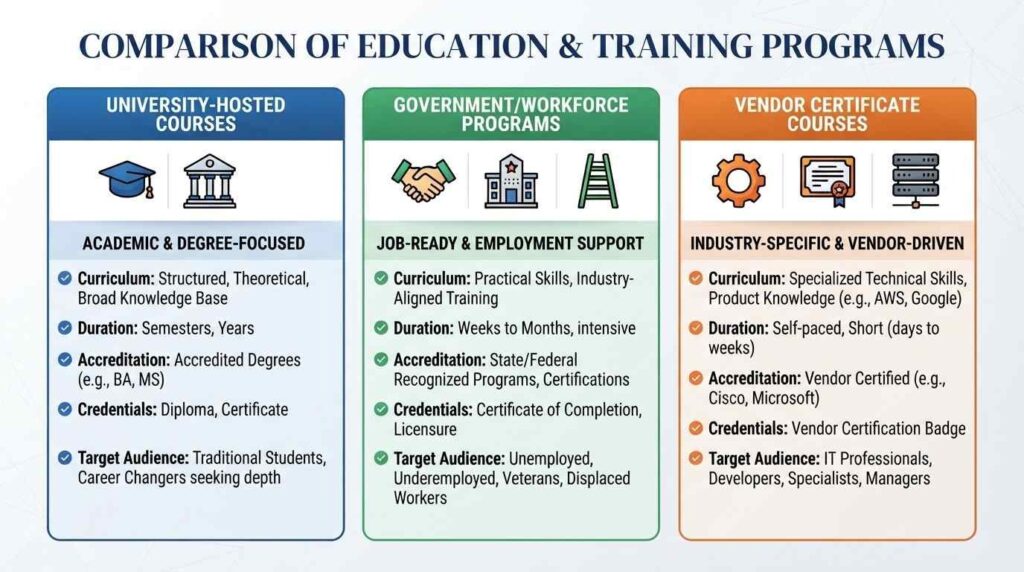
University and platform-hosted courses. Platforms like Coursera and edX host free-to-audit courses from institutions such as MIT, Harvard, and Stanford. You typically won’t pay unless you want a verified certificate, but the course content itself remains accessible.
Free online computer courses for beginners. If you’re starting from zero, look for introductory tracks in digital literacy, typing, spreadsheets, or basic coding. These are widely available through public library systems and nonprofit digital-skills programs, and they’re a practical starting point before moving into more technical subjects.
Government-backed and workforce programs. For anyone specifically seeking government-free online courses with certificates, CareerOneStop—a resource sponsored by the U.S. Department of Labor—is one of the more reliable starting points. It notes that <cite index=”4-1″>platforms such as Coursera, edX, and Academic Earth offer free online college classes through video lectures, quizzes, and readings, as well as shorter microcredential programs</cite>, and points learners toward its Certification Finder for training tied to specific careers or industries.
Free online computer courses with certificate options. If a certificate matters to you — for a resume or a job application — check whether the issuing organization is recognized in your field before investing time. Some certificates carry real weight with employers; others are mainly a completion record. IT-focused learners searching for free online IT courses often find that vendor-specific programs (from companies like Google, Microsoft, or IBM) offer both free coursework and optional paid certification exams.
Online classes on laptop for adults returning to education. Community colleges and workforce development boards frequently run free or low-cost online cohorts specifically designed for adult learners balancing work and family obligations. These tend to be more structured than self-paced platforms, with set deadlines and instructor feedback.
Choosing the Right Laptop If Yours Isn’t Keeping Up
If your current device struggles to keep up, it’s worth understanding what actually affects performance before buying something new. Processor speed and RAM matter more for multitasking during a live session than storage space does, since most coursework and video calls run through the browser rather than installed software. A laptop that’s several years old can still work well for basic online classes on laptop use, provided it’s been maintained properly and isn’t running an outdated, unsupported operating system.
If you’re unsure whether your laptop is nearing the end of its useful life, it helps to look at how long a typical laptop lasts before performance noticeably declines, since battery health and processing speed both degrade gradually rather than failing all at once. That comparison can save you from either replacing a laptop too early or pushing an aging one past the point where it can reliably handle video calls.
Common Problems During Online Classes on Laptop and How to Fix Them
Even a well-set-up laptop runs into predictable issues.
- Frozen or lagging video: Usually an internet bandwidth issue rather than a laptop problem. Close other devices using the same network during class, or move closer to the router.
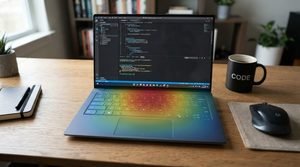
- Overheating during long sessions: Extended video calls push the processor harder than typical browsing. Keep vents unblocked and avoid running the laptop on soft surfaces like a bed or blanket.
- Battery draining quickly: Video calls, screen brightness, and multiple open tabs all pull significant power. Plugging in during class is the simplest fix if you’re near an outlet.
- Audio echo or feedback: Usually caused by two devices in the same room both connected to the call. Muting one or using headphones resolves it immediately.
- App crashes mid-session: Outdated software is a common cause. Keep your video conferencing app and operating system updated between terms, not mid-semester when you’re relying on them daily.
Best Practices for Getting the Most Out of Online Classes on Laptop
Beyond the technical setup, a few habits make a measurable difference in how well online learning actually works:
- Treat class time like an in-person commitment. Logging in from bed or with constant multitasking tends to reduce retention, even if attendance is technically marked.
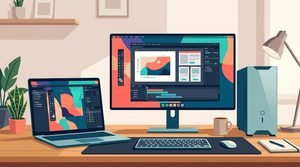
- Use two monitors or a tablet as a second screen if possible. Splitting your video call from your notes or slides reduces the constant window-switching that breaks concentration.
- Save work locally and to cloud storage. Losing a document because of a laptop crash mid-assignment is avoidable with basic backup habits.
- Schedule short breaks between sessions. Back-to-back video calls are more fatiguing than in-person classes, partly because of the constant self-view on camera.
Keeping Your Laptop Reliable for the Full Term
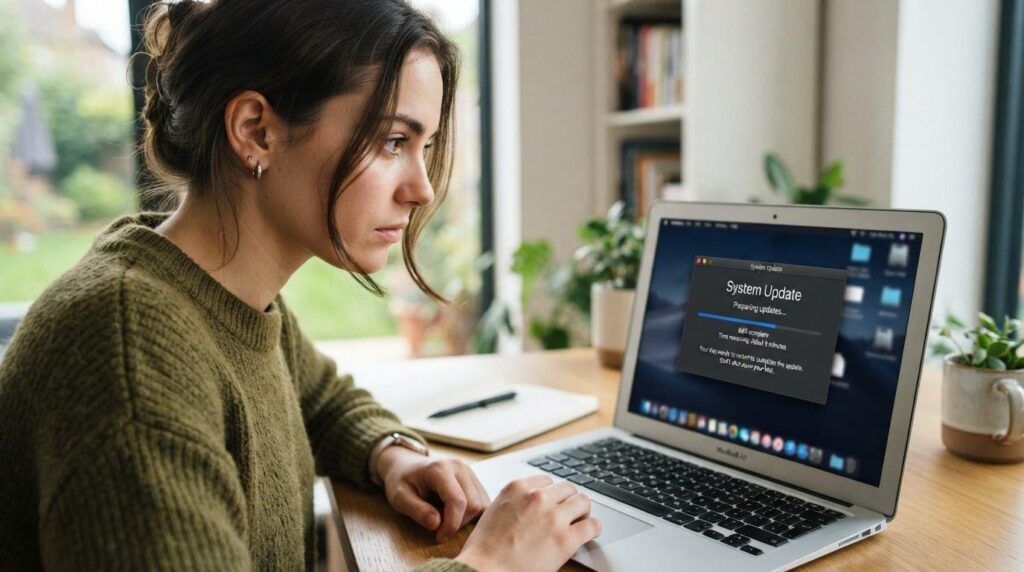
A laptop that works well in week one can start lagging by midterms if it isn’t cared for. Dust buildup in the cooling fan, too many browser extensions, and a cluttered startup process are common, fixable causes of slowdown. Running periodic software updates, clearing storage, and following a basic laptop maintenance routine can meaningfully extend how smoothly your device handles daily video calls and coursework — without needing a full replacement mid-semester.
FAQs
1. What laptop specs do I actually need for online classes on laptop use? For most coursework, 8GB of RAM, a recent dual- or quad-core processor, and a supported operating system are enough. Video-editing or design-heavy programs may need more, but standard lectures and assignments run comfortably on mid-range hardware.
2. Can I attend online classes on laptop without a webcam? Yes, in most cases. Many instructors only require audio participation, though some programs mandate video for attendance verification. Check your specific course policy before assuming it’s optional.
3. What internet speed do I need for smooth online classes? According to FCC guidance, standard student use typically falls in the 5–25 Mbps range, with HD video conferencing needing roughly 6 Mbps. Slower connections can still work but are more prone to lag during video calls.
4. Are free online computer courses with certificates actually recognized by employers? It depends on the issuer. Certificates from established platforms, universities, or well-known technology companies tend to carry more weight than lesser-known providers. Always check whether the certificate is verifiable and relevant to the job you’re targeting.
5. Is a Chromebook good enough for online classes on laptop needs? For browser-based coursework, yes — Chromebooks handle most LMS platforms and video calls fine. They become limited only if a course requires specialized desktop software that isn’t browser-compatible.
6. How do I find government free online courses with certificates? Start with workforce development resources like CareerOneStop, which is sponsored by the U.S. Department of Labor and lists free training options along with a certification finder tied to specific careers.
7. My laptop is a few years old — is it still fine for online classes? Often, yes, especially if it’s been maintained and updated. Performance issues are more commonly caused by too many background programs or an aging battery than by the laptop being fundamentally incapable of handling video calls.
Conclusion
Getting online classes on laptop right isn’t about owning the newest device—it’s about making sure your hardware, internet connection, and habits work together instead of against each other. A properly set-up laptop with a stable connection, updated software, and a distraction-free routine handles most coursework without issue, whether you’re enrolled in a university program or working through free online computer courses with certificate options on your own schedule. If problems do come up, they’re usually fixable: a bandwidth issue, an overdue update, or a laptop that needs basic maintenance rather than replacement. Start with the setup steps above, and most of the friction that makes online learning frustrating disappears before your first session even begins.



1 thought on “Online Classes on Laptop: A Complete Setup Guide for Students”
Pingback: Can an iPad Replace a Laptop? 5 Essential Checks (2026)