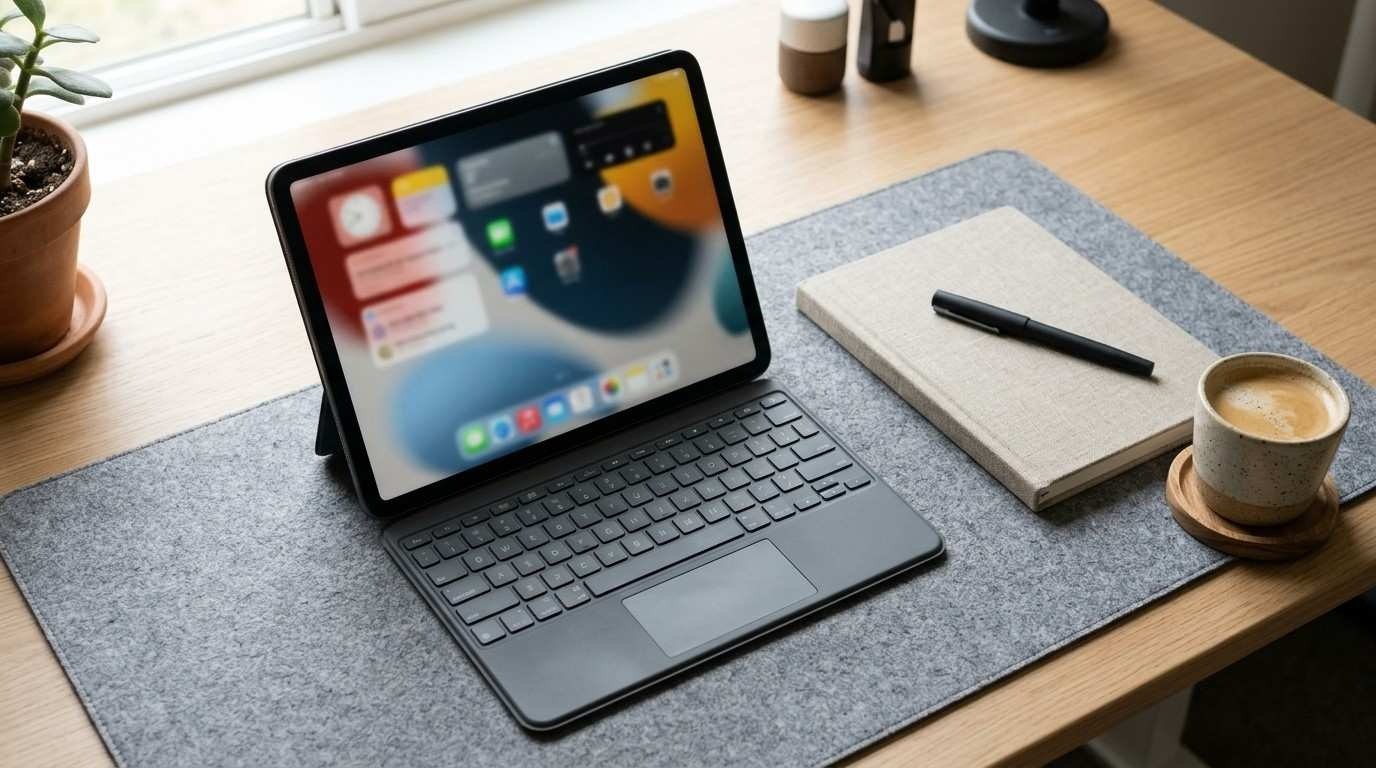
Can you convert iPad into laptop use for everyday work? Yes, for most daily tasks, as long as you add the right accessories and set up iPadOS properly. You won’t get a Mac or a Windows PC, so it isn’t a full replacement for every job. But a keyboard, a pointer, better multitasking, and a few storage and power add-ons cover what most people expect from a laptop.
This guide shows how to convert iPad into laptop mode without wasting money. You’ll learn what the conversion can and can’t do, how to check your model first, which seven upgrades matter most, and which mistakes to avoid.
What It Really Means to Convert iPad Into Laptop (and Where It Falls Short)
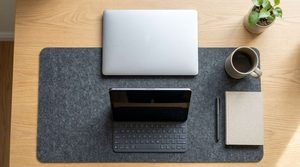
When you convert iPad into laptop mode, the operating system doesn’t change. Your iPad still runs iPadOS, so you’re building a laptop-style workspace around it: a physical keyboard, a pointer, windowed multitasking, file storage, and sometimes a larger display.
The strengths are real. iPads are light and portable, and they support touch and Apple Pencil input. With a keyboard and trackpad added, they handle writing, email, research, note-taking, and video calls well.
The limits matter just as much. iPadOS runs iPad apps, not Windows or macOS programs, so specialized desktop software won’t install. Files live in the Files app rather than on a traditional desktop. Remote-desktop apps can stream a Windows or Mac computer to your iPad, but they need a second computer, so that’s a workaround. If your work depends on desktop-only software, a laptop is still the safer choice.
Check Your iPad Model Before You Buy Anything
Before you convert iPad into laptop mode, confirm your model and software version. Open Settings, then General, then About. Together they decide which upgrades will work.
Apple’s list of iPad models that support Stage Manager is broad. With iPadOS 26, it includes the iPad (8th generation and later), iPad (A16), iPad Air (3rd generation and later), iPad mini (5th generation and later), and recent iPad Pro models. Moving windows to an external display is far more limited, with support on select iPad Air and iPad Pro models only.
| Feature | Who can use it |
| Stage Manager on the iPad screen | Models on Apple’s supported list |
| Stage Manager on an external display | Select iPad Air and iPad Pro models |
| Keyboard cases | Depends on your exact iPad; check the maker’s compatibility list |
The 7 Essential Upgrades That Make an iPad Work Like a Laptop
These seven upgrades convert iPad into laptop workflows, ordered by how much they change daily use. The first three transform the experience. The rest depend on how you work.
Upgrade 1: Add a Physical Keyboard
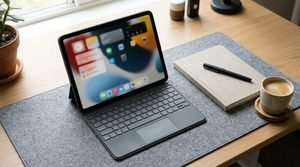
A physical keyboard is the biggest change when you convert iPad into laptop mode, because typing on glass slows down anything longer than a short reply. You have two main options.
Attachable keyboard cases, such as Apple’s Magic Keyboard and Smart Keyboard Folio, connect magnetically and draw power from the iPad, so there’s nothing to pair or charge, according to BGR’s tips for using an iPad as a laptop replacement. The Magic Keyboard also includes a trackpad. Confirm that a case fits your exact iPad before buying.
Standalone Bluetooth keyboards work across more devices and often cost less. You pair them in Settings > Bluetooth, and they need their own charge. Add a stand for a laptop-like viewing angle.
Once connected, learn the shortcuts. Holding the Command key shows shortcuts for the current app, and Command-Tab switches between apps.
Upgrade 2: Add a Trackpad or Mouse
A pointer makes spreadsheets, document editing, and precise text selection much faster. If your keyboard case has a built-in trackpad, you already have one. Otherwise, pair a Bluetooth mouse or trackpad in Settings > Bluetooth. Once connected, you get an on-screen cursor for scrolling, dragging, and highlighting text.
Choose a mouse for desk work and a trackpad for lap or tight spaces. Either one cuts how often you reach for the screen, the small annoyance that makes people give up when they try to convert iPad into laptop mode with a keyboard alone.
Upgrade 3: Set Up Windowed Apps or Stage Manager
Multitasking is where an iPad feels least like a laptop by default, and iPadOS 26 improved it. Apple’s windowing system lets you open, resize, and arrange app windows, while Stage Manager is an alternative mode that groups windows into reusable sets.
To switch, open Control Center and tap the Stage Manager or Windowed Apps button, or go to Settings > Multitasking & Gestures and choose Stage Manager, Windowed Apps, or Full Screen Apps. If you don’t see the options, your iPad model or software version may not support them.
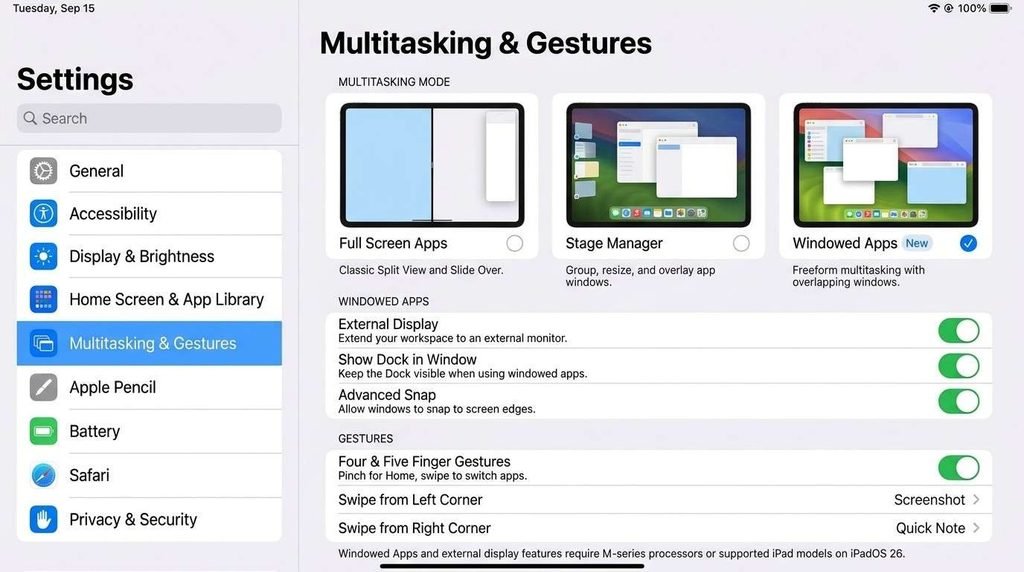
Which mode is better depends on how you work. Windowed Apps suits free-form windows, while Stage Manager suits people who juggle groups of apps for different tasks. MacRumors reported that you can use only one mode at a time on iPadOS 26.
If your iPad can’t use the new windowing, Split View still lets you run two apps side by side. It’s a smaller step, but it’s the simplest way to convert iPad into laptop-style multitasking on older hardware.
Upgrade 4: Connect an External Display
A larger screen turns the iPad into a desk workstation. Plug a USB-C monitor directly into the iPad, or use a USB-C to HDMI adapter for HDMI displays, as BGR notes. AirPlay is the wireless option for compatible TVs and Apple TV.
Check compatibility first. Apple lists a limited set of iPad Air and iPad Pro models that can use Stage Manager to move apps and windows to an external display. Other iPads may be limited to mirroring, so confirm yours on Apple’s page.
Pair the display with a keyboard and mouse, since a second screen is awkward to control by touch. If you want to convert iPad into laptop-plus-desktop use, this is the upgrade that matters most, especially for long hours at a desk.
Upgrade 5: Add a USB-C Hub or External Drive for Files
The Files app handles iCloud Drive and other storage locations, and a USB-C port accepts external SSDs and flash drives, a point BGR also makes.
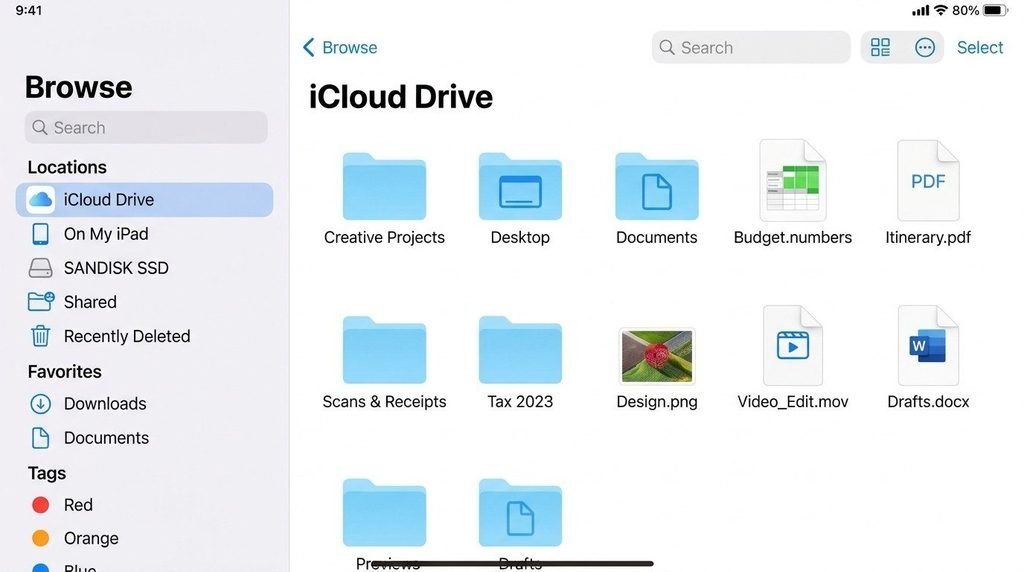
Ports differ across iPad models, so check which port yours has before buying a hub. A hub adds extras such as HDMI, USB-A, and card readers, and some let you charge while connected.
Use cloud storage for everyday documents and an external drive for large video or photo projects. That split is the cleanest way to convert iPad into laptop-style file handling.
Upgrade 6: Choose Laptop-Class Apps and Cloud Storage
Apps decide whether the iPad can replace your laptop. List the programs you use every week and check whether each has an iPad version or a reliable web version. BGR notes that Microsoft 365, Adobe Photoshop, DaVinci Resolve, and Final Cut Pro are available on iPadOS, and many other tools work in a browser.
Pair your apps with cloud storage such as iCloud Drive so documents stay in sync across devices. If one essential program has no iPad version, you’ll need a computer for that task, or a remote-desktop connection to one. Settle this before you convert iPad into laptop duty, not after.
Upgrade 7: Plan Your Power and Battery
Power matters more once you convert iPad into laptop-length workdays, because accessories and displays can draw extra power. Keep a USB-C charger in your bag, and consider a power bank if you often work away from outlets. Check your iPad’s charging requirements before buying one.
Turn on Low Power Mode in Settings > Battery when you need to stretch the charge, and unplug accessories you aren’t using. Don’t rely on any single battery-life figure, since real results vary with brightness, apps, and external displays.
Which Upgrades Should You Buy First?
The cheapest way to convert iPad into laptop use is to match accessories to your work. You don’t need all seven upgrades. Start with the smallest setup that fits:
- Student: a keyboard, a mouse or trackpad, and cloud storage. For the basics of studying on a laptop, see TechyCircle’s online classes on laptop setup guide.
- Remote worker: the same basics plus windowed multitasking and an external display if your model supports it.
- Light creator: add an external drive, a power bank, and an Apple Pencil if you sketch or annotate.
Common Mistakes When You Convert iPad Into Laptop Mode
Most disappointing attempts to convert iPad into laptop mode trace back to a few avoidable errors:
- Buying a keyboard case before confirming it fits your exact model.
- Expecting desktop software to run natively on iPadOS.
- Planning an external-display workflow on an iPad that doesn’t support it.
- Skipping iPadOS updates, which can leave windowing features unavailable.
- Spending so much on accessories that the total approaches the price of a laptop.
Add up the cost of every accessory before you start. If the total rivals a laptop that meets your needs, the laptop may be the better value.
FAQs
Can an iPad fully replace a laptop?
For writing, browsing, email, notes, and video calls, often yes. It can’t run desktop-only software, so people who depend on Windows or macOS programs may still need a laptop. List the apps you use weekly and check for iPad versions before deciding.
Do I need a Magic Keyboard, or will a cheaper Bluetooth keyboard work?
A Bluetooth keyboard works with most iPads and usually costs less, but you must pair and charge it. Apple’s attachable keyboards connect magnetically and need neither. Compatibility depends on your exact iPad model, so check before buying either type.
Can I run Windows or Mac programs on an iPad?
Not natively, because iPadOS runs iPad apps. Remote-desktop software can stream a Windows or Mac computer to your iPad, but that requires another computer and a stable connection. First check whether an iPad or web version of your program exists.
Which iPad models support an external display with Stage Manager?
According to Apple, these include the iPad Air (5th generation), iPad Air 11-inch and 13-inch (M2 and M3), iPad Pro 11-inch (3rd generation and later), iPad Pro 12.9-inch (5th generation and later), and iPad Pro 11-inch and 13-inch (M4). Apple may update the list, so check its support page.
Is it cheaper to convert iPad into laptop use or just buy a laptop?
It depends on the accessories. If you already own an iPad, a basic keyboard and mouse can cost less than a laptop, but a premium keyboard case, monitor, and drive add up quickly. Compare the total with how long laptops typically last, which TechyCircle covers in its guide to average laptop lifespan.
Conclusion
The best way to convert iPad into laptop-style use is to start small. Add a keyboard and pointer, pick a windowing mode that suits you, and check your iPad model before buying anything else. External displays, storage, and power add-ons are worth adding only if your work demands them. If an essential program has no iPad version, a laptop remains the better tool. Review the apps you use each week, then build your setup in the order above.