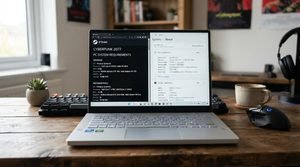
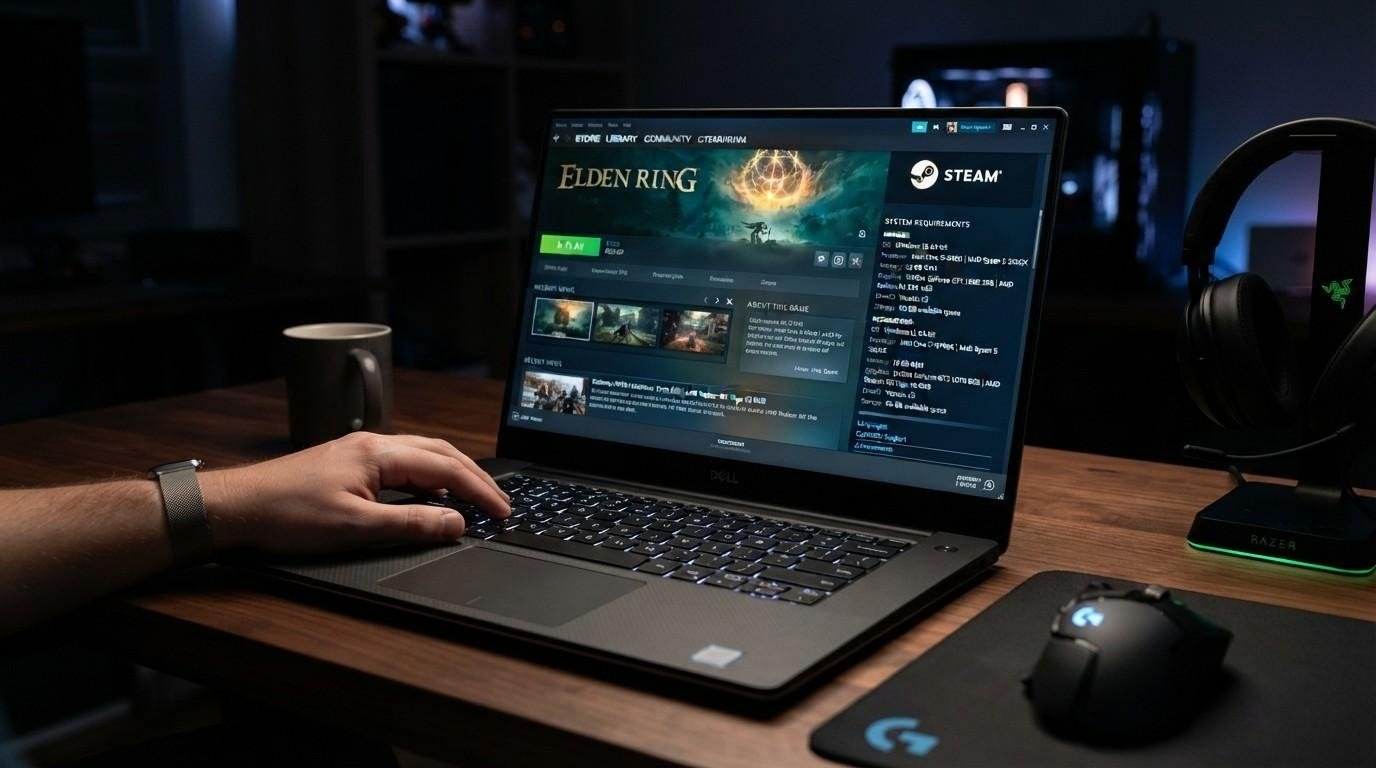
Figuring out which games that i can run on my laptop can actually handle is one of the most common frustrations for casual and budget PC gamers. A game might look perfect on a store page, only to stutter, crash, or refuse to launch once installed. The good news is that matching a game to your hardware isn’t guesswork—it comes down to checking a few specific numbers and comparing them against what a title actually needs.
This article explains how to check your laptop’s gaming capabilities, use free compatibility tools, and find games that match different hardware tiers—from integrated graphics to dedicated gaming GPUs.
Finding Games That I Can Run On My Laptop Starts With Your Specs
Before searching for games that I can run on my laptop, you need four numbers: your processor model, GPU (integrated or dedicated), RAM amount, and available storage. On Windows, opening Task Manager’s Performance tab or typing “dxdiag” into the Run box shows all of this in under a minute. macOS users can check the same information through “About This Mac.”
Two components matter most for gaming specifically:
- Graphics processor – determines resolution, frame rate, and visual settings a game can handle
- RAM – determines whether a game loads smoothly or stutters during larger scenes
A laptop with 8GB of RAM and integrated graphics will handle different titles than one with a dedicated GPU and 16GB, even if both machines are the same age. This is why generic “best laptop games” lists are less useful than checking your exact configuration first.
Free Tools to Check Which Games Your Laptop Can Handle
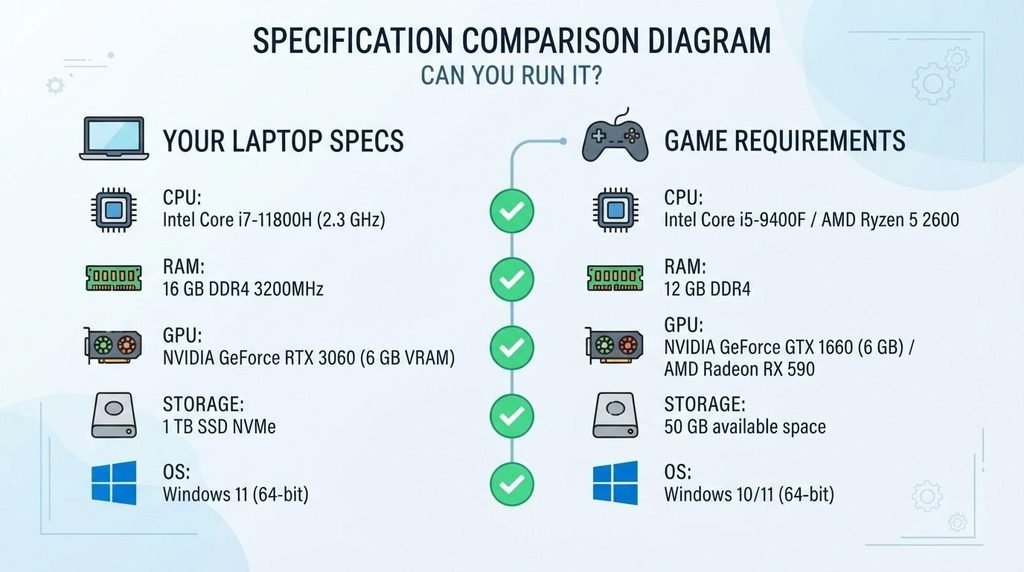
Several free tools exist specifically to answer what a machine can handle before you spend money or storage space on a download. Can You Run It, hosted through System Requirements Lab, remains one of the most widely used — you select a game from its database, and it scans your system to compare specs automatically. PCGameBenchmark offers a similar service with a broader catalog and side-by-side spec comparisons for older titles.
A common question is whether Can You Run It is safe to use. The scan itself only reads hardware information already visible to your operating system (CPU, GPU, RAM); it doesn’t require installing invasive software or granting elevated permissions beyond a basic system scanner. As with any downloadable checker, get it from the official site rather than a mirrored or bundled installer, since third-party download bundlers are a more common risk than the tool itself.
If you’d rather not install anything, most storefronts — including Steam’s game pages — list minimum and recommended specs directly, which you can compare manually against your dxdiag results.
What Games Can I Run on My Laptop at Each Hardware Tier?
Rather than one-size-fits-all suggestions, it helps to think in tiers based on graphics capability:
Integrated graphics (Intel Iris Xe, AMD Radeon Graphics): Lighter games, indie titles, 2D platformers, older AAA games, and esports titles are generally the best fit. Depending on your exact processor, RAM, and graphics configuration, you may be able to play games such as Valorant, League of Legends, Terraria, Stardew Valley, and Minecraft at playable settings.
Entry-level dedicated GPU (GTX 1650, RTX 3050, RX 6500M): This tier opens up modern esports titles and mid-weight AAA games at lower or medium settings. Competitive shooters and MOBA-style games typically run well here even on a budget dedicated card.
Mid-to-high-end GPU (RTX 4060 and above): Current AAA releases, ray-traced titles, and demanding open-world games become realistic at higher settings and resolutions.
Checking games that I can run on my laptop for free through a spec-comparison tool before purchase avoids the common mistake of buying a full-price title only to find it runs at single-digit frame rates.
Common Mistakes When Checking Compatibility
A frequent misunderstanding is confusing “minimum requirements” with “playable experience.” Minimum specs usually mean the game will launch and run — not that it will run smoothly. Recommended specs are generally a better starting point for estimating a smoother experience, but they do not guarantee a specific resolution, graphics preset, or frame rate.
Another mistake is ignoring storage type. A laptop that meets a game’s CPU and GPU requirements may still have longer loading times if it uses an older mechanical hard drive instead of an SSD. In some games, storage speed can also affect asset streaming and contribute to stuttering, although this depends heavily on the title.
Finally, many users overlook driver versions. A capable GPU running outdated drivers can underperform significantly compared to the same hardware with current drivers installed — this is worth checking before assuming a laptop “can’t run” a title it technically should support.
Improving Performance Without Buying a New Laptop
If your current machine sits right at the edge of a game’s requirements, a few adjustments can help before you consider hardware queries as a dead end:
- Lower in-game resolution and disable anti-aliasing first — these have the largest performance impact per setting changed.
- Close background applications, especially browsers with multiple tabs open, which can consume noticeable RAM and CPU cycles.
- Update GPU drivers directly from the manufacturer (NVIDIA, AMD, or Intel) rather than relying solely on Windows Update.
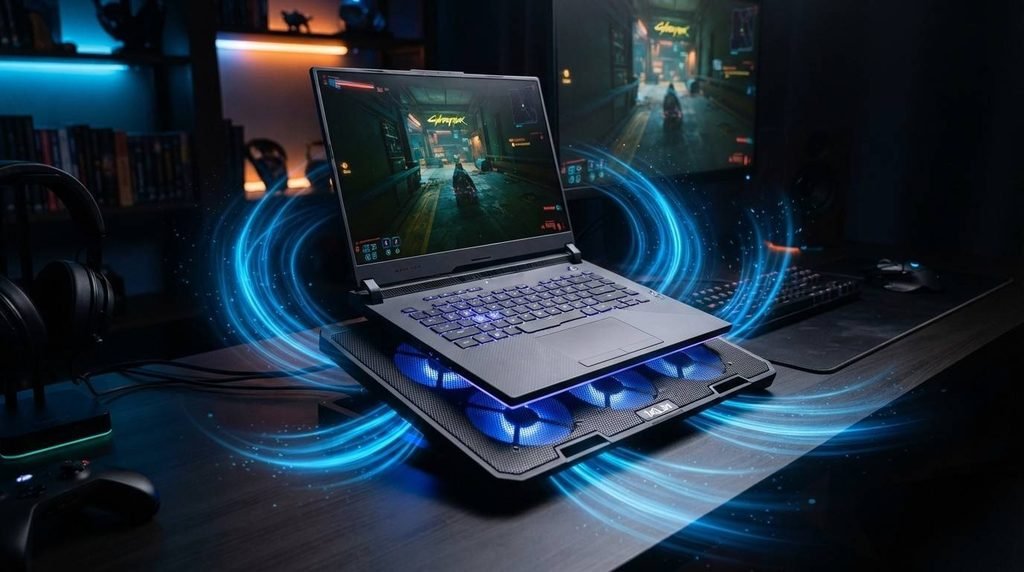
- Keep the laptop’s internal temperature in check, since thermal throttling reduces performance mid-session on hardware that would otherwise handle the game fine. Our guide to laptop cooling pads for maximum cooling covers accessories that help with this specifically during longer gaming sessions.
Routine upkeep also plays a role in sustained performance — dust buildup, throttled fans, and background clutter all reduce the frame rates a laptop can otherwise deliver. A broader look at keeping a laptop running like new covers maintenance habits that support consistent performance across gaming and everyday use.
Why Operating System and GPU Driver Standards Matter
Compatibility isn’t only about raw hardware numbers. Newer titles increasingly expect a specific graphics API version and OS build. Microsoft’s official requirements for Windows 11, for example, specify DirectX 12 compatibility with a WDDM 2.0 driver as a baseline for the operating system itself — and many current games build their own requirements on top of that baseline. Windows 11 requires a device to be compatible with DirectX 12 or later with a WDDM 2.0 driver, which affects whether certain modern titles will run at all, separate from raw CPU or GPU power. Microsoft Support
It’s also useful to know what hardware most PC gamers are actually running, since game developers optimize primarily for common configurations. Valve’s own hardware data shows this shifts over time as GPU generations turn over, which is part of why “minimum requirements” for new releases tend to creep upward year over year — developers are building around what a majority of active gaming systems can handle, not the highest-end hardware available.
2026 Considerations for Laptop Gaming
Storage requirements for new releases have continued to grow, with many current titles requesting 50GB or more of free space, alongside SSD storage as a stated recommendation rather than an afterthought. RAM expectations have also shifted — 16GB is increasingly treated as a baseline for smooth performance in newer releases, even though 8GB may still satisfy a game’s bare minimum listing.
For anyone still deciding between upgrading a current laptop or replacing it, running your exact specs through a compatibility checker against a shortlist of games you actually want to play remains more useful than any general buying guide, since two laptops with similar price tags can have very different real-world gaming performance.
6. FAQs
1. How do I find out what games that I can run on my laptop without downloading anything?
Check your laptop’s CPU, GPU, RAM, and OS version through Task Manager or dxdiag on Windows, then compare that list against the minimum and recommended specs listed on a game’s store page.
2. Is Can You Run It safe to use?
The tool only reads system hardware details already visible to your OS. Download it from the official System Requirements Lab site rather than a third-party mirror to avoid bundled installers.
3. What’s the difference between minimum and recommended requirements?
Minimum specs generally mean a game will launch and run at low settings; recommended specs indicate a more stable experience at medium-to-high settings and typical resolutions.
4. Can I run modern games on a laptop with integrated graphics?
Lighter titles, older games, and many indie or 2D games run fine on integrated graphics. Demanding modern AAA titles typically need a dedicated GPU for a playable frame rate.
5. Does RAM or GPU matter more for gaming performance?
Both matter, but the GPU has the larger direct impact on frame rate and visual settings, while insufficient RAM causes stuttering and slow loading regardless of GPU strength.
6. Will updating my graphics driver actually improve performance?
Yes — outdated drivers can meaningfully underperform compared to current ones on identical hardware, so checking for updates before assuming a laptop can’t handle a title is worthwhile.
7. Are there free tools besides Can You Run It to check compatibility?
PCGameBenchmark offers a similar spec-comparison service with a broad game catalog, and most storefronts list requirements directly on the game’s page for manual comparison.
7. Conclusion
Matching hardware to expectations is the real skill behind finding games that i can run on my laptop without wasted downloads or refunds. Checking your CPU, GPU, RAM, and storage against a title’s stated requirements — using either a free checker tool or a manual comparison — removes most of the guesswork. Pairing that check with basic upkeep like driver updates and proper cooling often extends what a laptop can comfortably handle well beyond its release-year expectations. The next practical step is running your own specs through a compatibility tool against two or three games on your wishlist before installing anything.