
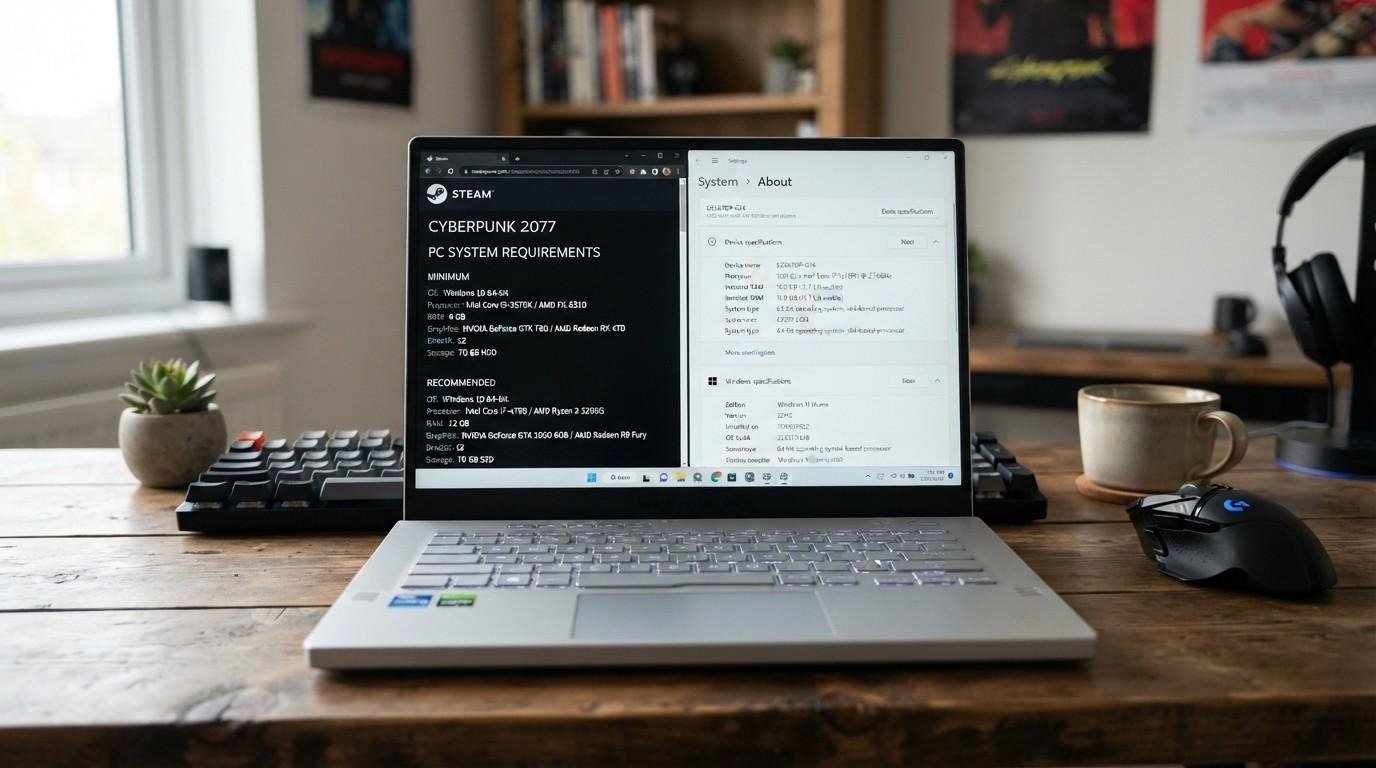
Buying a game only to watch it stutter at 15 frames per second, or refuse to launch at all, is one of the more frustrating ways to lose money on a laptop. Before you click “purchase,” the smarter move is figuring out will my laptop run this game using your actual hardware numbers rather than a hunch. This matters more in 2026 than it did a few years ago, because system requirements have climbed steadily while many laptops on store shelves still ship with entry-level memory and shared graphics. This article walks through exactly how to find your specs, compare them correctly, and interpret what the numbers mean for real gameplay — not just technical pass/fail.
Will My Laptop Run This Game? Start With Your Exact Specs
The only reliable way to answer will my laptop run this game is to know precisely what’s inside your machine—not the marketing name printed on the box, but the actual processor model, graphics chip, installed memory, and available storage. Laptop naming conventions are notoriously vague; two laptops with the same model name can ship with different GPUs depending on region or configuration year. Guessing from memory is where most compatibility mistakes start.
On Windows, open the Settings app and go to System > About for a quick summary of your processor, installed RAM, and system type (32-bit or 64-bit). For graphics and DirectX details specifically, run the built-in DirectX Diagnostic Tool by typing “dxdiag” into the Windows search bar. Microsoft’s own documentation on <cite index=”16-1″>checking which version of DirectX is on your PC</cite> walks through this exact process and explains what each field in the report means, which is useful if you’re unsure whether a listed value is your GPU model or your driver version. Mac users can find equivalent information under the Apple menu by selecting “About This Mac.”
Comparing Specs to the Game’s System Requirements
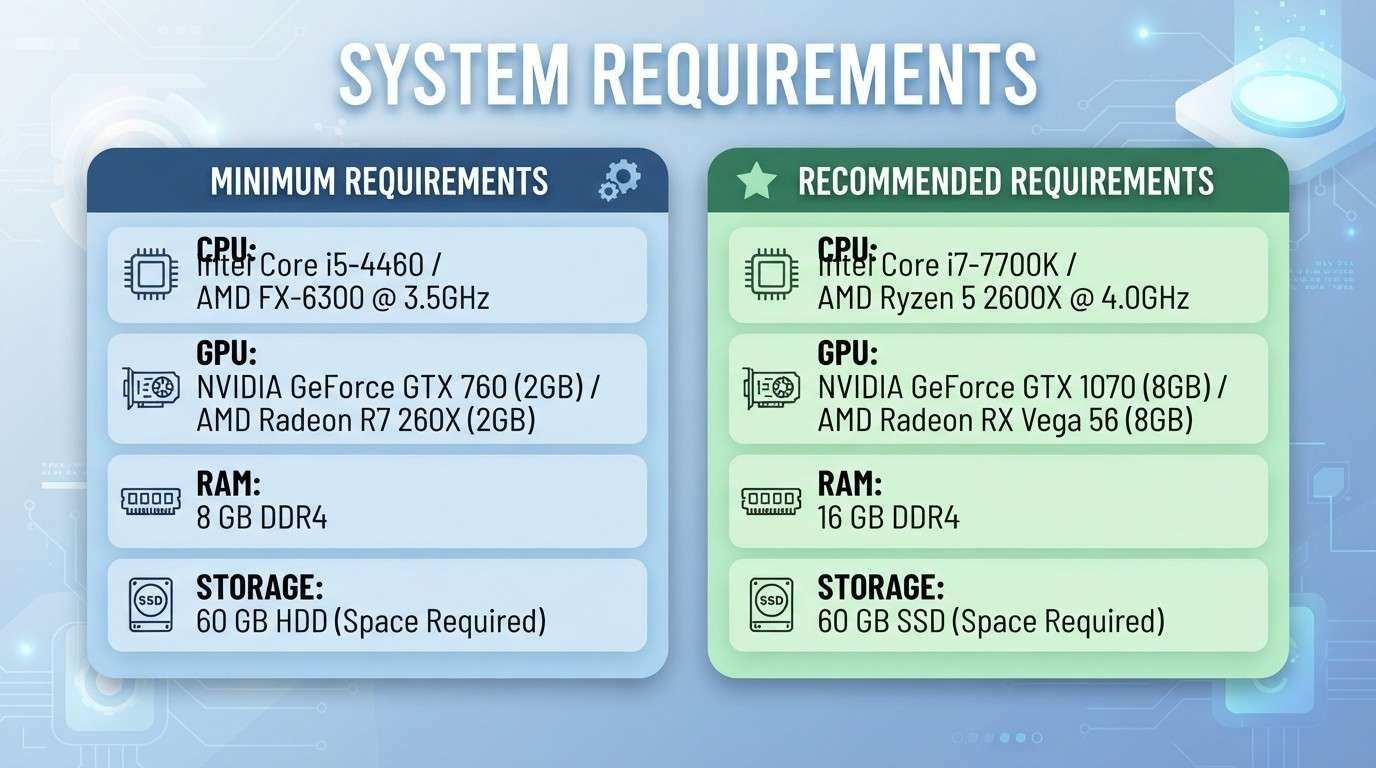
Once you have your hardware list, pull up the game’s official requirements page—usually on its store listing (Steam, Epic Games Store, or GOG) or the developer’s website. Most listings show two tiers:
- Minimum requirements—the baseline needed for the game to run at all, typically at low settings and a modest frame rate.
- Recommended requirements—what the developer expects for a smoother experience at higher settings.
Compare each category individually rather than eyeballing the list as a whole. A laptop can exceed the RAM requirement while falling short on GPU or have a strong graphics card paired with a CPU that bottlenecks performance in CPU-heavy titles like strategy or simulation games. When people ask, “Can I run this game?” without a clear yes, it’s frequently because one component—not the whole system—is the limiting factor. Isolating that one weak point gives a far more useful answer to will my laptop run this game than a vague overall impression?.
Where Laptops Complicate the Comparison
Desktop system requirements don’t always translate cleanly to laptops. A “GTX 1660”-class desktop GPU and its laptop counterpart can perform differently because laptop chips are often clocked lower to manage heat and battery life. When checking whether my laptop can run it for a specific title, treat laptop GPU listings as a separate category from desktop ones, and look specifically for laptop-tier benchmarks where available.
Using “Can You Run It” and Similar Tools—Are They Reliable?
Third-party checkers such as Can You Run It scans your system and compare it automatically against a game’s listed requirements, which is faster than doing it manually. A common follow-up question is “Can you run?” It is safe to use. In practical situations, this category of tool is generally safe from a security standpoint—it reads hardware information rather than installing anything invasive—but accuracy is a separate matter. These tools rely on requirements. Data submitted by publishers, which isn’t always kept current, and they can misread integrated graphics chips or unusual laptop configurations. Treat the result as a starting estimate rather than a guarantee, and cross-check anything borderline against the developer’s own listed specs. Sites like Game Debate’s “Can I Run It” checker work similarly and carry the same caveat—useful for a quick read on will my laptop run this game, but not the final word.
Why RAM Matters More Than Ever in 2026
RAM is one of the most common reasons a laptop underperforms even when the GPU looks adequate on paper. Can 4GB RAM play PC games? Technically, a handful of older or lightweight titles will launch on 4GB, but most current games — and Windows itself running in the background — will struggle, leading to stuttering, long load times, and occasional crashes. Industry guidance generally treats 8GB as an absolute floor for modern gaming and 16GB as the realistic working standard.
That standard is already shifting upward. According to Valve’s own <cite index=”33-1″>Steam Hardware & Software Survey</cite>, 16GB configurations remain the single most common setup among Steam users, but 32GB systems have grown into a strong second place as demanding 2025–2026 releases push memory needs higher. So which game requires 32GB RAM? A growing number of recent AAA titles list 32GB as their recommended (not minimum) configuration for smoother frame pacing, particularly open-world and heavily modded titles. Minimum requirements for most games still sit at 8–16GB, but recommended tiers are creeping toward 32GB for the highest settings.
GPU, Drivers, and Firmware: The Parts People Forget
A laptop can have a capable GPU and still fail to run a game properly if its drivers are outdated. Graphics drivers translate a game’s instructions into something your hardware can execute, and an old driver can cause crashes, visual glitches, or poor performance even on hardware that technically qualifies. Checking for updates through NVIDIA, AMD, or Intel’s driver utilities before installing a new game is a simple step that resolves a surprising number of “why won’t this run” situations.
System firmware plays a smaller but real role too. If your laptop struggles to recognize newer hardware standards or exhibits odd instability under load, outdated firmware can be a contributing factor, and our guide on <cite index=”0-1″>signs you should update your laptop’s BIOS</cite> covers how to tell whether that’s worth investigating before you assume the hardware itself is the problem.
Storage: How Much Space (and Data) Modern Games Actually Need
Storage capacity is a separate compatibility question from performance, but it trips up plenty of players. Modern AAA titles frequently install at well over 50GB, and some open-world releases exceed 100GB once day-one patches are included. A laptop with a mostly full SSD can refuse to install a game even though every other spec checks out, so confirming free space is a basic step before assuming the answer to will my laptop run this game is a hardware problem rather than a storage one.
People also ask how many GB is 1 hour of gaming, usually meaning internet data rather than disk space. For standard online play, typical data usage runs roughly 40 to 300 megabytes per hour depending on the game—a small fraction of a gigabyte. Cloud gaming services are the exception, since they stream video of the game rather than running it locally; those can consume several gigabytes per hour. If your laptop is on a capped connection, it’s worth knowing which category your game falls into before a long session.
Solid-state drives (SSDs) also affect real-world performance beyond raw capacity. Games load noticeably faster from an SSD than a traditional hard drive, and some newer titles are optimized around SSD read speeds, meaning an HDD-only laptop may technically meet requirements while still delivering a sluggish experience.
Heat, Throttling, and Why Specs Alone Don’t Guarantee Performance
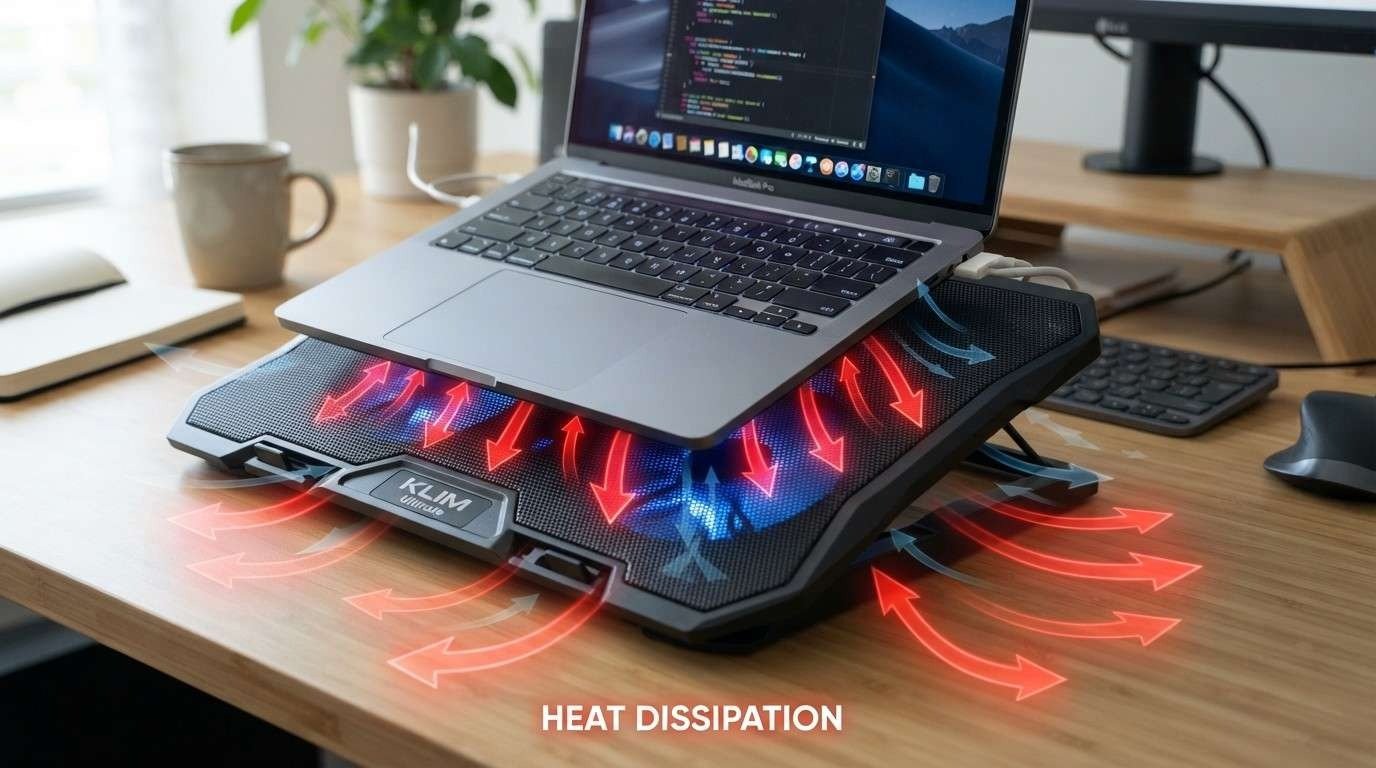
Even when every component clears the listed requirements, laptops introduce a variable that desktop system-requirement charts don’t account for: thermal throttling. Laptops have far less room for airflow than desktop towers, so under sustained load, a laptop’s CPU or GPU can automatically reduce its clock speed to avoid overheating—which lowers frame rates during exactly the moments you’d want peak performance. This is a common issue users encounter with thinner, lighter laptops that prioritize portability over cooling capacity.
If a laptop is meeting requirements on paper but performance still drops during longer sessions, a dedicated cooling accessory can help sustain clock speeds for longer; our roundup of the best laptop cooling pads for better airflow is a useful next step for anyone hitting this specific issue rather than a genuine hardware shortfall.
Common Mistakes When Checking Compatibility
A few recurring errors distort the “Will my laptop run this game? Answer for a lot of players:
- Comparing a laptop GPU name to a desktop GPU’s listed benchmarks, which overstates real performance.
- Assuming “meets minimum requirements” means smooth gameplay, when minimum specs are typically calibrated for low settings and modest frame rates, not an enjoyable modern experience.
- Overlooking free storage space and assuming a failed install is a compatibility issue.
- Ignoring driver and firmware updates when a game that “should” run doesn’t.
- Relying on a single third-party checker’s verdict without confirming against the developer’s official requirements page.
What To Do If Your Laptop Falls Short
If your laptop clearly doesn’t meet minimum requirements, a few realistic options exist short of buying new hardware. Lowering in-game resolution and settings, closing background applications, updating drivers, and freeing up storage can sometimes bridge a small gap. Cloud gaming services, which run the game on remote servers and stream the video to your laptop, are worth considering when the local hardware simply isn’t capable — though as noted above, that approach shifts the cost from hardware to internet data. For a genuine, sizable gap between your specs and a game’s recommended requirements, no software adjustment fully substitutes for the missing hardware, and it’s more honest to treat an upgrade or a different laptop as the real solution rather than chasing settings tweaks indefinitely.
FAQs
1. How can I tell if my laptop will run a game? Check your laptop’s exact CPU, GPU, RAM, and free storage using Settings > System > About or the DirectX Diagnostic Tool, then compare each value individually against the game’s official minimum and recommended requirements listed on its store page.
2. Is Can You Run It safe to use? Yes, from a security standpoint, these scanning tools are generally safe, since they read hardware data rather than installing anything invasive. Their accuracy is more limited, particularly with laptop-specific or integrated graphics configurations, so treat results as an estimate rather than a final answer.
3. Can 4GB RAM play PC games? A limited number of older or lightweight titles will run on 4GB, but most current games need more. 8GB is generally treated as a practical minimum, with 16GB now the common baseline for a smooth modern gaming experience.
4. Which game requires 32GB RAM? Few games list 32GB as an outright minimum, but a growing number of recent AAA and open-world titles list it as their recommended configuration for the smoothest performance at higher settings, reflecting the broader industry shift toward higher memory needs.
5. Can my Mac run this game? The same principle applies as with Windows laptops: check your Mac’s chip, memory, and storage against the game’s official Mac requirements, keeping in mind that many PC titles either aren’t available on macOS or require translation layers that can affect performance.
6. Will my laptop run this game better with a cooling pad? If your laptop meets the listed requirements but performance drops during longer sessions, thermal throttling is a likely cause, and a cooling pad that improves airflow can help sustain performance rather than fixing an actual hardware shortfall.
7. What’s the difference between minimum and recommended requirements? Minimum requirements represent the lowest specs needed for a game to run, typically at reduced settings and frame rates, while recommended requirements reflect what a developer expects for a smoother experience at higher settings.
Conclusion
Figuring out Will my laptop run this game comes down to comparing real, specific hardware numbers against a game’s official requirements rather than relying on guesswork or a single automated checker. RAM, GPU, storage space, driver versions, and even laptop cooling all play a role, and overlooking any one of them can produce a misleading result. Start by pulling your exact specs through dxdiag or your system settings, check them individually against the minimum and recommended tiers listed by the developer, and address the specific bottleneck—whether that’s memory, storage, drivers, or heat—rather than assuming the whole system is at fault. Doing this before you buy saves money; doing it when troubleshooting saves frustration.