
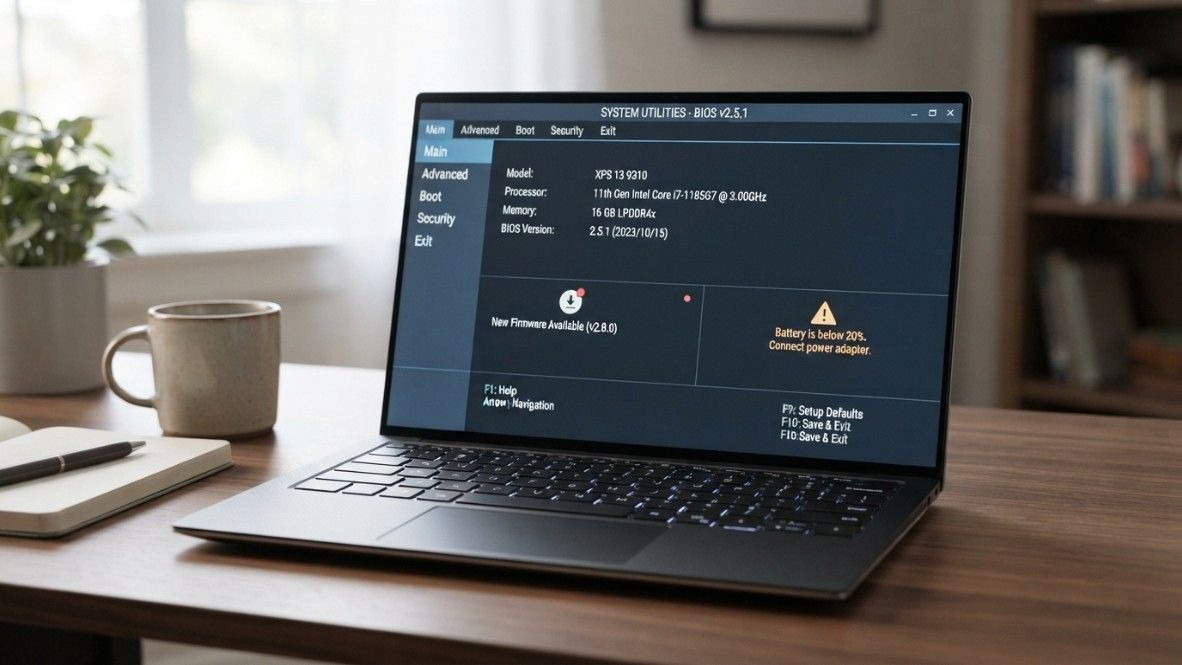
A BIOS update can fix serious security, compatibility, and stability problems, but it is not the same as a routine app update. The firmware runs before Windows and helps the laptop initialize its processor, memory, storage, battery controls, keyboard, ports, and other hardware. A failed or incorrect update can prevent the computer from starting.
So, do you need to update laptop BIOS simply because a newer version exists? Usually, no. Update it when the manufacturer documents a fix or improvement that applies to your exact laptop and current problem. This guide explains seven reliable signs, situations where an update is unnecessary, and the safest preparation process for Windows 7 and Windows 11 systems.
Do You Need to Update Laptop BIOS Right Now?
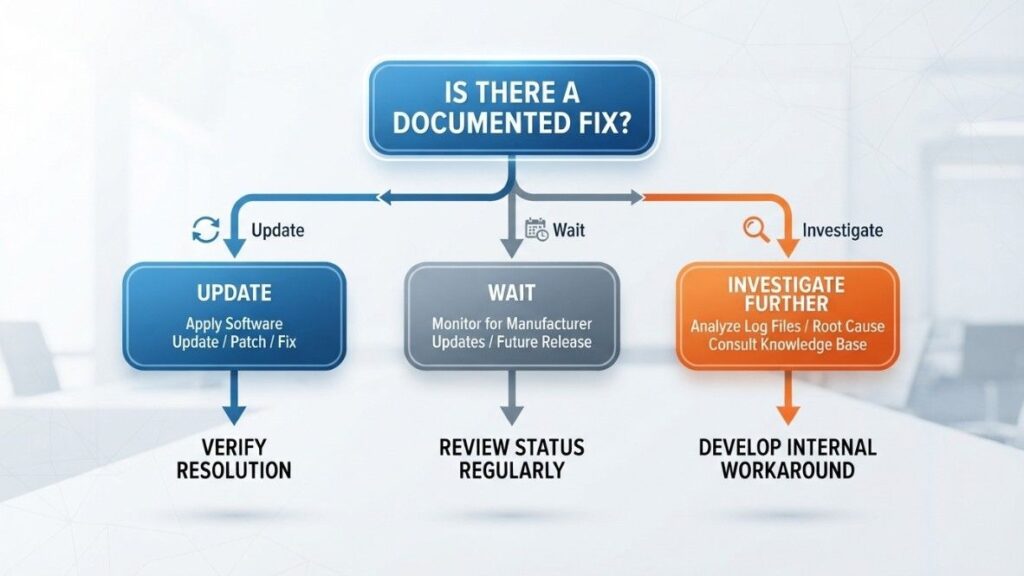
Compare your current BIOS version with the release notes for your exact model or serial number. If the new version addresses a security issue, startup failure, hardware incompatibility, battery problem, or instability you experience, updating is reasonable. Manufacturer guidance describes BIOS or UEFI updates as a way to deliver security improvements, hardware compatibility, bug fixes, reliability changes, and occasional performance optimizations.
If the laptop works correctly and the notes contain nothing applicable, waiting is usually safer. Never install a file for a similar-looking model or another motherboard revision. Firmware packages are model-specific.
Seven Signs a Laptop BIOS Update Is Justified
1. The Manufacturer Lists a Critical Security Fix
Firmware operates below the operating system, so some vulnerabilities cannot be fully corrected by a normal Windows patch or driver update. If the manufacturer marks a release as critical, urgent, security-related, or recommended for a documented vulnerability, that is one of the strongest reasons to update.
Check the affected models, prerequisites, and whether an earlier version must be installed first. For a managed business laptop, follow your IT department’s firmware policy.
2. Your Laptop Has Repeated Startup or Hardware-Detection Problems
A firmware update may be appropriate when the laptop intermittently fails to detect its SSD, memory, USB-C dock, charging adapter, keyboard, or another built-in component and the release notes specifically mention that behavior. It may also address boot loops, resume-from-sleep failures, fan-control errors, or incorrect hardware reporting.
First, rule out drivers, recently added peripherals, and storage faults. If those checks do not help and the manufacturer identifies the same issue, do you need to update laptop bios becomes easier to answer: the documented update is justified.
3. A New Component Requires Firmware Support
Some laptops need newer firmware to recognize replacement storage, memory configurations, docking stations, power adapters, or other supported hardware. This is more common when a component was released after the laptop’s original BIOS.
Read the compatibility documentation and update notes. A BIOS update cannot override physical limits such as maximum RAM capacity or soldered components.
4. Windows 11 Features Are Blocked by Firmware Settings or Support
Users often ask, “Is a BIOS update necessary for Windows 11?” As of 2026, Microsoft’s Windows 11 requirements still call for UEFI firmware with Secure Boot capability and TPM 2.0. On a compatible laptop, those features may already exist but be disabled, or a manufacturer may provide a firmware update that improves their operation.
Updating is not automatically required; you may only need to enable UEFI, Secure Boot, or the firmware TPM. Changing from Legacy/CSM mode to UEFI without preparing the disk can stop Windows from booting, so confirm compatibility and back up data first.
5. The Update Corrects Battery, Thermal, or Fan Behavior
Laptop firmware can influence charging limits, sleep states, fan curves, and thermal management. Consider an update when the release notes mention your exact symptoms, such as incorrect battery detection, charging that stops unexpectedly, fans running at full speed without load, overheating caused by a control issue, or unreliable wake behavior.
Heat alone does not prove a BIOS fault. Dust, blocked vents, heavy background processes, or a failing fan are more common causes. Review TechyCircle’s guide to laptop cooling pads for better airflow before treating every temperature problem as firmware-related.
6. The Manufacturer’s Diagnostic Tool Recommends the Exact Update
OEM utilities can identify the laptop and offer approved firmware. Their recommendations are safer than third-party driver sites or download mirrors, but you should still read the release notes before accepting an update.
For an MSI BIOS update, HP update, Lenovo update, ASUS update, or Dell update, use only the support page or official updater tied to the exact model. Never rename or force-flash a firmware image unless the manufacturer’s documented recovery process explicitly instructs you to do so.
7. Technical Support Requires It for a Confirmed Issue
If the manufacturer’s support team, repair center, or enterprise administrator confirms that a specific BIOS version resolves your problem, updating is generally justified. Record the case number, required version, and any preparation steps.
Freezing, blue screens, poor battery life, and USB failures can originate from Windows, drivers, hardware, or firmware. A technician who matches the symptom to a known firmware fix provides stronger evidence than a forum comment. A “Do you need to update laptop BIOS Reddit?” search may reveal patterns, but it is background research, not final authority.
When You Should Not Update the BIOS
Avoid updating merely to have the newest version. Do not proceed if power is unreliable, the file does not match the exact model, the notes are unclear, or you lack a backup and BitLocker recovery key.
Does BIOS update improve performance? Sometimes, but dramatic speed gains are uncommon. Storage, memory, cooling, drivers, and background load usually matter more. TechyCircle’s guide to HP laptop lifespan and maintenance shows why firmware is only one part of long-term care.
How to Check Your Current BIOS Version
In Windows 11, Windows 10, or Windows 7, press Windows + R, type msinfo32, and press Enter. Note BIOS Version/Date and System Model. The question “Do you need to update laptop BIOS Windows 7?” depends mainly on whether the manufacturer still supports that model; unofficial firmware adds unnecessary risk.
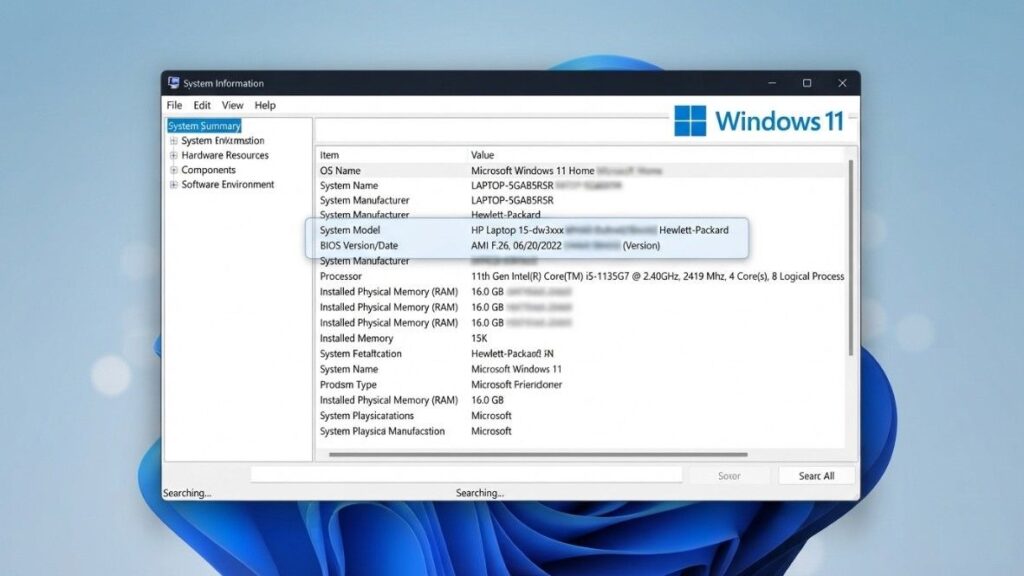
Open the manufacturer’s support page, identify the exact laptop, compare versions, and read every prerequisite and warning.
How to Decide: Do You Need to Update Laptop BIOS Safely?
If the evidence says yes, use a controlled process:
- Back up important files and save open work.
- Confirm the model, current BIOS version, and target version.
- Download only from the manufacturer or use its official update utility.
- Connect the original or approved AC adapter and ensure the battery is charged.
- Disconnect nonessential USB devices, docks, and external storage.
- Save the BitLocker recovery key and follow the manufacturer’s instructions on suspending protection.
- Close applications and do not interrupt, power off, or force-restart the laptop during flashing.
- After the update, verify the version and check boot order, Secure Boot, virtualization, fan, and charging settings.
Dell’s current BIOS and UEFI update guidance recommends stable AC power, closing programs, disconnecting peripherals, backing up data, and handling BitLocker before the update. Other brands may use different tools or menus, so apply the equivalent instructions from your own manufacturer.
How Long Does a BIOS Update Take?
The flashing stage often finishes within several minutes, but restarts or embedded-controller updates can extend the process. Allow 20–30 minutes and do not assume failure because the screen stays dark briefly. If progress stops unusually long, check the manufacturer’s recovery instructions from another device before forcing a shutdown.
Is Updating BIOS Worth the Risk?
The risk is justified when the expected benefit is specific and documented. A critical security fix, confirmed boot problem, required hardware support, or manufacturer-directed repair provides a clear reason. A vague hope of better speed does not.
Before deciding do you need to update laptop BIOS, ask two questions: Do the release notes describe your model or problem, and can you follow the official process with stable power, a backup, and recovery information? Two yes answers usually support updating; otherwise, investigate first.
FAQs
Is it recommended to update laptop BIOS regularly?
No fixed monthly schedule is needed. Install updates when they address an applicable security, compatibility, stability, or hardware issue.
What happens if I do not update my BIOS?
A stable laptop may continue normally, but you could miss a security correction or model-specific fix.
Can I update the BIOS in my laptop myself?
Yes, using the manufacturer’s supported method. Managed, damaged, or power-unstable laptops are better handled by IT or an authorized repair provider.
Do you need to update laptop BIOS for Windows 11?
For most people asking do you need to update laptop bios for Windows 11, the answer is not always. Windows 11 needs UEFI, Secure Boot capability, and TPM 2.0, but compatible laptops may only require settings to be enabled. Update only when the manufacturer says a newer version is needed or improves compatibility.
How do I know whether a BIOS download is genuine?
Use the manufacturer’s support page or official utility, match the exact model, and avoid third-party archives.
Can a BIOS update damage a laptop?
An interrupted, corrupted, or incorrect firmware flash can leave the laptop unable to boot. Stable power, the correct file, and the official procedure substantially reduce the risk but cannot make it zero.
Conclusion
The practical answer to do you need to update laptop bios is based on evidence, not version numbers. Update when the manufacturer identifies a critical security correction, a fix for your actual symptoms, required hardware support, Windows 11 compatibility work, or another model-specific improvement. Leave a stable system alone when the release offers no relevant benefit.
Before proceeding, verify the exact model and current version, read the complete release notes, back up your files, secure the BitLocker recovery key, and keep the laptop connected to dependable power. That approach gives you the benefit of necessary firmware fixes without turning an optional update into an avoidable repair.







1 thought on “Do You Need to Update Laptop BIOS? 7 Signs You Should Know”
Pingback: Will My Laptop Run This Game? A Step-by-Step Check