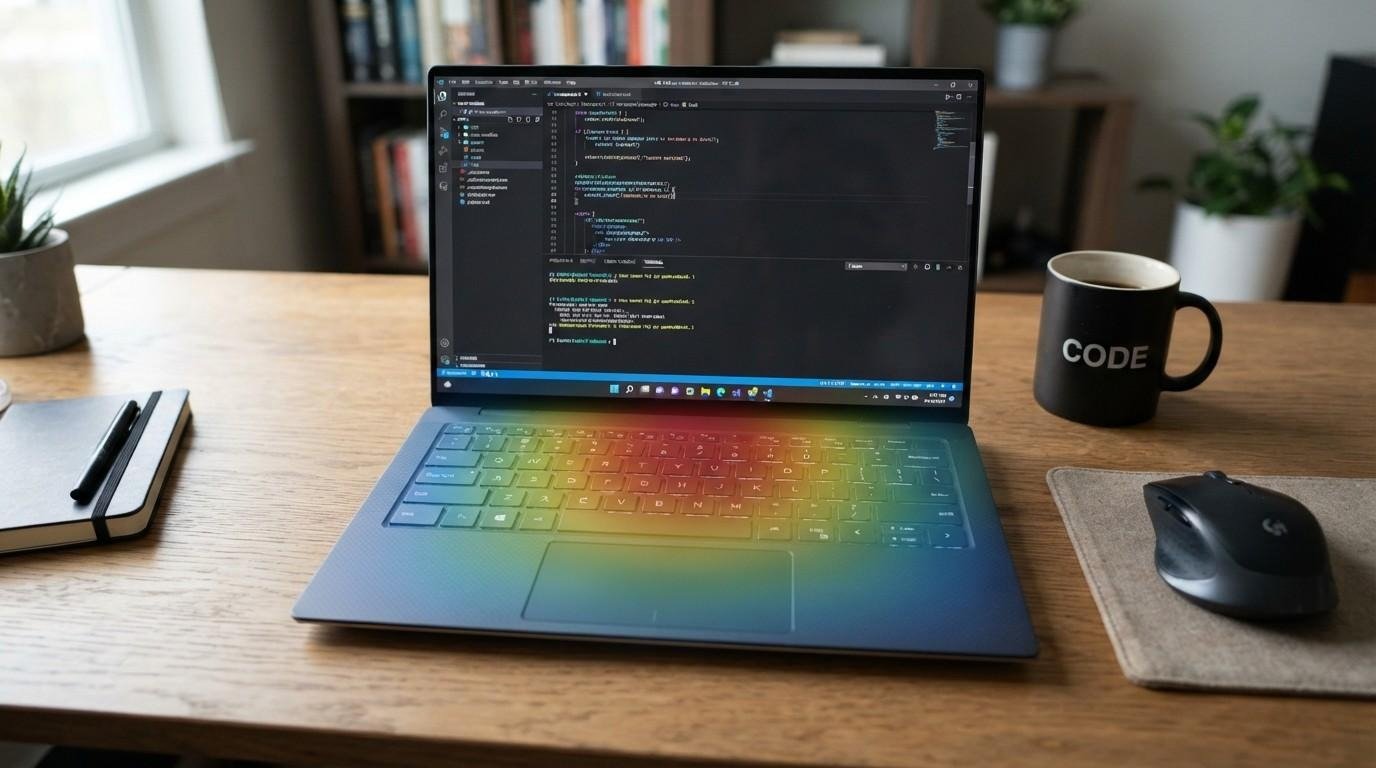
Has the sound of your laptop fan become louder than usual lately? Maybe the keyboard feels warm, or your laptop starts slowing down when you’re gaming or on a video call. Checking the temperature can help you find out whether heat is actually causing the problem. Fortunately, you don’t need any technical knowledge to check it. Usually, all you need is a free temperature monitoring tool and a few minutes to get a clear reading. In this guide, we’ll look at some of the easiest ways to check your laptop’s temperature on Windows 10 and Windows 11, including laptops from brands such as Dell.
How to Monitor Temperature on Laptop: Why It Matters
The internal parts of a laptop are packed together so tightly compared to desktop parts that they have very limited space for the cooling mechanisms. As a result, when a laptop is running demanding applications such as gaming, temperatures can rise quite sharply. It’s important, therefore, to keep an eye on your laptop’s internal temperature so that you can discover any potential problem caused by overheating (i.e., CPU throttling, where the CPU slows down to prevent overheating). You can also find out and deal with overheating issues while they are not so big yet that they can be the source of serious damage, e.g., causing the system to crash.
A laptop getting very hot is normal during highly demanding activities such as gaming or photo editing. However, if you notice that a simple activity like browsing the web or typing your document in Word causes the temperature to remain close to the CPU’s limit, you probably need to figure out why. Guessing based on the laptop’s ‘hotness’ can be misleading. The best practice would be to check the real temperature readings.
How Laptop Cooling Actually Works
The majority of laptops employ small fans, some heat pipes, and a heat sink as parts of the cooling system. They basically act together to transport heated air away from the CPU and GPU towards the exhaust vents. Over time, these cooling components can become blocked with dust, and your laptop overheating could be the result if you’re using it on a bed or blanket because that would block the airflow. On older computers, thermal paste between the processor and the heat sink can also deteriorate over time.
Temperatures of laptops can vary rather quickly. It’s completely possible that during web surfing, the temperature of your CPU is at around 40°C, and after you open up the game, the temperature can go over 80°C. For this reason, relying only on how hot the touch to the outside of the laptop is, in order to judge the internal temperature, can be a pretty faulty method of doing so. Monitoring software will provide you with a much more precise reading.
How to Check the Temperature of a Laptop in Task Manager (And Why It Doesn’t Work)
Many users first look in Windows Task Manager when they want to check their laptop’s temperature. However, Task Manager doesn’t normally show CPU temperature. The Performance tab does show information such as CPU usage, clock speed, memory, and disk activity. On some computers, you may also see GPU temperature, but CPU temperature isn’t available there on Windows 10 or Windows 11. Microsoft’s own support community confirms that the default CPU temperature function is not included in Windows 11, and that GPU temperature only appears because of the graphics driver installed.
So, if you want to see your CPU temperature, you’ll need a dedicated monitoring tool. These programmes can read the temperature sensors built into your processor and show you the current readings.
Best Free Tools to Monitor Temperature on Laptop
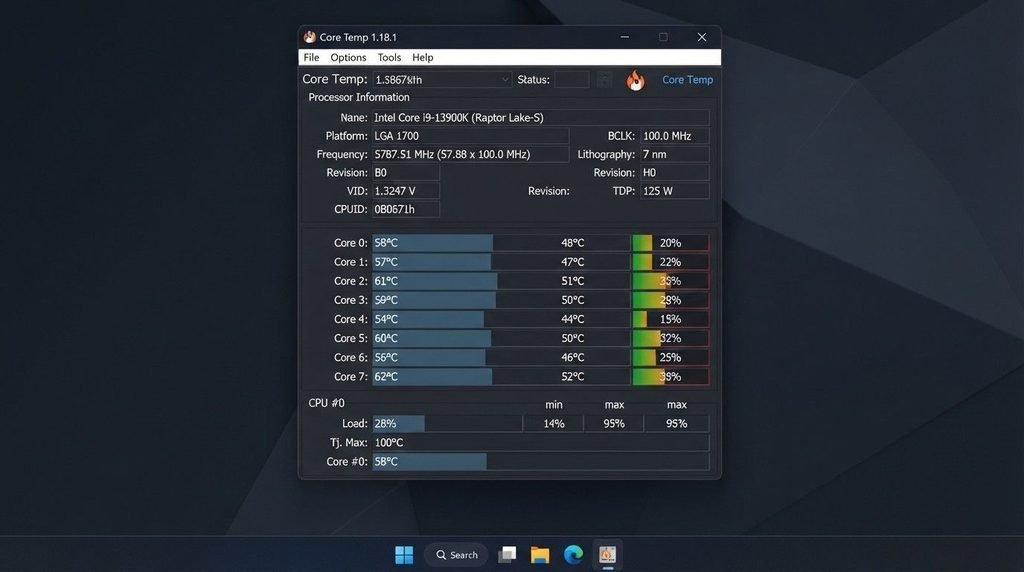
You have access to a variety of tools from which you can check the temperatures of your laptop’s internal components. A good choice mainly depends on the types and amount of information that you want to get. If you’re just looking for the current CPU temperature, Core Temp may be the most suitable tool for you. On the other hand, to have an overview of all components (especially CPU & GPU, and so on), HWMonitor or HWiNFO can be your choice.
Core Temp
If you just need the CPU temperature, start with Core Temp; it is lightweight software. It is a real-time display of the temps from each CPU core, so the system is not slowed by the program running. You will be given a reading straightaway after installing the program, which is an added benefit. Also, with Core Temp installed, you are able to keep an eye on the current temperature from the system tray. You will probably find the interface quite simple to understand, especially if you’re new to temperature monitoring.
HWMonitor
Beyond core CPU and GPU temps, HWMonitor reads temps of other computer hardware parts such as hard drives, motherboards, and cooling fan speeds and voltages. So it might be a bit overkill if your sole concern is to know the laptop is getting hot and the laptop is working fine, but on the other hand, if the problem of the laptop overheating is the only thing that you are trying to figure out, HWMonitor can be a great companion in case you need the temp of every component or to get more detailed information such as voltages, fan speeds, etc. The downside of this method is that HWMONITOR will take up much more memory space than Core Temp.
HWiNFO and Manufacturer Utilities
The use of HWiNFO might be more suitable for a user who is seeking detailed and technical information about a given system. If you want to save temperature data and review it later to look for heating trends, HWiNFO has a built-in feature that lets you do just that. Furthermore, if you are a fan of the factory-installed software, you may find that some laptop makers such as Dell, Lenovo, and HP have come up with their respective utilities, which can show very basic thermal or fan-health information as a first check even before installing anything else.
How to Monitor Temperature on Laptop Windows 10 and Windows 11
The steps are almost the same on Windows 10 and Windows 11:
Step 1: Download Core Temp or HWMonitor from the developer’s official website. Avoid random third-party download sites.
Step 2: Install the program and pay attention during setup in case the installer offers any additional software.
Step 3: Open the program and look at the live temperature readings.
Step 4: Start a demanding task, such as playing a game, exporting a video, or opening several resource-heavy applications.
Step 5: Watch the temperature as the laptop works and note how high it goes.
Step 6: Compare the reading with the maximum temperature listed for your specific processor.
These steps work on both newer Windows 11 laptops and older Windows 10 machines. Since Windows doesn’t provide a built-in CPU temperature reading, you’ll need a third-party monitoring tool.
How to Check Temperature on Dell, HP, and Lenovo Laptops
Despite this, you can still use temperature-checking software, such as Core Temp or HWMonitor, with your Dell laptop to measure the heat level. However, it might happen that certain Dell models will also allow access to thermal or hardware information via their BIOS/UEFI setup. Other brands, including HP and Lenovo, may provide their own hardware utilities, but these tend to center around fan controls, performance modes, or battery maintenance more than thermal readings. As a matter of fact, for most practical purposes, a monitoring application that can get precise readings of temperatures is an easier approach.
Laptop Checking Temperatures Online: Can This Work?
On some webpages you will see claims of being able to check your laptop’s temperatures online, but browsers have limited abilities and cannot really go inside your computer to read the sensors. So if you need exact, live readings, you have to have a program running locally on your system.
There are, however, web-based information pages that use your computer’s specifications as reported by itself to estimate, which is quite a different thing. You can be assured of being accurate with your laptop’s temperature by checking through local monitoring software only. That said, if a website says that they have the magic of knowing your laptop’s heat level just by you visiting a page, you may safely treat such a claim as questionable at worst or overly optimistic at best.
Make Laptop Temperature on Screen Always Visible
As a regular temperature checker, you might get used to launching the same monitoring software each and every time, right?
Some monitoring software programs will, however, show live readings in the system tray if you allow it to operate in the background, which means you could see them without having to bring up the full user interface each time. Alternatively, some of them will offer the option to create an on-screen display, which is especially useful when you’re full-screen gaming because it helps you keep the temperature level of the system in your view to make sure it doesn’t reach thermal limits over a long session of running a very intense game.
Signs Your Laptop Is Actually Running Too Hot
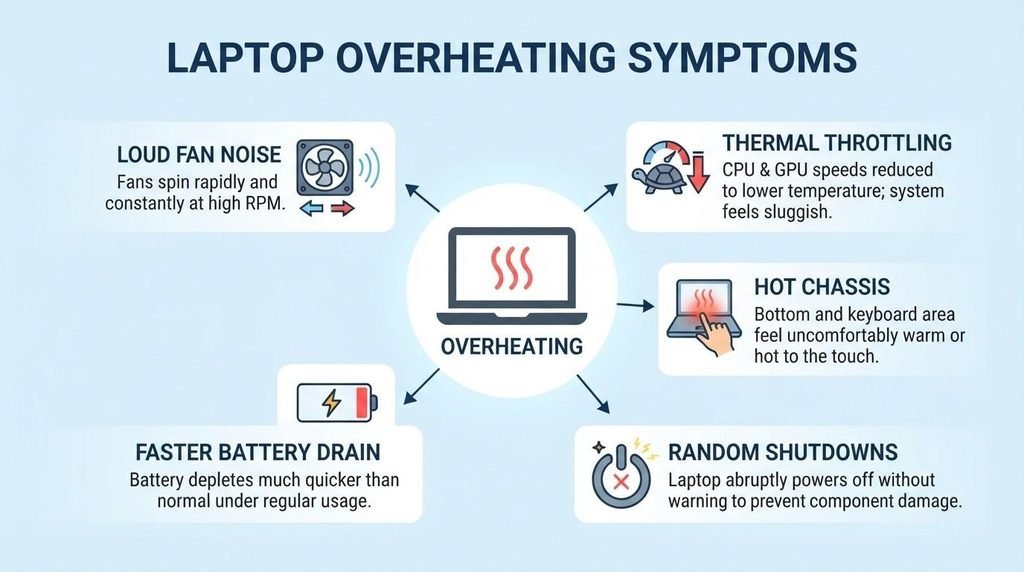
Temperature software gives you the clearest answer, but you can also look out for a few common signs that your laptop may be getting too hot:
- The fan runs at full speed even during light tasks like browsing or word processing.
- Performance noticeably drops mid-session, then recovers after the laptop has been idle for a few minutes (a classic sign of thermal throttling).
- The keyboard deck or bottom panel becomes uncomfortable to touch, not just warm.
- Random shutdowns or restarts happen during demanding tasks but not lighter ones.
- The battery drains faster than usual while plugged in and under load.
One of these symptoms doesn’t necessarily mean your laptop is overheating. However, if you’re noticing several of them at the same time, it’s a good idea to check the actual temperature with a monitoring tool. Intel notes that the maximum junction temperature limit varies by product and typically falls between 100°C and 110°C, and that this figure is available on the processor’s product specification page.
What to Do if Monitoring Shows High Temperatures
If your laptop is consistently reaching high temperatures during normal use, don’t panic. There are a few simple things you can try before considering more serious repairs:
- Use compressed air to clear dust from the intake vents, which is often the single biggest cause of a gradual temperature increase over a laptop’s lifespan.
- Elevate the laptop or place it on a hard, flat surface so the bottom vents aren’t blocked by bedding or a lap.
- Close background applications that consume CPU cycles unnecessarily, which you can spot in Task Manager’s Performance tab even though it won’t show temperature directly.
- Consider a cooling pad with its own fans if the laptop consistently runs hot during everyday use rather than only under extreme load — our guide to laptop cooling pads walks through what actually improves airflow versus what’s mostly cosmetic.
If the problem keeps coming back, the cause may be dust buildup, blocked vents, or a cooling system that needs maintenance. Regular cleaning and basic maintenance can help prevent these issues from getting worse. Our laptop maintenance guide covers the cleaning and care habits that keep internal temperatures lower over the life of the device, rather than treating overheating as a one-time fix.
FAQs
Will it measure the temperature of my laptop by itself?
A temperature sensor comes built into the laptop, but the Windows interface generally does not show the CPU temperature even though it is there. You need to install temperature monitoring software if you want to get the readings – e.g Core Temp or HWMonitor.
What is the way to get the laptop temperature without acquiring too much technical knowledge?
Probably the simplest is to get Core Temp or HWMonitor from the official developer site, then open the executable, and most likely the program will be up and running so that you can check off what you want without changing many settings.
How to monitor temperature on laptop without installing extra software?
Not really. Task Manager doesn’t normally show CPU temperature, and a regular website can’t directly read your laptop’s internal temperature sensors. Some laptops may show a temperature reading in BIOS/UEFI, but that only reflects the temperature before Windows loads and isn’t as convenient as checking it inside Windows.
How to always have PC temperature in front of your eyes?
You can just let the monitoring program work in the background and only peek at the temperature from the system tray whenever you need to. Some of the monitoring software offer overlay features that allow you (e.g., gamers to view temperatures on the screen while immersed in full-screen games. A few of them even come with support for a variety of popular games, or they may offer a very general solution, just in case.
How to know that it is a laptop that is very hot and that it is not a normal situation of overheating?
The best way is to look at the maximum temperature specified by the processor manufacturer for the particular model of CPU and then to check how close the laptop gets to that limit. At the time of carrying out simple tasks such as browsing the Web or typing a document, the temperatures are generally at a lower level, and only when the CPU gets heavily loaded through demanding applications such as gaming or intensive video rendering is it expected for the temperature to be closer to the maximum limits.
Can temperature monitoring software make the laptop slower?
As a rule of thumb, the majority of temperature monitoring software is quite lightweight; therefore, running it in the background of the laptop will not noticeably affect the laptop’s performance.
Is it safe to download and run CoreTemp?
Core Temp has been around a good long time and has been widely accepted among users, so the program is quite reliable. To be safe, however, always get your downloads from the developers’ official site and refuse installation of any bundled software during setup.
Conclusion
Making sure that your laptop does not overheat is such a simple, yet effective way of identifying problems related to overheating. With just some temperature monitoring programs like Core Temp and HWMonitor, you can instantly get the readings of your laptop temperature when you are running Windows 10 or 11 systems. After you get to know what range of temperature levels your laptop normally maintains, detecting an abnormal heat level, loud fans, or a sudden decrease in processor speed becomes quite an easier task. In case the temperatures stay very high for a long time, start with simple things like the ones mentioned above: dust removal from the heatsinks, enhancement of airflow, and making sure that the laptop is placed on a flat, hard surface.