
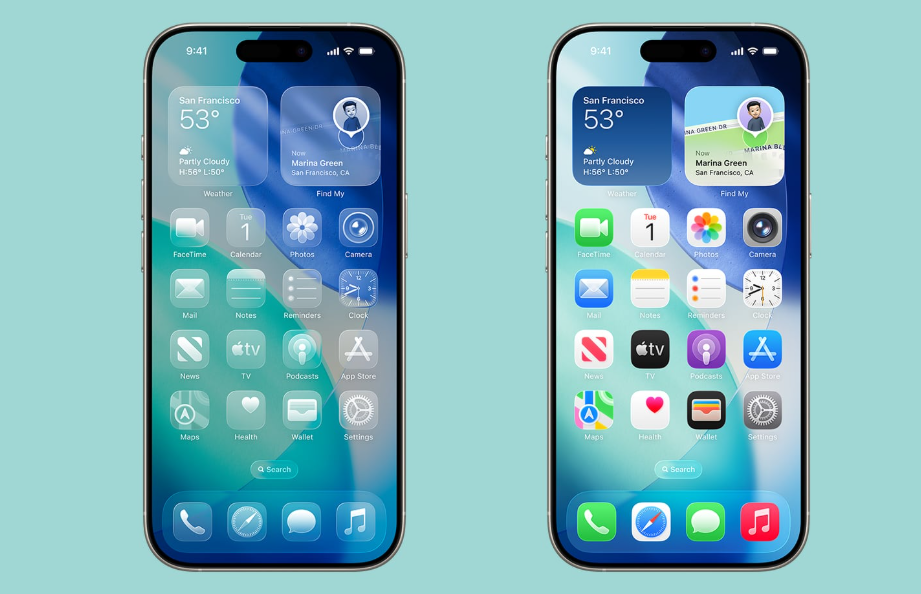
Imagine your iPhone home screen as the digital living room. It is the first thing you see when you get up. Usually, it is also the last thing you see before going to bed. You wouldn’t leave your living room covered with clutter, old mail, and random stuff. So, why do we let our digital spaces look that way?
Often, a messy phone can be a reason behind a messy mind as well. In 2026, digital wellness is no longer a trend; it has become a requirement. We are continually exposed to notifications and information, which is why it is important to have a place that gives us mental clarity and allows us to be productive. The moment you open your gadget, it should be like refreshing your lungs, not causing you more stress.
We have left behind the static grids of the early 2010s in an instant. Do you remember when moving an icon was the highest level of personalization? Nowadays, we have already gone way beyond merely changing wallpapers to have dynamic, AI-powered interfaces that practically live with us.
This manual aims at helping you get a little deeper. Here, we will focus on some deep iOS tweaking solutions that combine stunning looks with great usability. What do you think about making your device genuinely yours?
The Future is Now: iPhone Home Screens in 2026
It wasn’t just the tech inside our gadgets that underwent a drastic change. Enhanced neural processing that Apple already has in place allows your phone to anticipate your needs even before you realize them. So, the customization of your iPhone home screen is way beyond just the placement of icons; it is about the interaction of the operating system with you.
Predictive AI and the Fluid Interface
Initially, you used to swipe and look for your apps. However, nowadays, the predictive AI in the recent iOS updates does the hard work for you. It takes into account your habits, surroundings, and even biometrics to give you the right app at the right time.
Following your wake-up routine, your phone can easily understand that you want your meditation app, weather, and coffee machine controller to be on the top, literally for quick access.
As you step into your office, these apps, instead, disappear to give room to your email, Slack, and calendar. This so-called “fluid interface” means that your home screen is never a fixed entity. It is a living, breathing dashboard that evolves and adapts to the day you have.
Interactive Micro-Apps
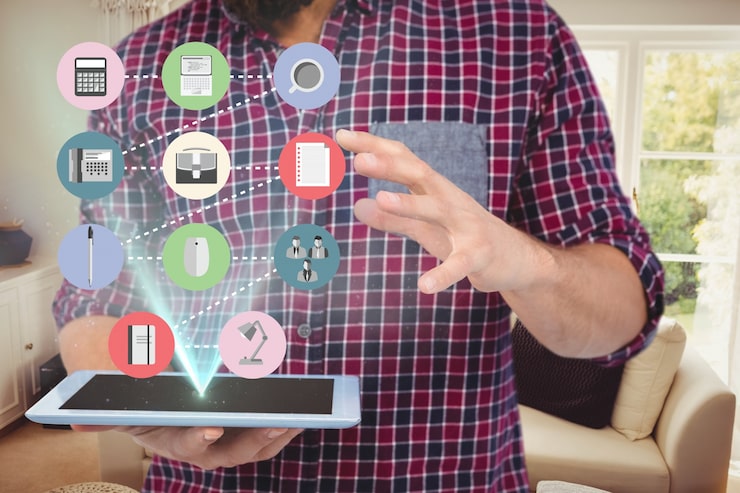
A few years ago, icons on a home screen were static and could only be used to launch apps. After that came widgets displaying various information. Nowadays, it’s possible to have interactive “micro-apps” right on your home screen. For instance, you can browse through your email inbox or check your tasks without entering the full app. This saves the time of opening and closing the app and keeps you less distracted, focused, and more productive.
AR Integration and Environmental Awareness
Perhaps the most thrilling aspect is the quiet implementation of Augmented Reality (AR) in wallpapers and widgets. Thanks to the advanced capacity of front sensors, your device’s wallpaper can even mirror the lighting of your environment.
Say you’re at a dimly lit café; then your home screen would cast soft, warm shadows. If you happen to be outside in bright sunlight, the interface adjusts itself by sharpening and increasing contrast automatically. It basically blends your device in with the surrounding environment.
Advanced Customization Techniques
AI is already capable of doing the majority of the heavy lifting, but by having a manual touch, you can express your individuality. This is how you can put iOS customization on fire.
Icon Aesthetics and Context-Aware Themes
The monotonous, boring rows of days are officially a thing of the past. Although it has been possible to change icons of apps for a few years, it is now a completely effortless, context-aware process. Based on the time of the day or the current setting, different icon packs can be utilized.
Let’s say you have a configuration where your icons are lively and full of colors during the day to keep you energized. Once it gets dark outside, your iPhone home screen switches to the “Noir” theme automatically—dark, monochromatic icons that not only decrease eye strain but also send a signal to your brain that it is time to relax. This is more than just aesthetics; it is a visual clue that plays an important part in the regulation of the circadian rhythm.
Next-Gen Widget Integration
Widgets have come a long way from being only clocks to functioning as sophisticated tools. In 2026, the most productive users rely on the use of “stackable” widgets that change based on your location.
Meanwhile, if you are shopping at your local grocery store, the “Life Stack” widget will display your shopping list first and foremost. Once you are at the gym, your workout ticket and lifting log will be shown as you open the widget. You won’t have to make a move—the phone just knows. Such an intelligent home screen that is able to anticipate and act in advance becomes more of a personal assistant.
Smart Stacks 2.0
The main thing that is always getting in the way of your productivity is clutter. Smart Stacks 2.0 helps you put your apps in categories that function as folders and get hidden automatically when you don’t use them. An example can be a “Finance” folder in which you may put your banking and budgeting apps.
You will be able to control this folder in such a way that it gets displayed on your home screen only on your payday or when you are physically at a bank branch. Apart from that, it will stay completely out of sight, thereby maintaining your clean and minimalist interface.
Top iPhone Home Screen Hacks to Transform Your Interface
If you are looking to unlock the full potential of your device, then it is time to deploy some ingenious tactics. Employing these iPhone hacks will make it appear that you have two completely different phones, one for the tech-savvy and the other for the regular user.
The “Invisible” Home Screen Layout
With phones getting bigger and bigger, our fingers haven’t really grown. Trying to access the top-left corner of the screen to open an app with one hand is no fun, ergonomically speaking. The way out is the “invisible” layout.
By using transparent widget services, the screen will show you two blank spaces arranged vertically in the left half of your home screen. The iPhone will then naturally put your active icons in the bottom right corner.
- Install a transparency app: Try finding apps that allow “clear spaces” or “transparent widgets.”
- Take a wallpaper screenshot: Open the home screen in “jiggle mode” and swipe to a blank page. Capture a screenshot.
- Make your widgets: Put the screenshot in the app and then design widgets that perfectly blend in with the wallpaper.
- Arrange and press: Move the “empty” widgets over to the top area of your home screen.
It’s all about positioning your most frequently used apps perfectly in the “thumb zone,” so that you can enjoy one-handed usage.
Focus Mode Automations
Focus Modes are a great weapon if you want to separate your professional and personal life. You can even have completely different “modes” for home screens.
- Work Mode: There are only work-related tools on this screen—Teams, Zoom, Calendar, and Notes. No social media. No games. When you switch (or when it turns on automatically at 9 AM) to work mode, all the distractions are gone.
- Weekend Mode: No work-related applications. They are replaced by detectors of good vibes, such as camera apps, social media, music players, and travel guides.
- Travel Mode: This mode is switched on when you get to an airport. Prioritize your boarding pass, Uber, translation apps, and hotel booking details on the screen.
Besides avoiding work emails, segmenting apps is also a great way to calm your overloaded brain.
Custom Shortcuts for Complex Tasks
Featuring a wide range of customization options, the Shortcuts app is the heart of automation that is very advanced. A single icon on your home screen can be used to initiate a series of events.
Take, for instance, an icon named “Good Morning” which will serve you a whole range of different treats just by one tap:
- It switches your smart lights on.
- It buzzes your first calendar meeting.
- It lets you know the weather.
- It launches your “Wake Up” play queue.
Such a simple thing can help you go through your morning quickly and save a lot of time.
Maximizing User Experience (UX)
A beautiful home screen is of no use if it is difficult to navigate. Design is a big part of not just how something looks but also how well it works. Let me share with you some methods of refining your iPhone home screen UX.
Accessibility First
It hardly makes sense to look for your battery percentage through a microscope. You can actually achieve a really nice, very functional look by simply increasing the size of the text or making the contrast more prominent. Go to the settings and try bold text. It really helps the icon labels stand out and it can make it easier to see in direct sunlight.
A high-contrast environment is definitely a plus for those who have trouble with their vision but it also serves as an aid for all of us by making it easier to quickly locate a needed app.
Mastering the “Thumb Zone”
We have already talked about the “Thumb Zone” in the section on invisible layouts and we cannot stress enough the importance of it. Think of this as the area on your phone screen that is reachable by the thumb of the hand in which you are holding the phone. Keeping this tip in mind going forward will greatly help you in getting a more ergonomic setup.
- Green Zone (Bottom Third): Most frequently used apps (Messages, Phone, Browser) go here.
- Yellow Zone (Middle): Apps that are used less often can be stored here (Social Media, Camera).
- Red Zone (Top Third): This area should be left empty or be used for non-interactive widgets such as calendar or weather.
Personalization vs. Clutter
With the introduction of the App Library, it became easier for us to hide the apps that we do not use. Yet, it is common to see that the majority of the users still keep everything on their main screens. Here is a simple guide for your iPhone home screen: “If you don’t use the app at least once a day, it doesn’t merit a spot on your first page.”
That will leave you with a highly curated and clean home screen. Go ahead and put whatever the system decides is unnecessary altogether into the App Library or on your secondary pages. Before you know it, your prime digital real estate will be inviolable and reserved only for the tools that genuinely help your everyday existence.
Essential Tools and Apps for Customization
In order to recreate the looks in the gallery above, you will need some tools. No doubt iOS native features are strong helpers at your service, but third-party apps allow you to reach beyond the limits.
Widget Creators
Among such apps, Widgetsmith (or its 2026 descendants) is still the club leader. You can make your own kind of data display there. Everything – font, color, border – can be customized. It can be a calendar showing only weekends or a weather widget which playfully insults you when it rains.
Icon Studios
For total control addicts, Icon Studio apps allow the creation of icons by hand. One could use pictures, hex codes for a perfect match of the brand colors, or create the line art themselves. The new-look portfolio device will be an artist’s creative output extension.
Community Resources
The ability to customize is huge thus the community is huge too.
- Reddit: iOS setup subreddits are an utter source of ideas.
- Pinterest: “2026 iPhone aesthetic” will get you color schemes as well as layout inspiration.
- Discord: A lot of server admins share the setup templates with the members there, so you can get downloads of full “looks” in just a few seconds.
Real-World Case Studies: Inspiration Gallery
Out of ideas? These are three profiles with separate styles that might inspire you with your setup.
The Minimalist
This user is deeply focused on reducing distractions. They opted for a simple matte gray wallpaper. A script removes all icon labels resulting in a screen with just abstract white symbols. No dock appears in sight. Only four icons are within the “thumb zone.” This stark, clean, and highly functional home screen also features a little text widget at the top, showing the day of the week only.
The Power User
The panel of this phone reminds one of a spaceship cockpit. It is jam-packed with stuff, a data fan’s dream. In the upper half of the home screen, there is a giant widget stack showing live stock tickers, server status reports for their business, and a very detailed calendar. Consisting of workflow folders, leftovers from the bottom half of the screen are stacked “Content Creation,” “Development,” and “Communication.” Each and every pixel has a purpose.
The Aesthetic Lover
The phone is a fashion accessory to this user. Color plays a major role in their setup. A lavender phone case is mirrored by their digital interface perfectly. They have photo widgets of a big size being used for displaying art or personal memories. Icons appear in pastel and rounded versions. It’s a gentle, more welcoming way to tech that prioritizes feelings rather than just data.
Expert Insight: “The greatest home screen isn’t necessarily the one which has most widgets; instead, it’s the one that simply gets out of your way. Spend more than three seconds seeking an app and you are thereby a failed design!” — Jordan K., Senior UI Designer
Designing Your Digital Sanctuary
Lots has been said about the predictive AI, and the minutiae of transparent widgets along the way. The most important thing to remember is that your phone should serve you and not the other way round. By utilizing iPhone hacks like Focus Modes and Shortcuts, and adopting the latest trend of iOS customization, a boring-to-look-at device can be transformed into an all-powerful, highly personalized gadget.
That said, a fabulous iPhone home screen is not a “hire it and forget it” affair. Apps evolve, so do your needs and style. Give yourself a monthly “digital declutter” workout. Get rid of apps you are not using, remove ineffective widgets, and change your wallpaper to keep the joy of freshness.
Why not attempt one of these methods right now? It can be as simple as starting your day by cleaning off the top row of apps or setting up a Focus Mode for your commute. When you have your setup ready, snap a screenshot and share your work on social media. Don’t forget to tag us—we are more than eager to see what kind of stuff you come up with!
FAQs
1. Why is home screen customization important in 2026?
It improves focus, reduces stress, and helps keep your digital life organized.
2. How does AI help the iPhone home screen?
AI shows the right apps and widgets based on your habits, time, and location.
3. What are interactive micro-apps?
They let you do small tasks like checking emails or reminders without opening full apps.
4. How do Focus Modes help users?
They create separate screens for work, travel, or personal time to avoid distractions.
5. What is the biggest mistake users make?
Keeping too many apps on the main screen creates clutter and confusion.
Conclusion:
Your iPhone home screen is no longer just a grid of apps—it is a reflection of your lifestyle, priorities, and mental space. In 2026, smart customization powered by AI, Focus Modes, widgets, and shortcuts allows your device to work with you, not against you.
By reducing clutter, prioritizing accessibility, and designing around real habits, you can transform your phone into a true digital sanctuary. The key is balance: personalization without overload, beauty without distraction, and productivity without stress.
Start small. Clean one screen. Activate one Focus Mode. Over time, these tiny changes can completely reshape how you interact with technology—and how technology supports your daily life.