It is the quintessential digital nightmare: You are in a concrete building or at a friend’s house in the countryside, and the signal bars on your phone indicate no service just as you have to make a call. You look at your screen, notice the WiFi icon, and try to make a call. Meanwhile, no answer. The call fails. The feature that is supposed to rescue you at this exact moment has broken down.
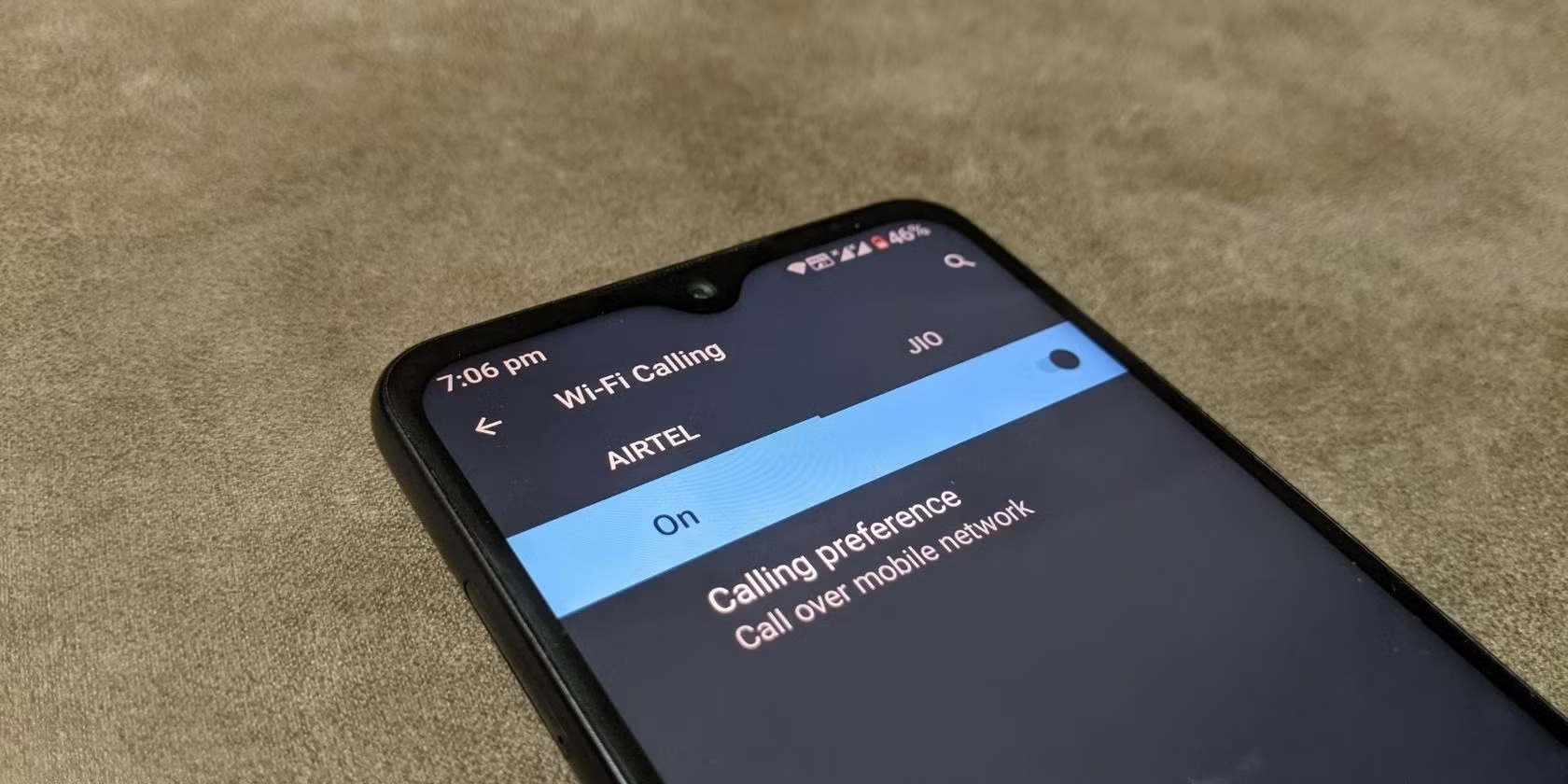
WiFi calling is an amazing feature that lets your smartphone switch voice calls and text messages over a wireless internet connection instead of the cellular towers. It can come in very handy where the reception is very weak or spotty. However, even after the extensive deployment of 6G networks and ultra-smart devices in 2026, the technology still faces some problems. Experiencing WiFi calling not working is a pain that remains regardless of our technological progress.
So why does this keep happening, even though our phones are more intelligent than ever? The truth is that the more complicated our networks are, the more factors we need to take into consideration. Among other things, router firewalls and carrier provisioning errors are examples of a dozen invisible handshakes that need to occur for the call to be successful.
This step-by-step guide is just what you need to fix WiFi issues. It doesn’t matter whether you have the latest iPhone or the newest Android device; we’ll make sure through the whole process, from checking basic settings to applying advanced network solutions. By the time you finish reading this post, you will be able to repair the WiFi calling not working bug and be ready to connect when you need it.
WiFi Calling Not Working?
Let’s figure out together what may have caused the issues.
Weak WiFi Signal
Often, the simplest answer is the correct one. WiFi calling is allowed only when there is a reasonably strong and constant internet connection. If you are somewhat far from the router and there is network congestion with three other people streaming 8K videos, then the bandwidth might not suffice for voice data. When the network solution in your home is not powerful enough, the call will get robotic, drop frequently, or refuse to connect at all.
Software Glitches
Basically, a smartphone is a small portable computer and, like any other computer, it gets overfilled with digital \”junk\”. An obsolete operating system can cause compatibility issues with updated network protocols. In the same way, if your carrier settings are out of date, your phone may still be connecting using instructions that are no longer valid.
Router Settings
Perhaps the handset isn’t the culprit this time, but your router.
Your router has a firewall to keep out unauthorized traffic. Occasionally, these firewalls are excessively aggressive and block the very specific ports required for Voice over WiFi (VoWiFi) to work.
SIM Card Issues
We mostly overlook the physical SIM card (or an eSIM profile). The physical SIM allows us to access the carrier’s network. A sixteen-year-old, heavy usage, very dirty physical SIM may have trouble authenticating your account to award you VoWiFi capabilities.
Basic Troubleshooting: The First Line of Defense
What if we started with very simple operations? Most cases of WiFi calling not working are solved by these simple hacks, which require no knowledge of network engineering.
For iOS Users
Apple users are usually very satisfied with their ecosystem; however, it is not at all times 100% perfect, and sometimes, glitches happen. Here is how to fix them.
1. Toggle Airplane Mode. It is the phone radios that we are rebooting gently by doing this action. Pull the control center down and tap on the Airplane button. After that, wait ten seconds and turn it off. Your device disconnects from all signals and then reconnects freshly and cleanly to both the WiFi and the cellular.
2. Check Your Settings. Nothing is more annoying than losing your WiFi calling because of an update or a mistake by finger. Here by few clicks, you can check your WiFi calling settings:
- Settings.
- Phone.
- WiFi Calling.
- You should see a green slider next to WiFi Calling on this iPhone. If it is already on, then just toggle it off for a couple of seconds and then bring it back on. This will force a re-registration with the network.
3. Reset Network Settings. With this method, you delete all old data and repositories that could be the source of your WiFi calling not working problem internally.
- Settings > General > Transfer or Reset iPhone.
- Reset > Reset Network Settings.
- After that, your phone will restart. When you need to re-enter your WiFi password, it is a sign that the old connection cache has been cleared. This often fixes deeply embedded bugs, causing the WiFi calling not working error.
For Android Users
The menus on Android can differ a bit depending on which manufacturer you have (Samsung, Google Pixel, etc.), but everything else is pretty much the same.
1. Verify Carrier Support. It is always a good idea to make sure that your particular device model is going to support WiFi calling on your specific carrier. Since 2026, practically all phones have supported this feature; however, some unlocked international models or budget phones might have limitations. To be sure, do a quick research on the carrier’s website.
2. Clear Cache for Phone Services. Android apps save little bits of data on your device so that they can launch and function more quickly. However, this data can also become corrupted.
- Settings >Apps.
- “See all apps” > look for Phone or Phone Services.
- Storage & cache
- Clear cache. This will not delete your contacts or history of calls, but it will clear temporary files that, in some cases, are causing issues.
3. Boot into Safe Mode. It should not be a problem if you want to uninstall the last installed two or three apps, but it is, in fact, more than inconvenient in case you only discover the true perpetrator after some time. With Safe Mode, you can quickly check if the problem is caused by the newly installed app. To manually find out which one it is, you have to uninstall one by one. Safe Mode temporarily disables all third-party apps and helps you to decide whether the reason for your problem is a third-party app or not.
Advanced Solutions for Persistent Issues
Have you done all the basics and still have \”call failed\” on your screen? Now, you have to be ready to go underground for hidden mechanisms, precisely between your device and the network, to come up with solutions for these advanced issues.
Adjusting DNS Settings
The DNS (Domain Name System) is what can be compared to the telephone directory of the internet. In most cases your device works with the DNS server assigned to your ISP by default. At times, the ISP servers can be slow, or they don’t resolve the addresses required for your Voice over WiFi connection.
A fairly quick solution to that is changing your DNS to a well-known, fast, and, more importantly, open public server.
- iPhone: Settings > WiFi > Tap the “i” button next to the network you are connected to > Scroll down to Configure DNS > Change from Automatic to Manual > Add servers such as Google (8.8.8.8) or Cloudflare (1.1.1.1).
- Android: Settings > Network & internet > Private DNS > Choose Private DNS provider hostname > Enter dns. google or 1dot1dot1dot1.cloudflare-dns.com.
This minor modification will redirect your request to another server and thus eliminate your WiFi calling problem.
Carrier Settings Update
Besides your primary system updates, iOS or Android, you can also get carrier updates. They usually are pretty small and are intended to update calling, messaging, and data connectivity-related files.
- iOS: Settings > General > About. When an update becomes available, a pop-up asking you to install the update will appear shortly after.
- Android: Devices typically have the option in Settings > About phone, but occasionally it is integrated into the carrier’s own application on your device.
SIM Card Reseating
If you use a physical SIM card, switch off your phone first. Use a SIM ejection tool (or a paperclip) to push the tray out. On the card, inspect the gold contacts if you see any dirt or scratches. Gently wipe it with a microfiber cloth and then reinsert your SIM card correctly. After that, turn the phone on again. The physical ‘reseat’ is done so as to make very good contact between the phone and the SIM card, so that it can then successfully authenticate your account for VoWiFi.
Optimizing Your Home Network for Seamless Calls

Sometimes, when your phone is okay, it is your home network that isn’t set up properly for voice traffic.
Prioritize Traffic with QoS
Quality of Service (QoS) is a feature found in many of today’s routers. It helps you to instruct the router which traffic should be prioritized. Suppose that a household member is downloading a new game, the voice data from your house call may be the one to get deprived of the needed bandwidth. You have to log into your router’s administrative panel (usually by typing 192.168.1.1 or 192.168.0.1 in the address bar of the web browser). Locate QoS settings and give priority to Voice or a specific MAC address of your phone. This way, your calls go through the VIP lane on the information superhighway.
Firmware Updates
Reviewing firmware is a process whereby router makers add patches to existing security gaps and make improvements to the device. A router that has not been updated for a long time may not be able to handle the latest voice over WiFi protocols. Check your router’s app or admin page to ensure you are running the latest version. This is a very important step in building strong network solutions for your home.
Band Steering: 2.4GHz vs. 5GHz/6GHz
Normally, the Wi-Fi router offers two or more wireless bands for connecting devices.
- 2.4GHz: It is a slower band but more reliable as the signal travels through obstacles such as walls and floors better.
- 5GHz/6GHz: These bands provide higher speeds, but their range is limited. If the router is located far away from you, your smartphone might be really struggling to hold the 5GHz signal, which keeps dropping. Another solution is to manually set your phone to use the 2.4GHz band when you are in a different room from the router. Even the voice data is often more stable this way, allowing you to evade the WiFi calling not working error.
When to Call the Pros: Contacting Your Service Provider
While you have been torturing your phone in all sorts of ways, such as toggling, resetting, and reconfiguring, the problem still persists. If this is the case, then the issue is most likely to be beyond your control.
Provisioning Issues
At the time when you are signing up for a plan, a carrier is doing the process of provisioning your account. In simple terms, it is them checking off the boxes in their system to enable such features as hotspot, voicemail, and WiFi calling on your account. Sometimes, for a brief period of time, there may be a glitch on their end, and the box for the feature will be unchecked. Once you call the customer support, they will run a “refresh” of your connection to the cell towers, and the feature will be re-enabled.
Outages
It might be that your local ISP is having issues, or the mobile carrier is running the servers that handle WiFi offloading through maintenance. You can check if any ISP or local carrier outages have been reported by other users in your area by visiting websites such as Downdetector, for example.
Hardware Defects
There are rare cases when an internal antenna or WiFi chip in the phone might be broken. WiFi calling works on any device in my house except mine, and I did a factory reset – it’s a hardware repair that I must look for, right? This person is trying to find quick answers by looking at the top search results.
The Future of WiFi Calling
When we look into the future beyond 2026, the differences between “cellular” and “WiFi” are getting less clear. The world is evolving towards “connectivity everywhere.”
The new technologies being developed are all about seamless handoffs. At the moment, if you move outside your house while making a WiFi call, there is usually a tiny hiccup during the switch to 5G. New protocols, however, are intended to make this unnoticeable.
And that’s not all, AI will be increasingly important too. Soon, your device will be able to detect a signal drop ahead of time. Based on your movement and the historical signal data, AI will make the switch to the strongest network – cellular, WiFi, or even satellite in low earth orbit – before the problem arises, so that you do not experience WiFi calling not working again.
Ensuring Reliable Communication in 2026
The decade from now will be the era of the double miracle of connectivity. And can we expect it to be perfect? When you find your WiFi calling not working, it can feel like a step backward. By systematically checking the settings, optimizing your home network, and knowing when to turn for help, you can overcome the majority of these issues.
Remember the steps:
- Check the basics (Airplane mode, toggles).
- Update your software and carrier settings.
- Make sure your router isn’t blocking the connection.
- Reach out to your carrier as a last resort.
Don’t allow a bad signal to mess up your day or a great conversation to be lost forever. Take charge of your connection.
FAQs
1. Why is my WiFi calling not working even with a strong internet connection?
Even with good WiFi, issues can occur due to software glitches, outdated carrier settings, or your router blocking specific VoWiFi ports. Checking both device and network settings often resolves this.
2. How can I fix WiFi calling issues on iPhone?
Try toggling Airplane Mode, checking WiFi Calling settings, or resetting network settings. These steps refresh your phone’s connection and resolve most software-related problems.
3. What should Android users do if WiFi calling fails?
Verify carrier support, clear the cache for Phone Services, or boot into Safe Mode to check for third-party app interference. Updating software and carrier settings can also help.
4. Can router settings affect WiFi calling?
Yes. Firewalls, QoS settings, and band selection (2.4GHz vs. 5/6GHz) can affect call quality. Prioritizing voice traffic and updating router firmware often improves stability.
5. When should I contact my carrier for WiFi calling problems?
Reach out if basic and advanced troubleshooting fail. Issues like provisioning errors, outages, or rare hardware defects may require carrier intervention to restore WiFi calling functionality.
Conclusion
WiFi calling is an essential feature for staying connected, especially in areas with weak cellular signals. Most issues can be resolved by checking device settings, optimizing your router, and keeping software and carrier settings updated. When problems persist, your carrier can help fix provisioning errors or network outages. By following these steps, you can ensure smooth, reliable calls in 2026 and beyond, making dropped or failed calls a thing of the past.